Manipulator★
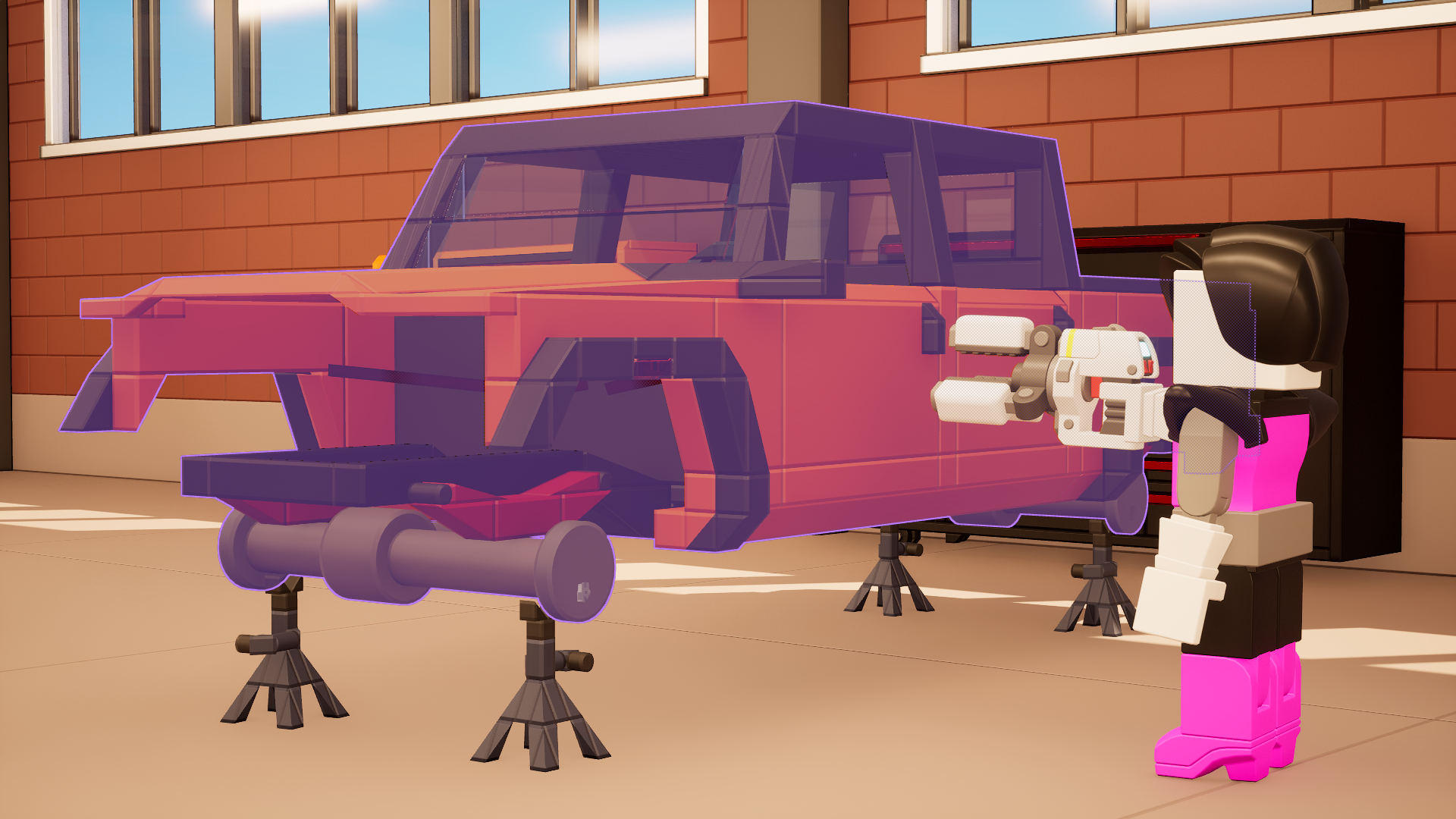
The Manipulator is the main tool to interact with entities aside from just grabbing with your hands. This tool can grab everything, from your little vehicle to the boat with a size rivaling the Titanic.
You can freeze entities, which will restrict their movement for decoration in places where you need entities as a way to introduce props in the scene.
Equipping the Manipulator★
There are two ways to equip the Manipulator.
Through a keybinding★
There is no default Manipulator keybind. You can set one through the control settings.
Through the Tool Wheel★
Hold G to access the Tool Wheel. This temporarily frees your mouse.
Drag your cursor to the bottom of the tool wheel.
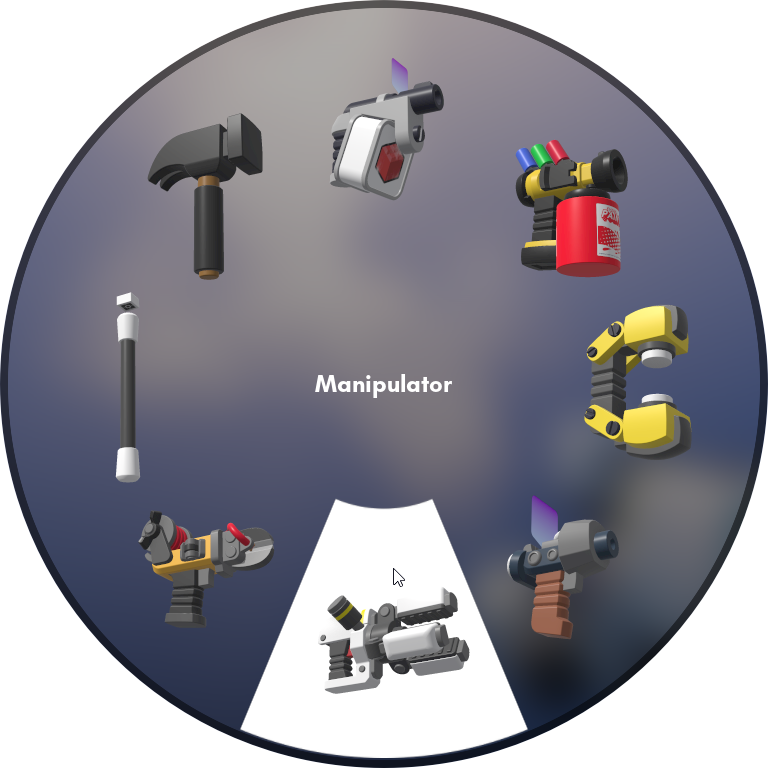
Manipulator on the bottom of the Tool Wheel
Release G to equip the Manipulator.
Grabbing an entity★
Hold the Left Mouse Button to grab an entity. This will try to preserve the entity's rotation when it hits something on the way. You can practically grab every object in existence because the manipulator has an astronomical amount of strength compared to normal grabbing.
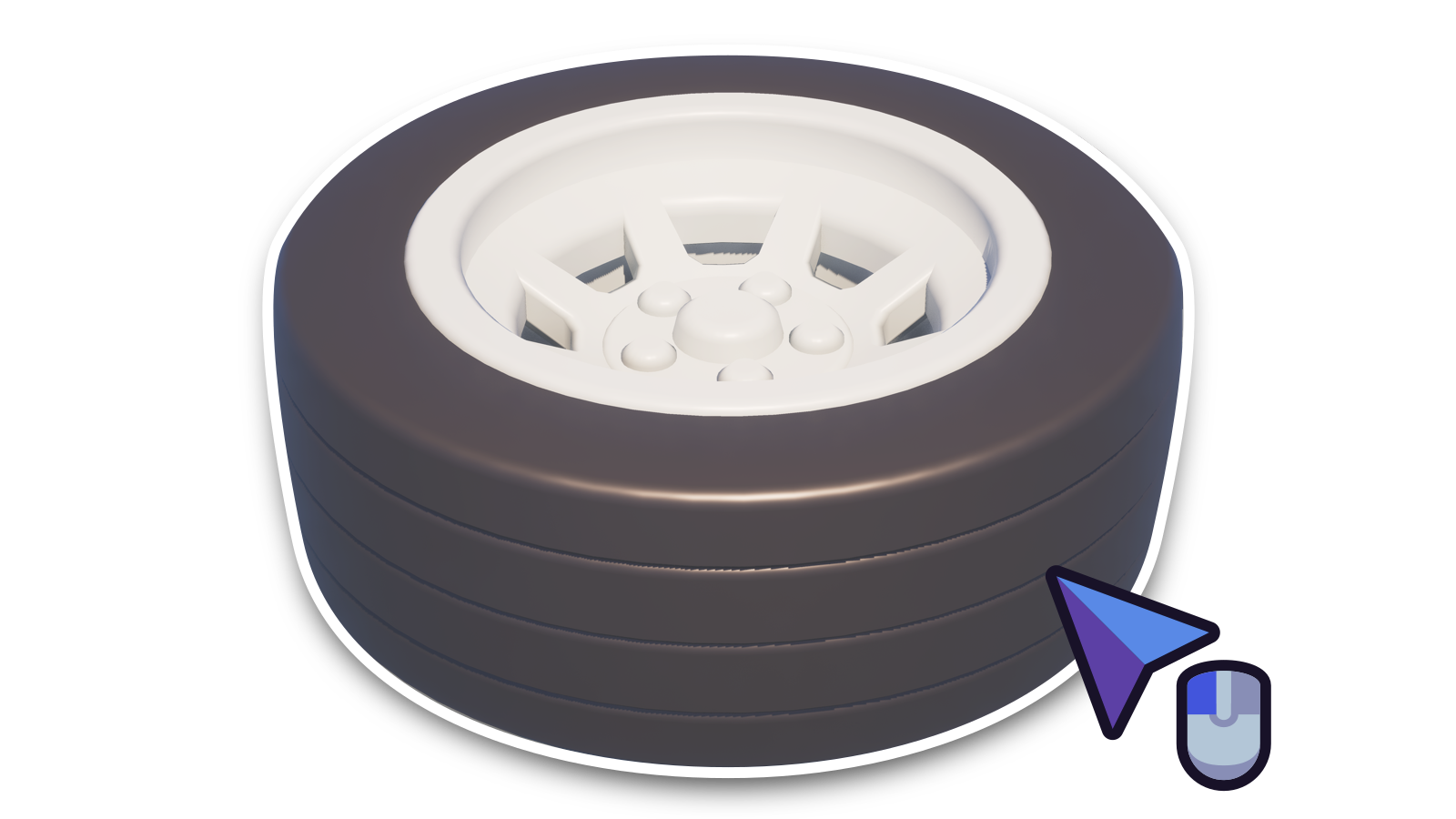
Soft grabbing an entity★
While holding Left Ctrl, hold the Left Mouse Button to soft grab an entity. The entity itself can be influenced by gravity or other forces while soft grabbing.
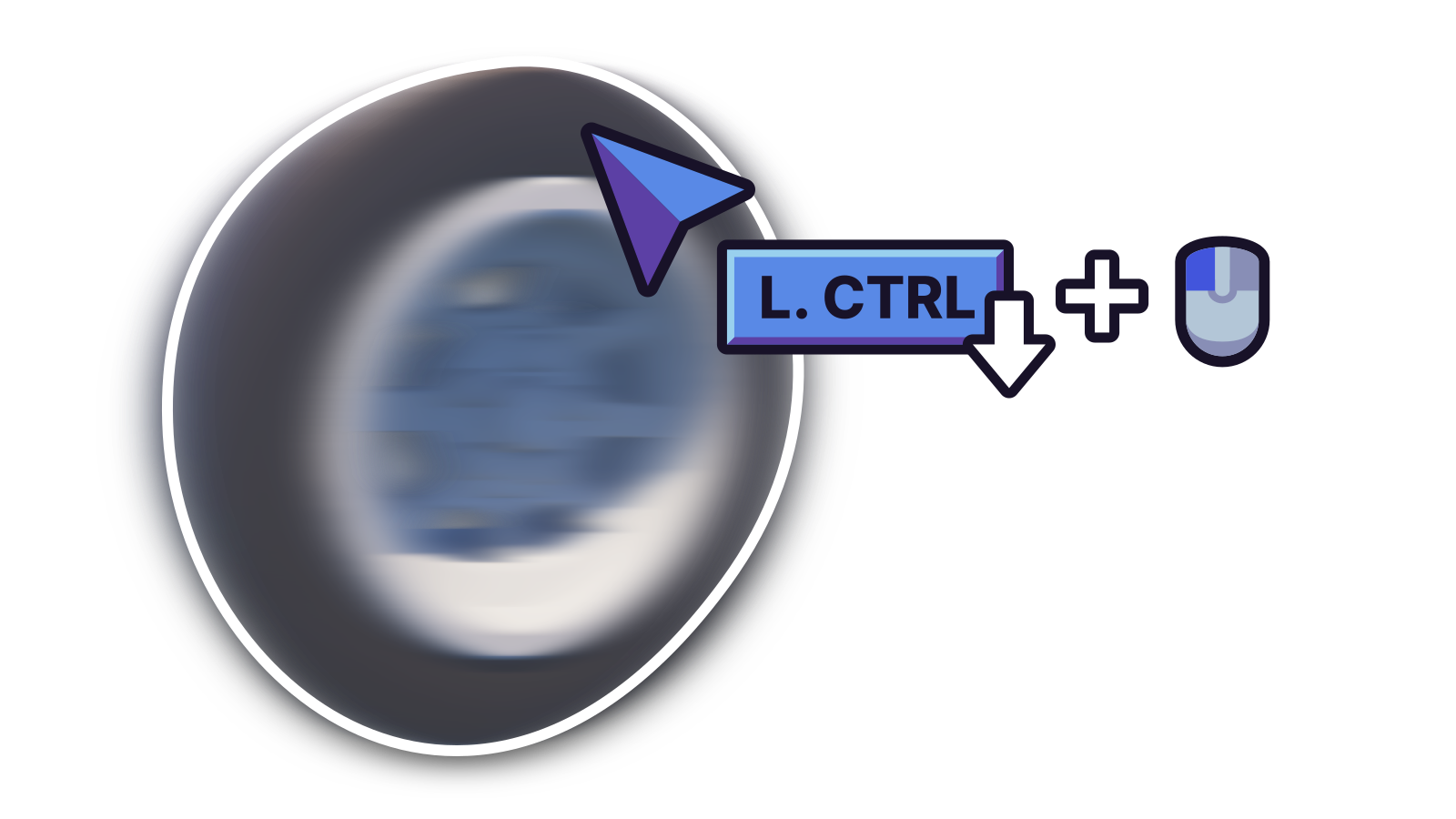
The pivot point is determined from the mouse position on the entity. This allows the object to rotate around the set pivot point.
Warning
Soft grabbing will make rotating, moving and freezing the entity impossible.
Moving entity closer or further★
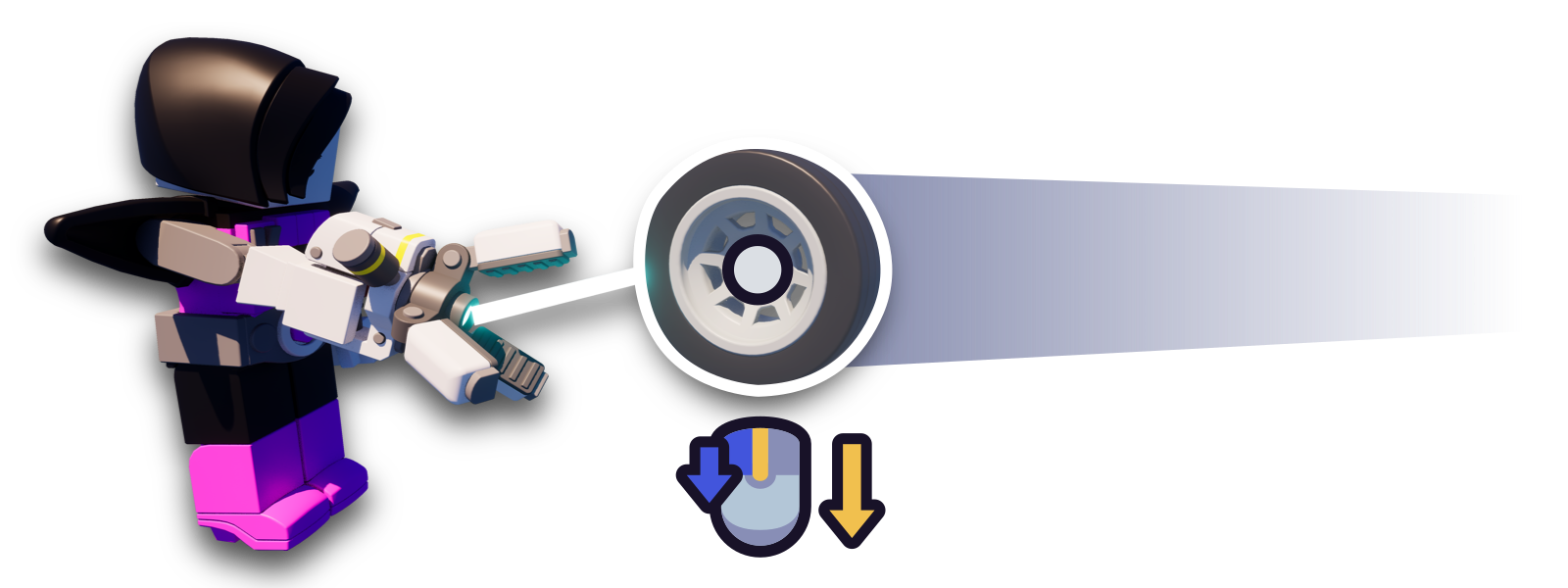
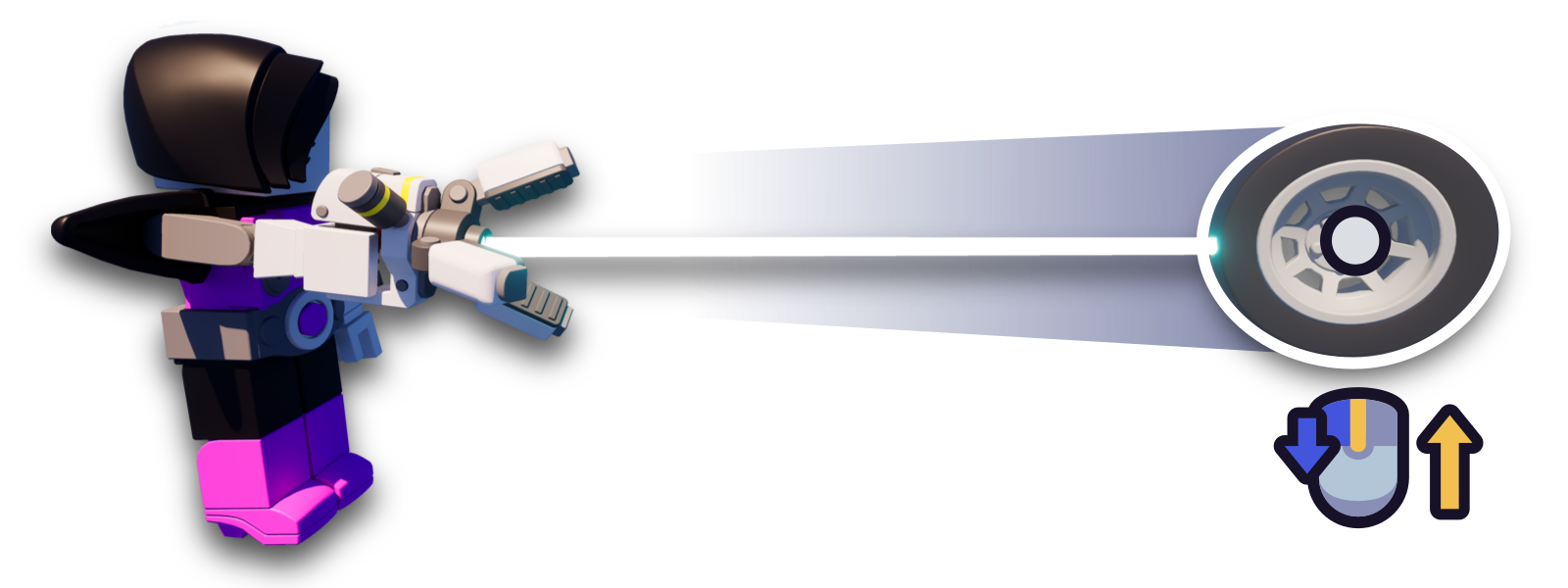
While grabbing an entity, use the Mouse Scroll Wheel to move the entity you're grabbing closer or further to you.
- Scrolling down will bring the entity closer to you.
- Scrolling up will push the entity away from you.
Rotating an entity★
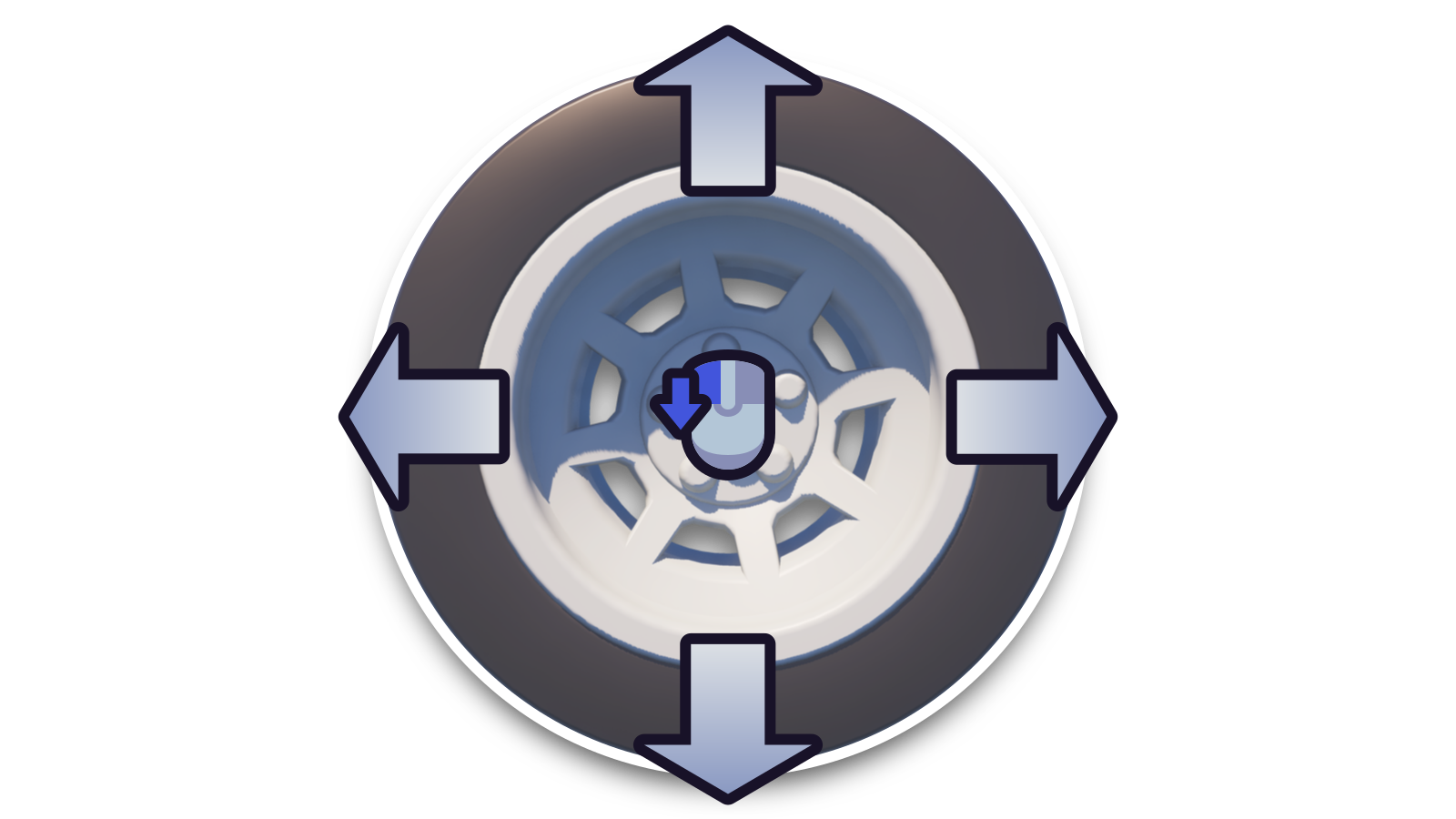
While grabbing an entity, hold Left Alt and move the mouse to rotate the entity you're grabbing.
- Moving your mouse to the left will rotate the entity clockwise.
- Moving your mouse to the right will rotate the entity counter-clockwise.
- Moving your mouse up will roll the entity forward.
- Moving your mouse down will roll the entity backward.
Dropping an entity★
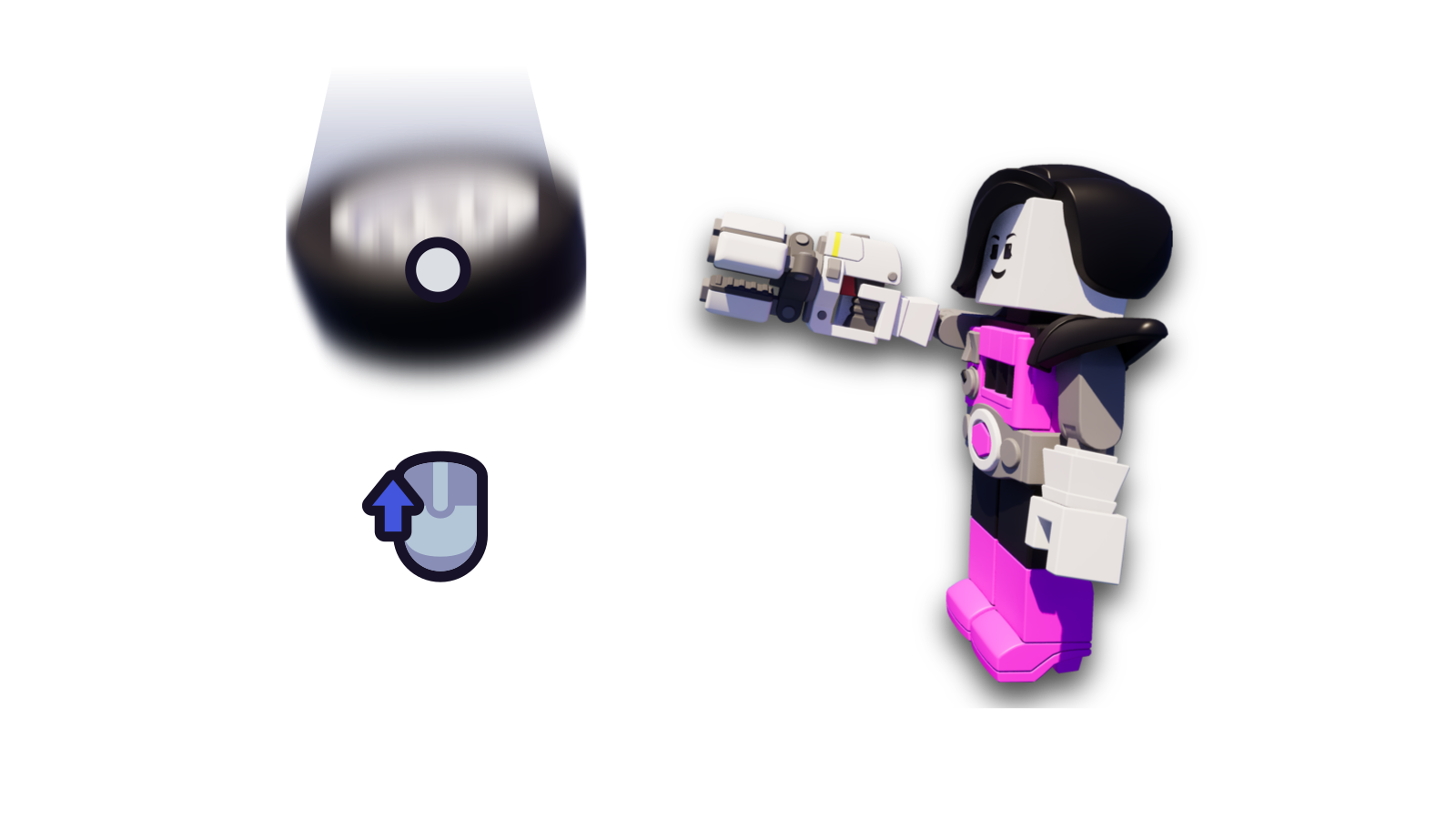
Release Left Mouse Button while grabbing an entity to drop it.
Launching an entity★
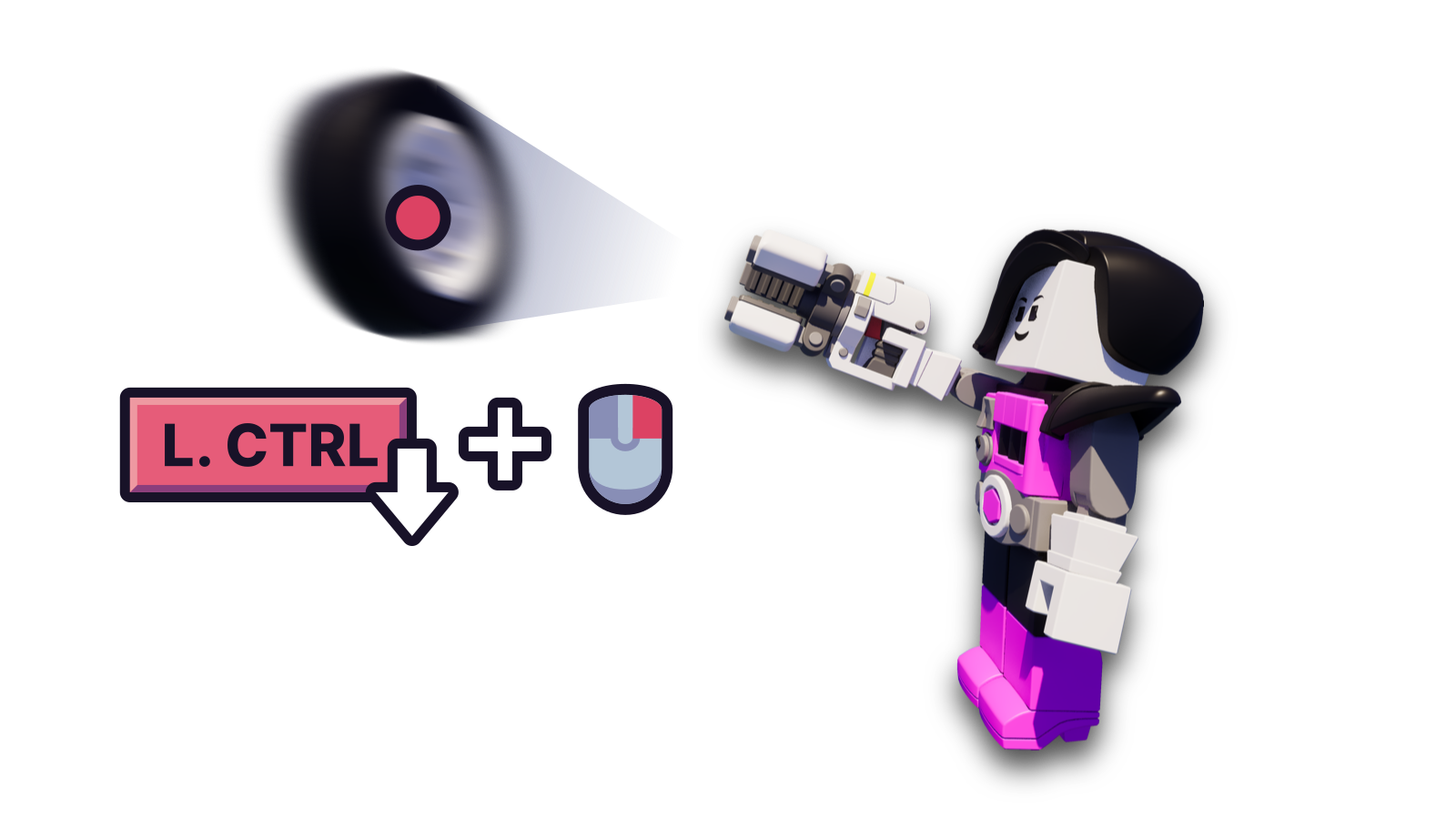
Hold Left Ctrl and click the Right Mouse Button to launch an entity off to where you're looking. You can do this when holding the entity or aiming at the entity without holding it.
Toggle frozen★
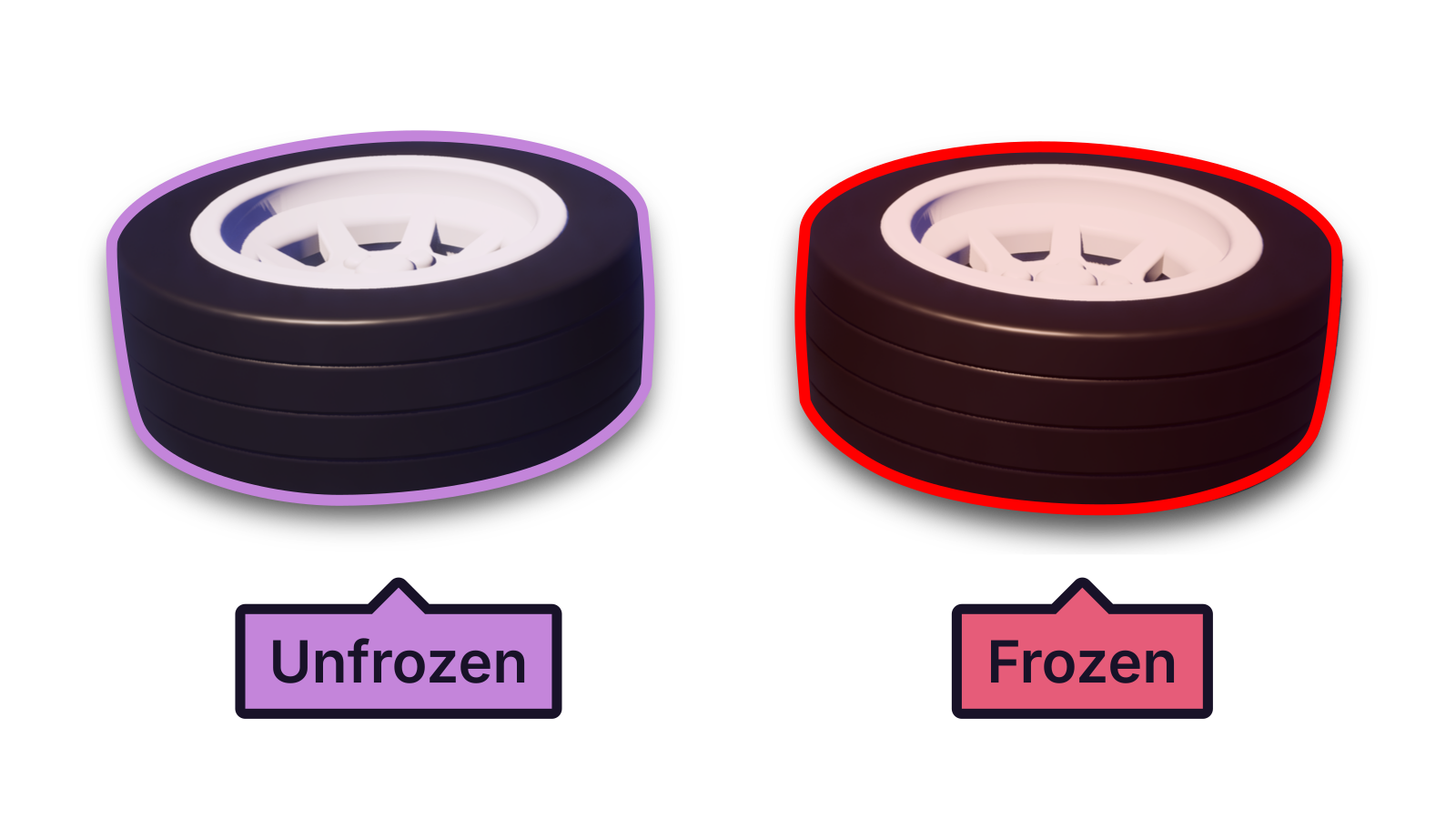
Click Right Mouse Button to freeze or unfreeze an entity. This locks the entity in place and it will not be influenced by gravity or other forces. You can undo/redo freezing entities.
- Unfrozen objects are highlighted purple.
- Frozen objects are highlighted red.
Grabbing the entity after freezing will unfreeze it.
You can also freeze entities mid-air while grabbing them.
Attach entity to joint(s)★
Bring your entity near a joint. If a joint is highlighted in white, the entity will be able to attach to the highlighted joint once you release the Left Mouse Button to stop grabbing the entity.
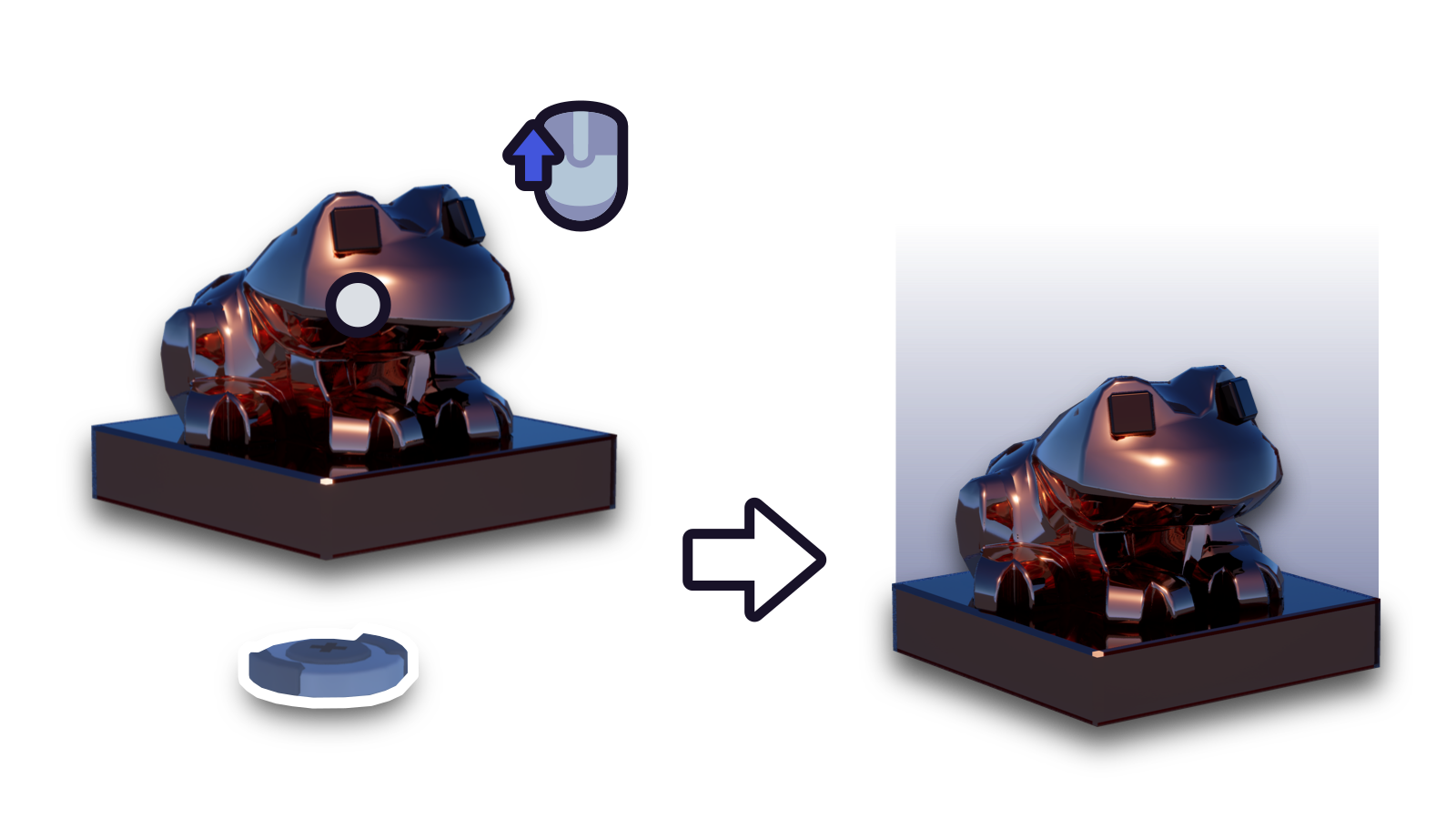
The limits for each type of entity:
- Brick grids can be connected to 2 or more joints.
- Normal entities (e.g. wheels) will be restricted to 1 joint.
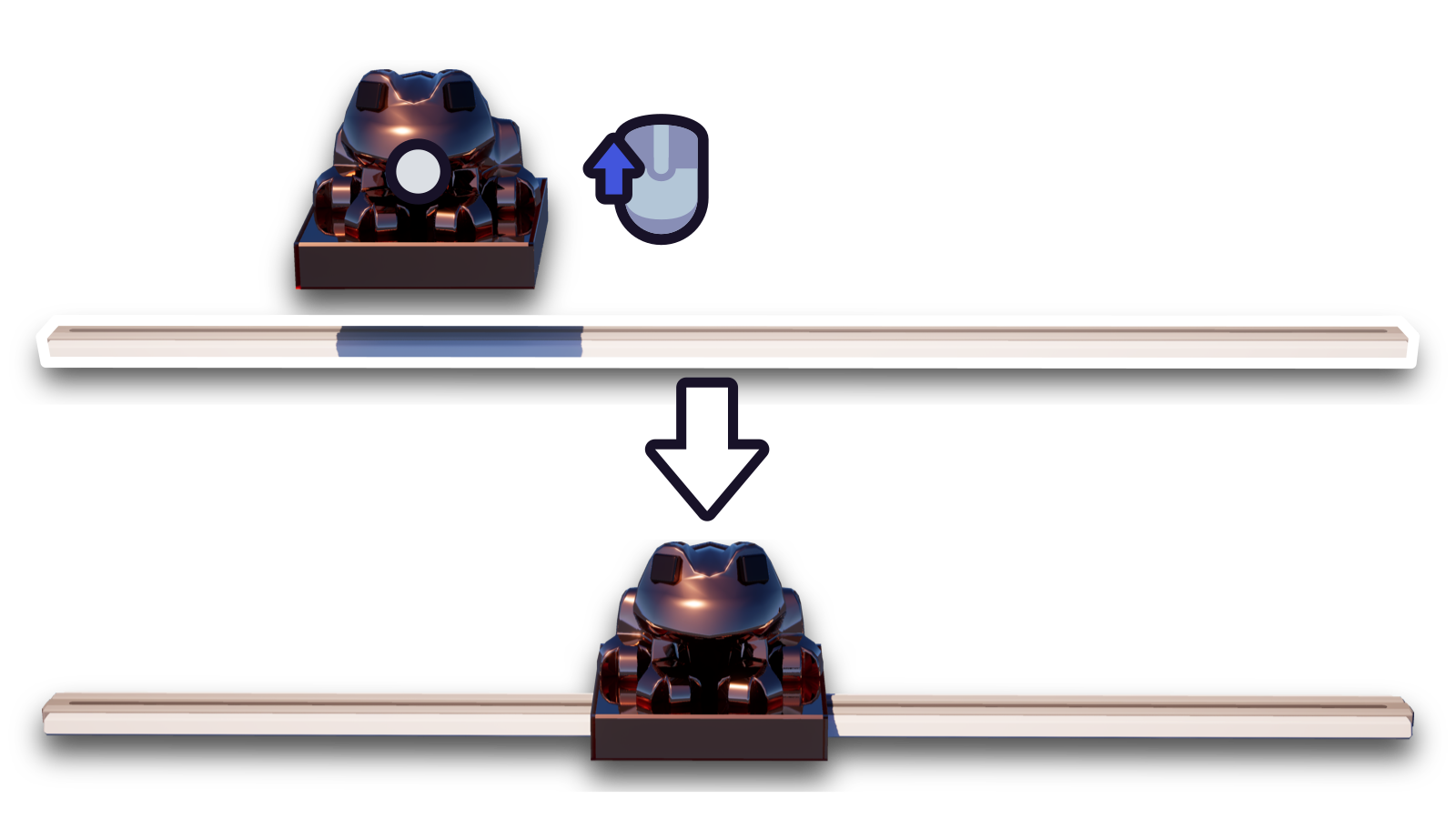
On sliders, the Manipulator will always attach to the center of the slider itself.
Use caution with attaching brick grids to joints
Not aligning the brick grid's socket with the joint properly or not having an adequate quantity of sockets at all may cause the following behavior:
- Sockets being forcibly added upon having more joints than sockets
- Socket positions changing when not attaching with the proper orientation
If you experience undesirable behavior while attaching brick grids, undo entity attachment by pressing Left Ctrl+Z.
You can temporarily disable attaching to joints by holding Left Alt. While attaching is disabled, you can rotate the entity due to the entity rotate using the same keybinding.
Detach entity from joint(s)★
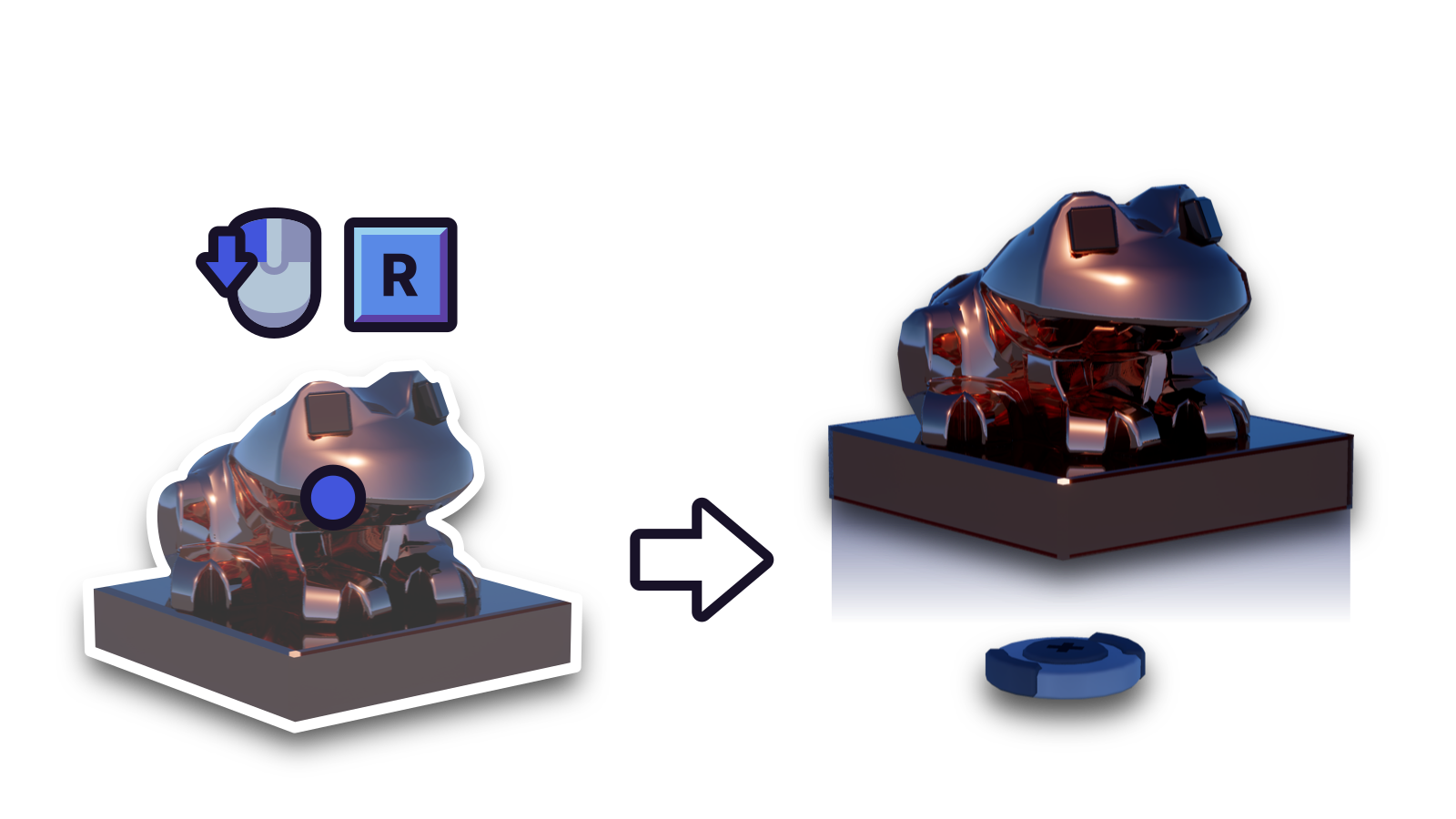
Press R while grabbing an entity attached to joints. This will detach the entity from all of its joints.
History support★
Note
Some of the Manipulator's features are not saved to history due to the nature of physics objects being prone to be moved by other forces or other players.
| Action | Saved to history |
|---|---|
| Grabbing | No |
| Soft grabbing | No |
| Moving closer/further | No |
| Rotating | No |
| Dropping | No |
| Launching | No |
| Toggle frozen | Yes |
| Attach entity | Yes |
| Detach entity | Yes |