Connector★
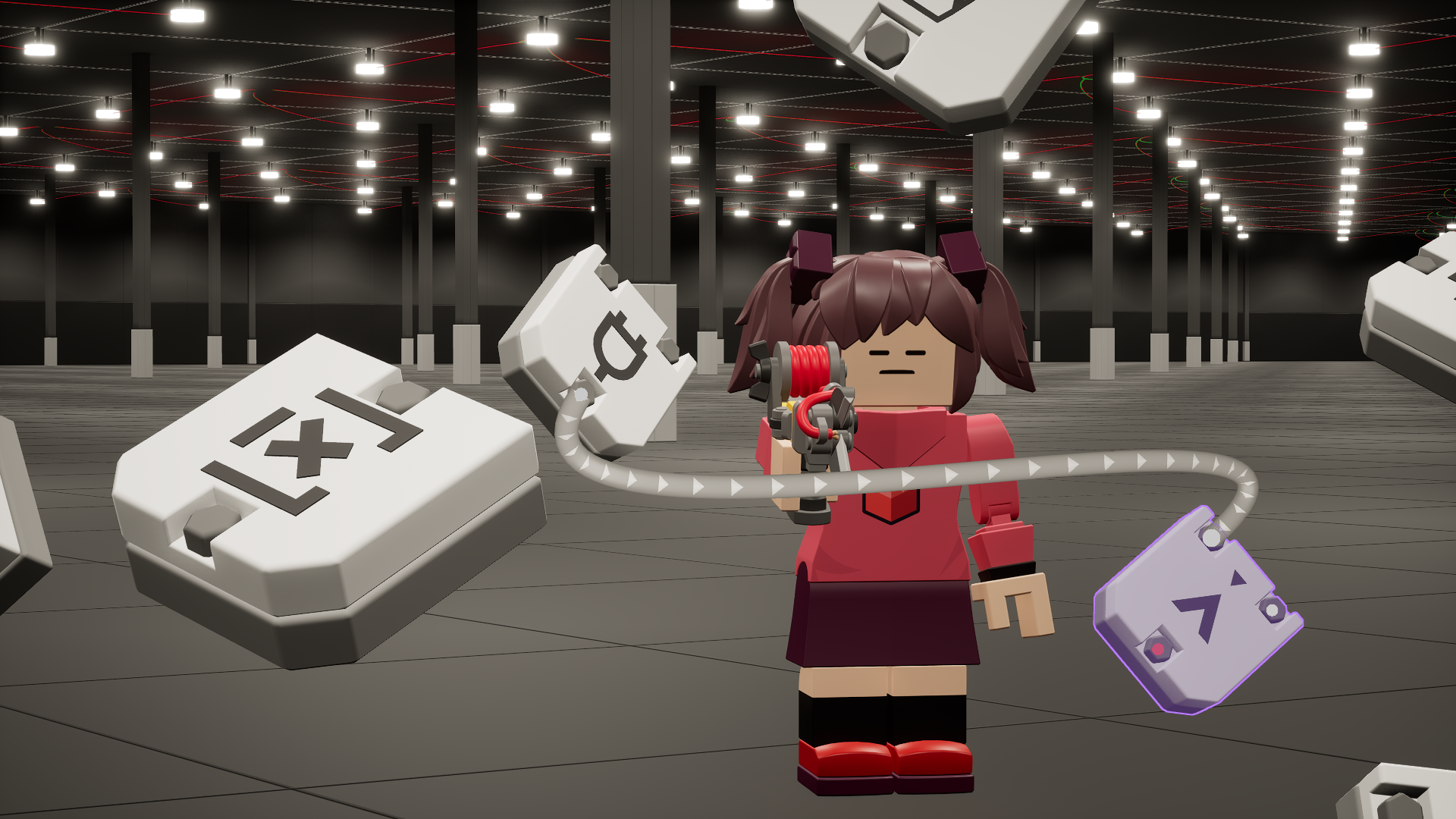
The Connector is the primary tool you use for wires. It can connect ports of gates to each other and reroute wires.
Equipping the Connector★
There is only one way to access the Connector and that is through the Tool Wheel. This is because the Connector is missing its own keybind.
Through the Tool Wheel★
Hold G to access the Tool Wheel. This temporarily frees your mouse.
Drag your cursor to the bottom-left corner of the tool wheel.
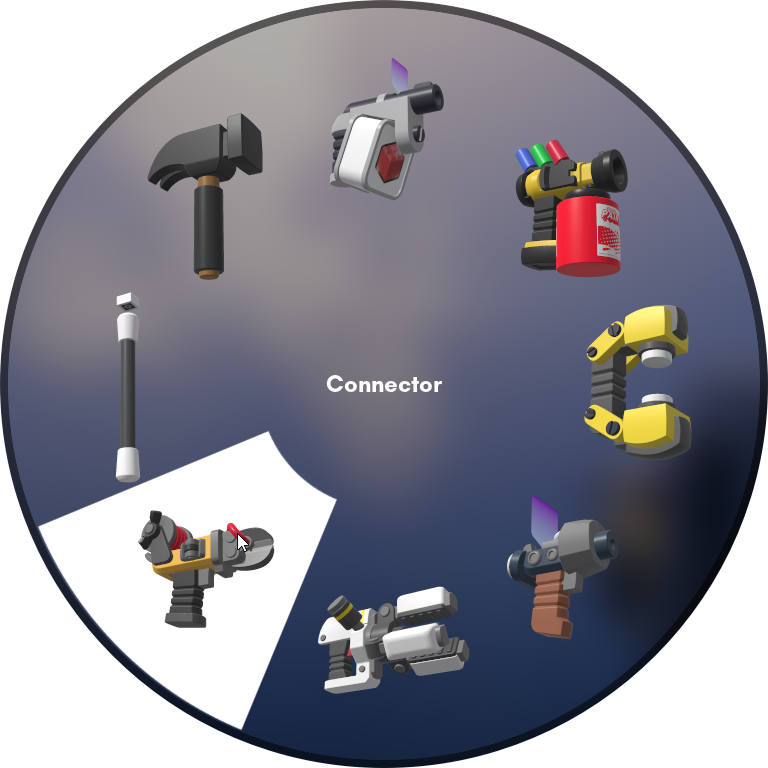
Connector on the bottom-left corner of the Tool Wheel
Release G to equip the Connector.
Starting a new wire★
To start a new wire from a port:
Click on a port to start a new wire from it.
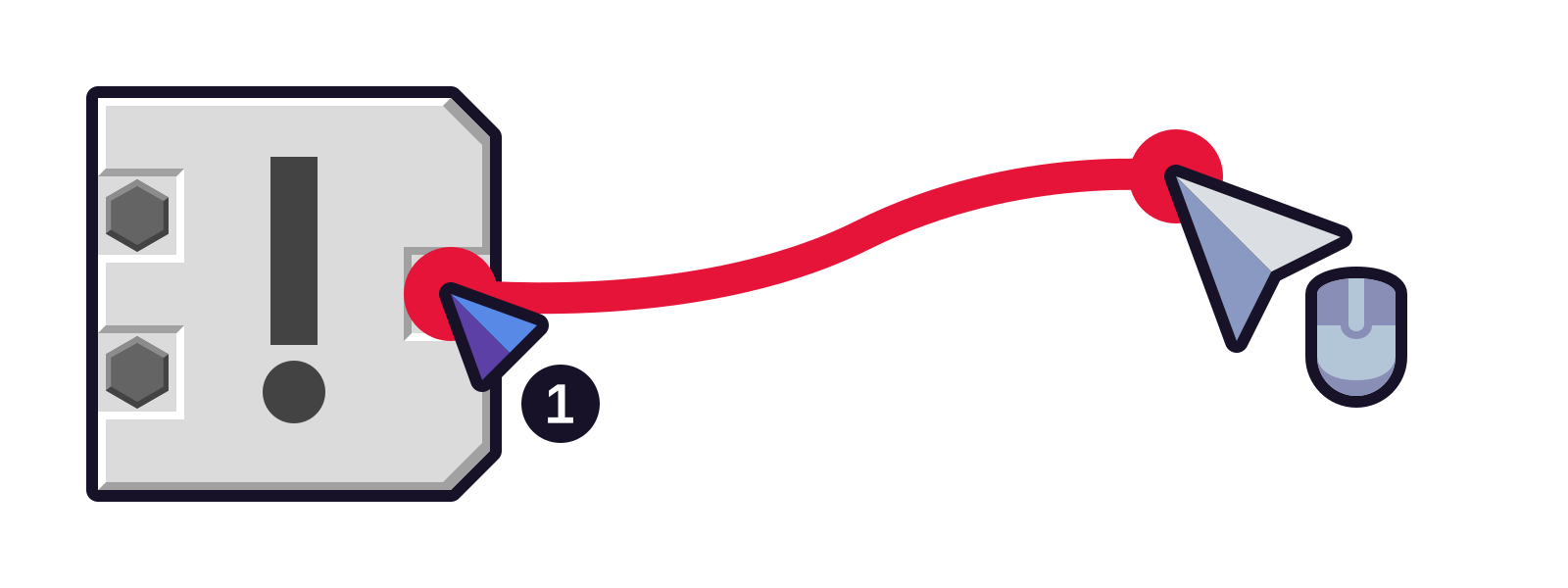
- Click on the grey square port at the center of the brick. This will open the ports menu.
- Find the port you want in the list. Click on that port to start a new wire from it.
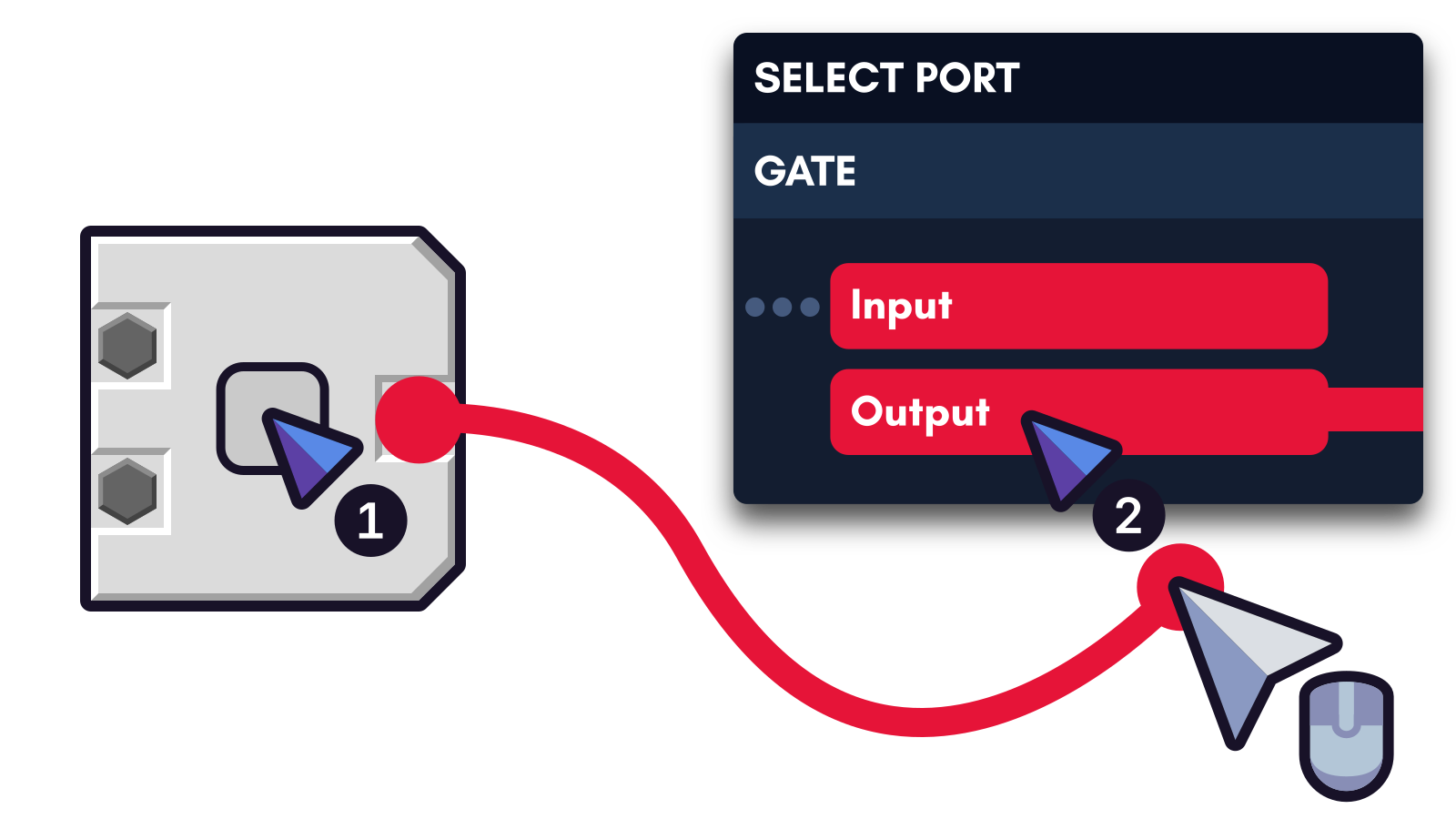
- Hold Left Alt then click a brick highlighted with a purple outline to open up the ports menu.
- Find the port you want in the list. Click on that port to start a new wire from it.
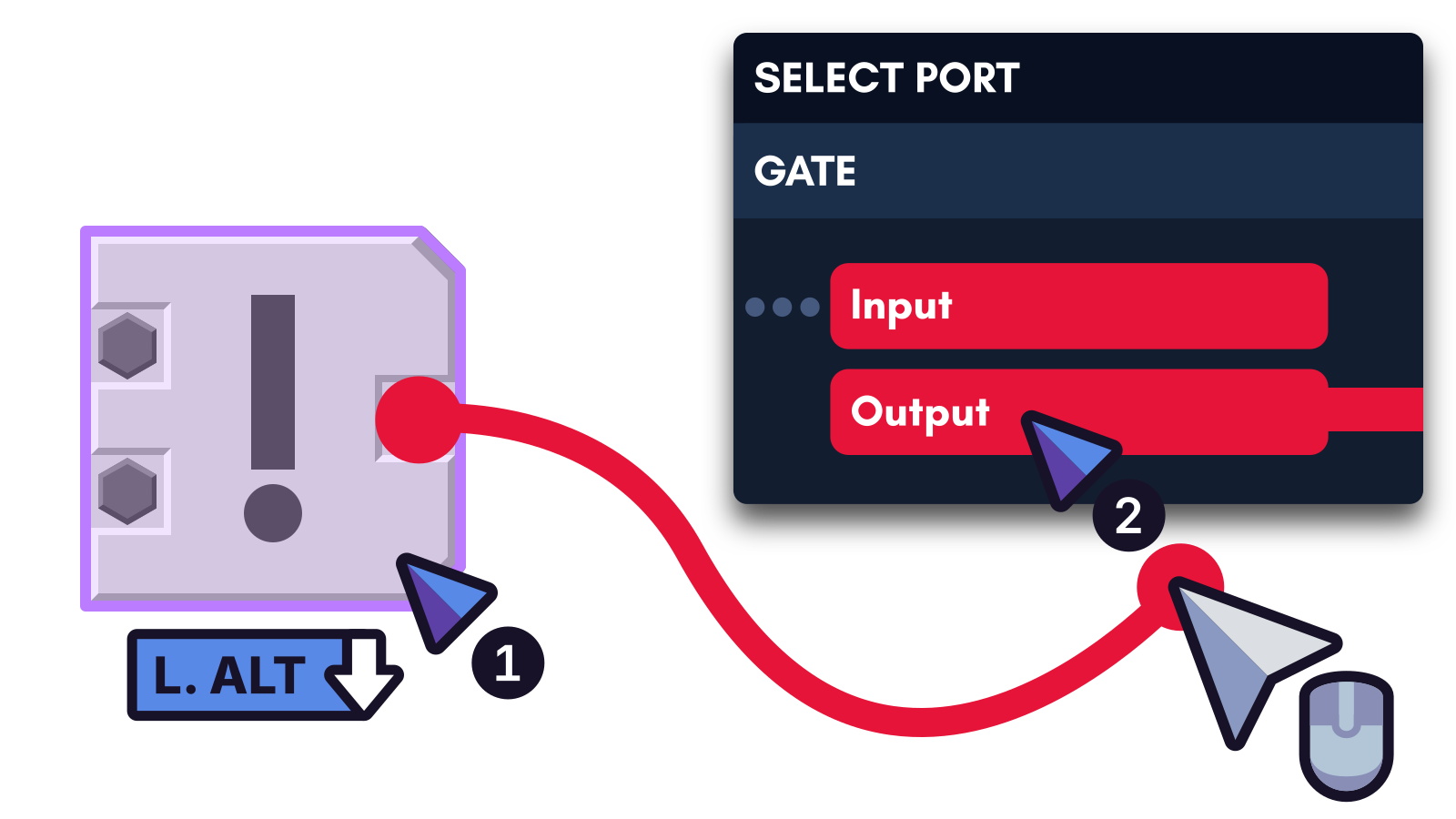
You can now connect to other ports or through rerouters.
Cancelling wires★
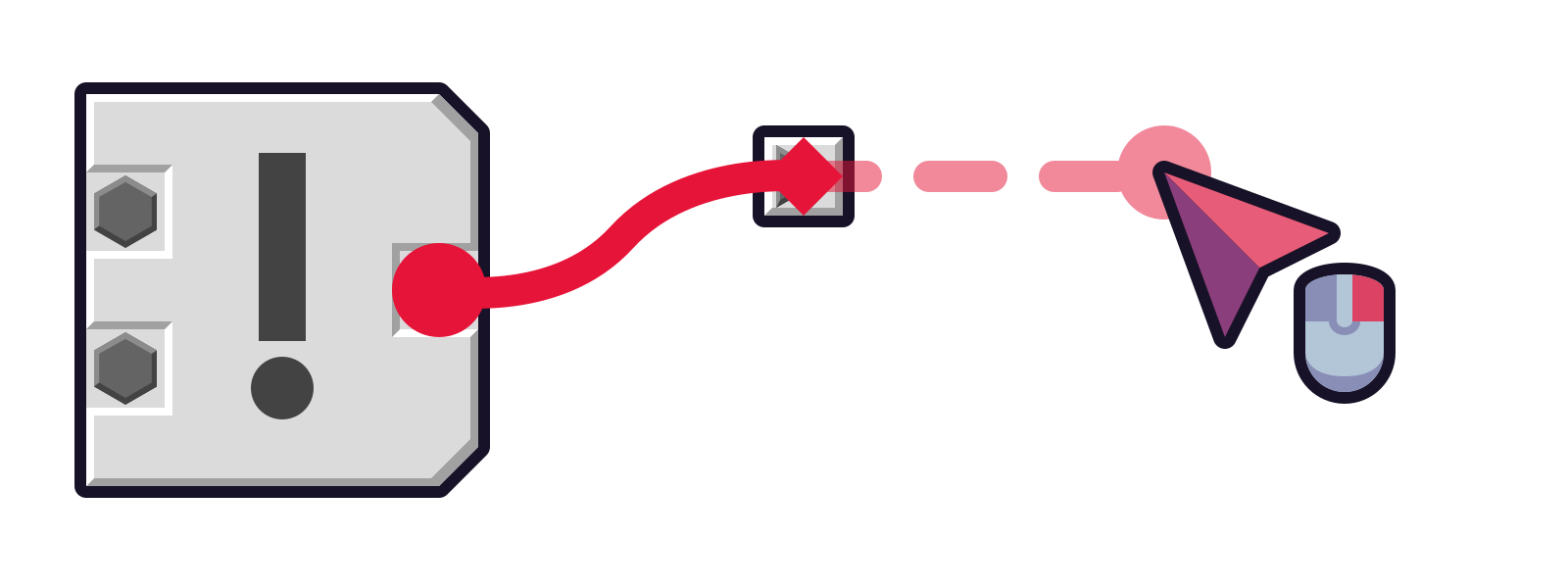
Click the Right Mouse Button to end the current wire early before connecting to a port. This keeps wires on rerouters you already connected to.
Passing wires through rerouters★
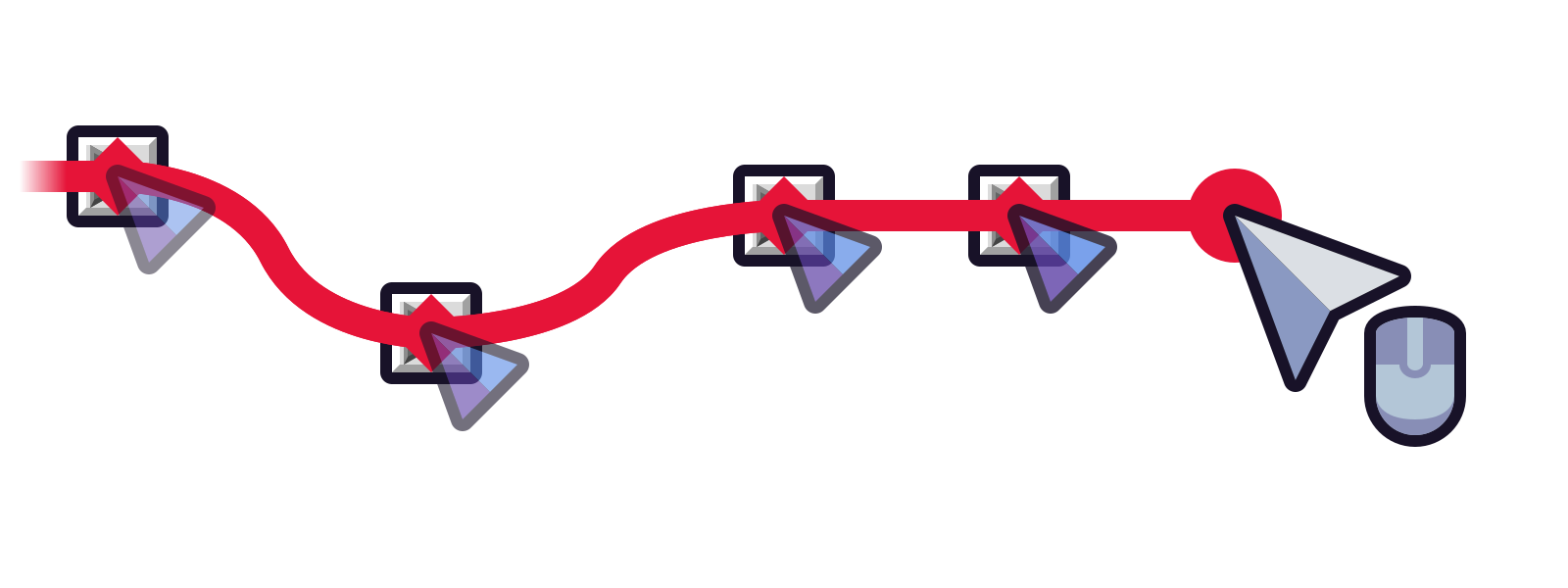
If you connect wires to a rerouter, it will automatically continue the wire from that rerouter. This works in both forward and backward directions.
Connecting to ports★
A wire port must have an opaque appearance for it to be connectable with wires. If a wire port looks transparent/see-through, you cannot connect to it.
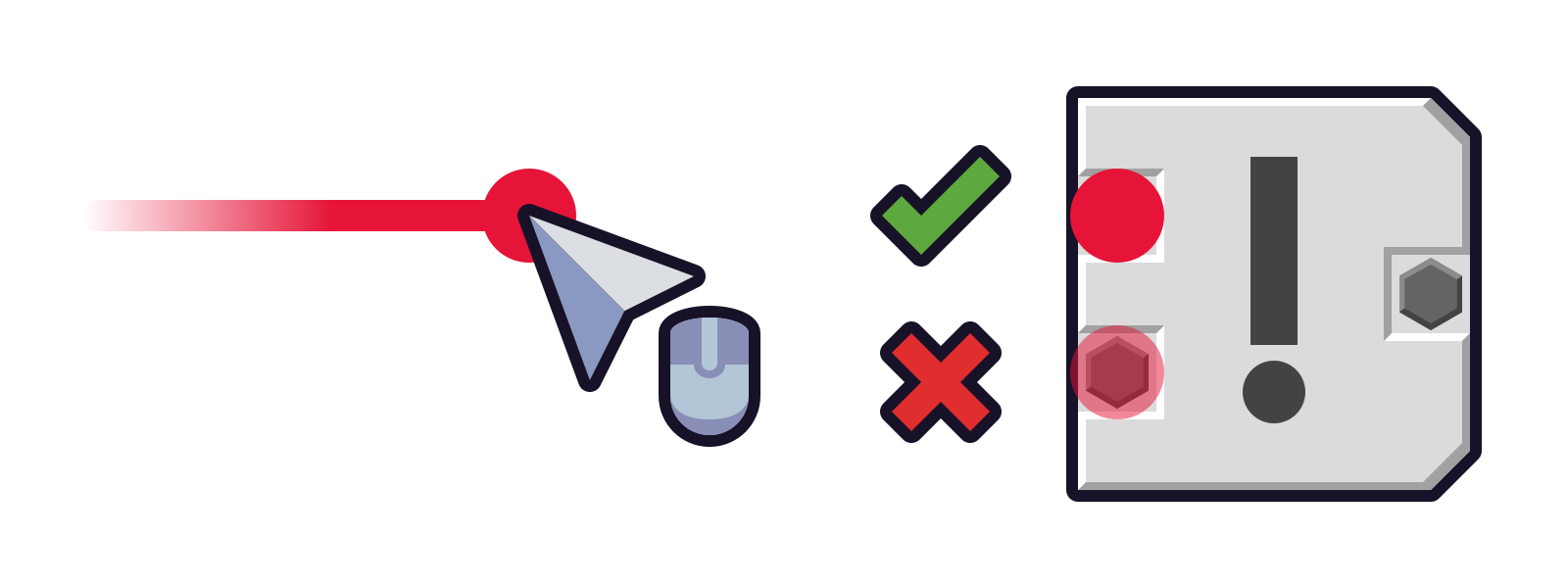
Click the Left Mouse Button on the wire port to connect to it.
Click on a port to connect to it.
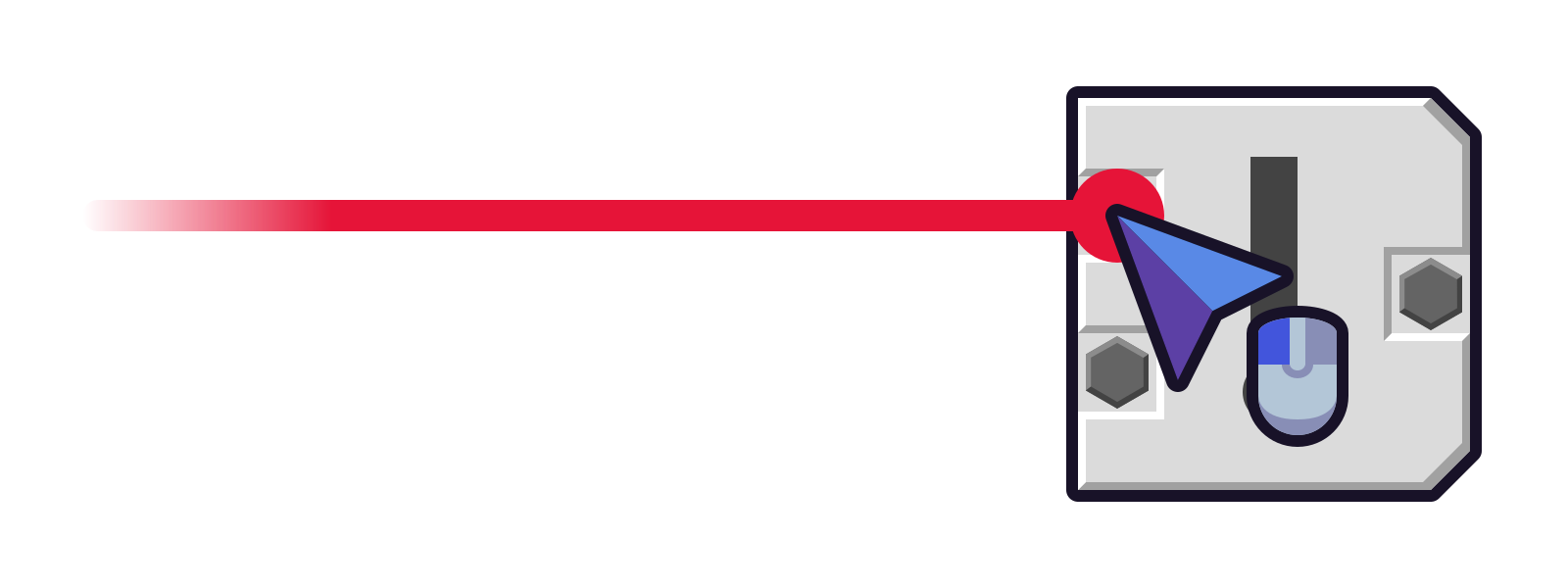
- Click on the grey square port at the center of the brick. This will open the ports menu.
- Find the port you want in the list. Click on that port to connect to that port.
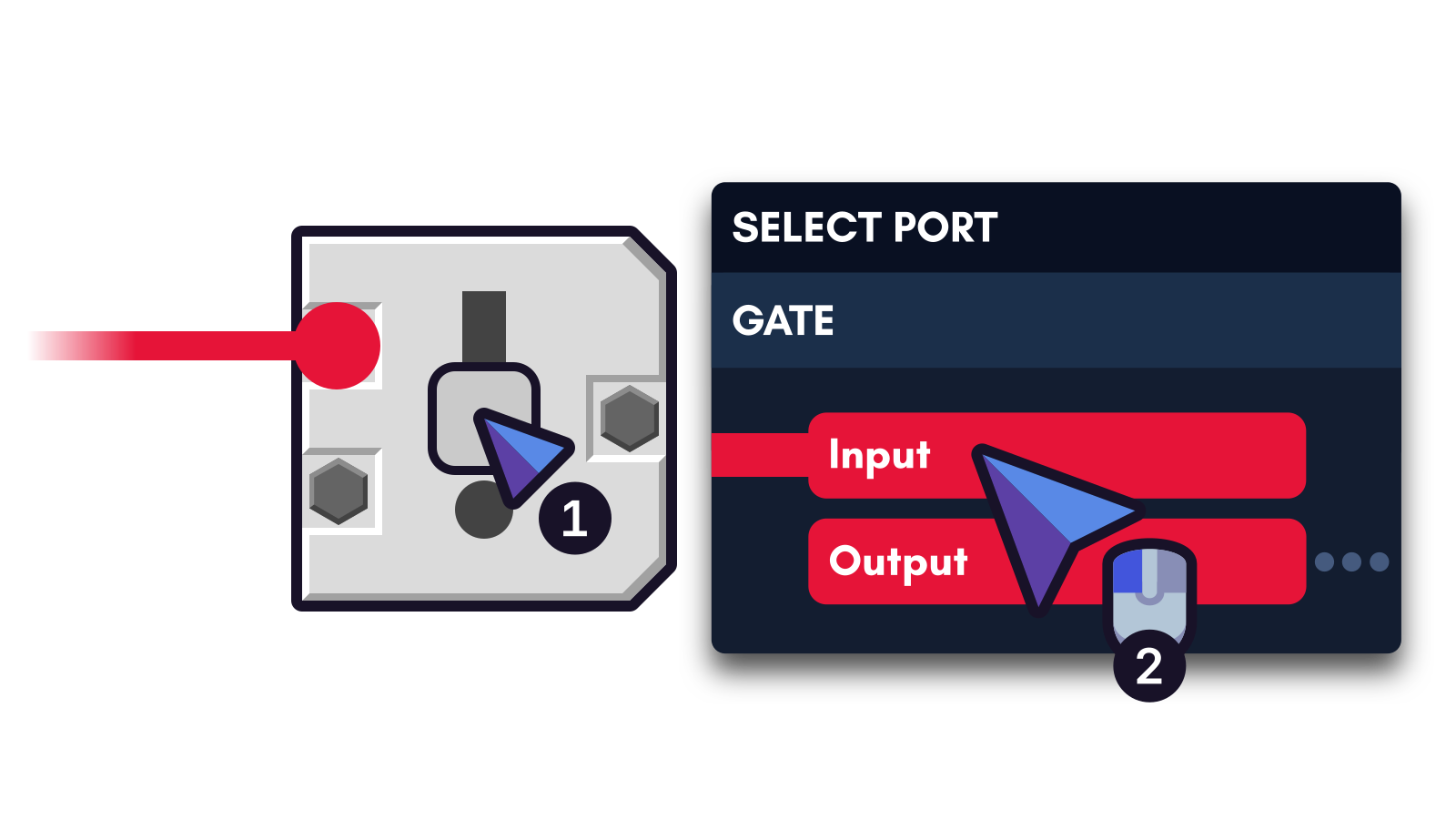
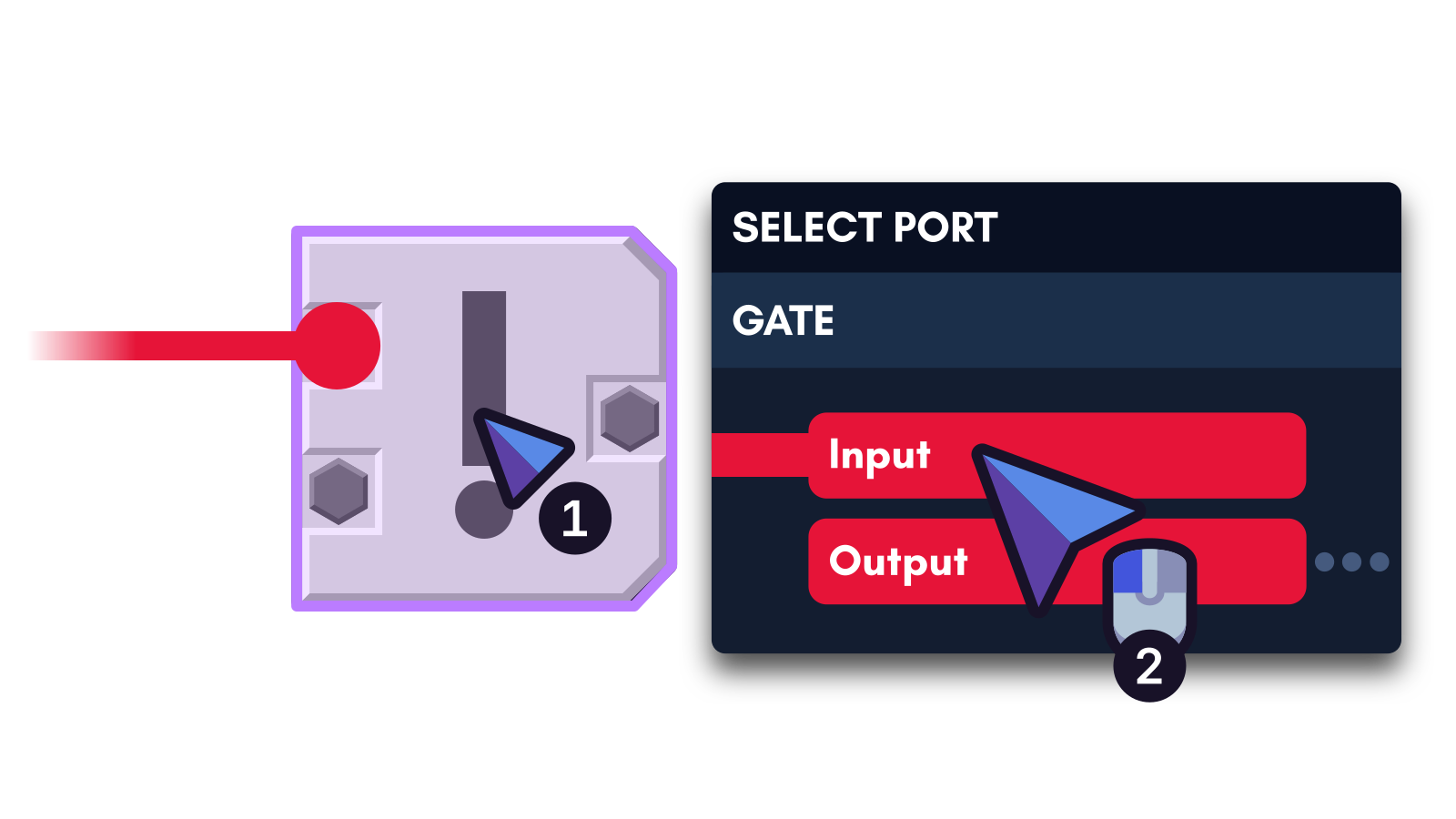
- Hold Left Alt then click a brick highlighted with a purple outline to open up the ports menu.
- Find the port you want in the list. Click on that port to connect to that port.
Disconnecting from ports★
Right click on a port to disconnect all of its connections.
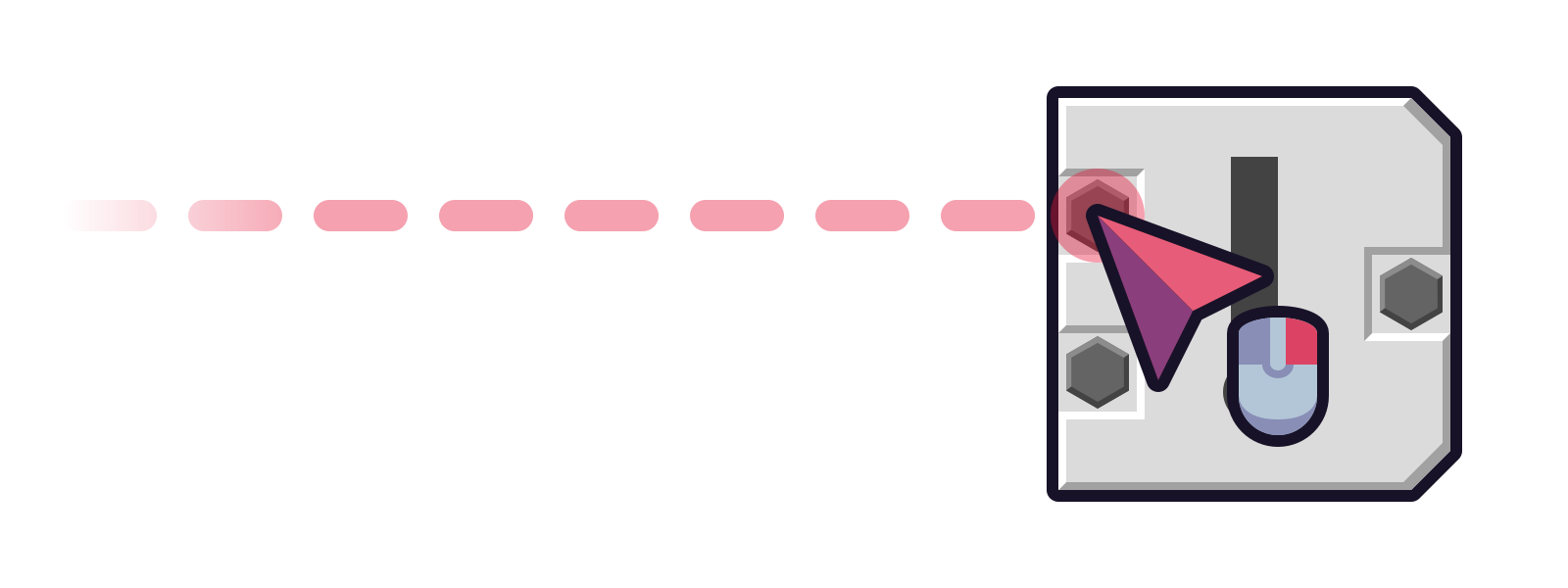
- Click on the grey square port at the center of the brick. This will open the ports menu.
- Find the port you want in the list. Right click the port to disconnect all of its connections.
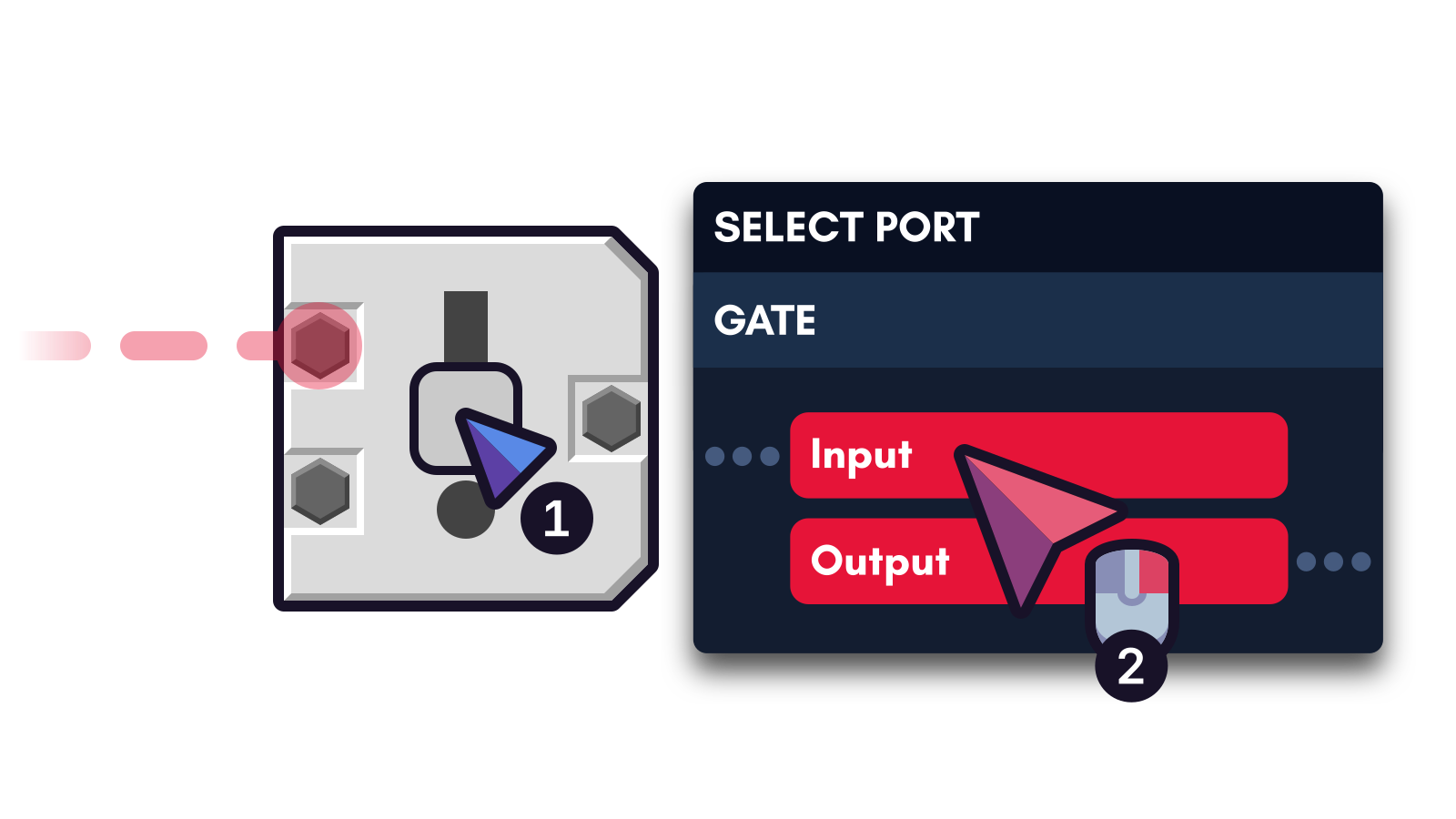
- Hold Left Alt then click a brick highlighted with a purple outline to open up the ports menu.
- Find the port you want in the list. Right click the port to disconnect all of its connections.
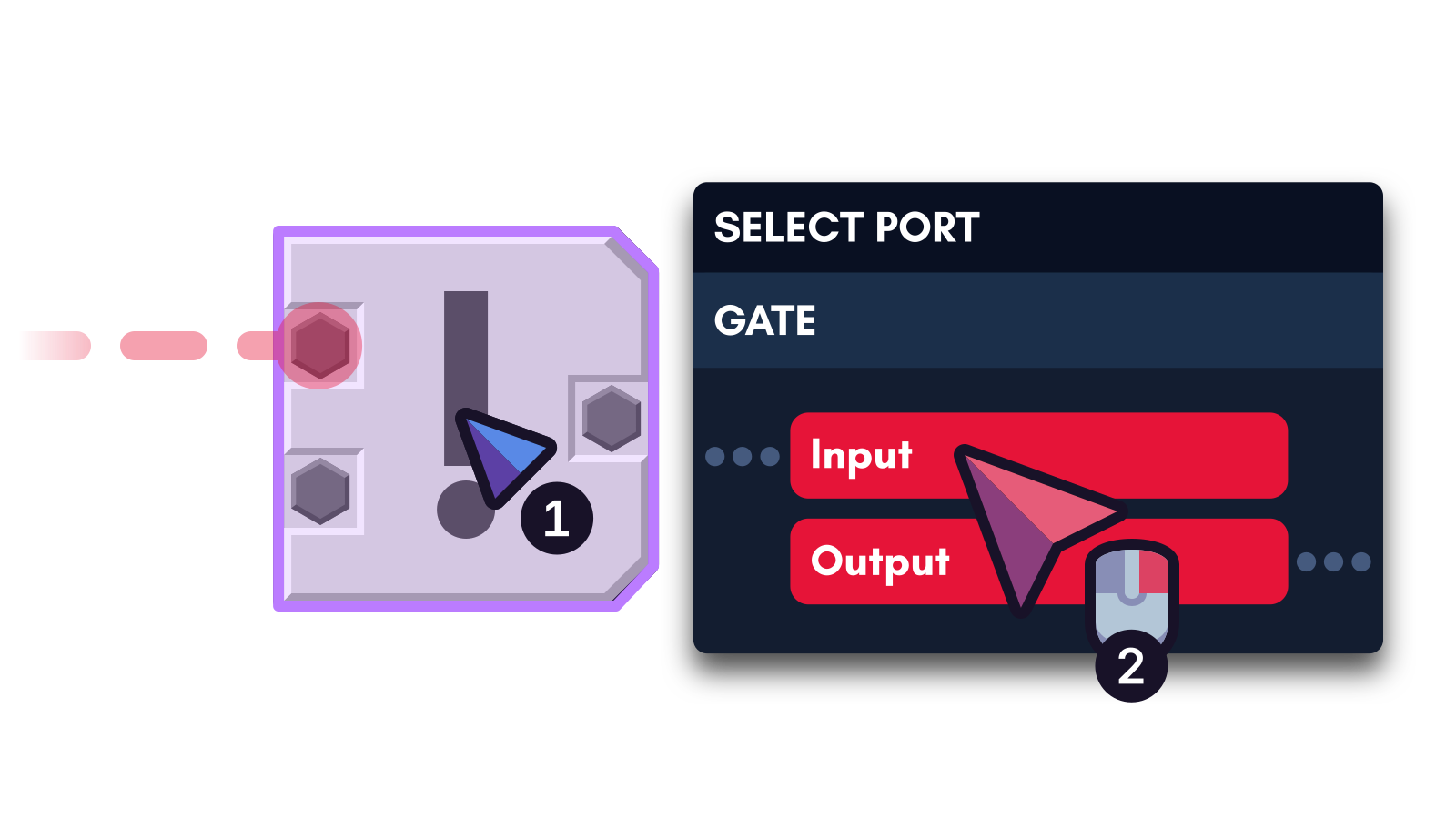
If a wire is already present between two ports or rerouters, overlapping that wire with your current wire will disconnect it instead.
Selecting the last port★
Press R to start from the last port or rerouter you connected from.
Bulk connecting★
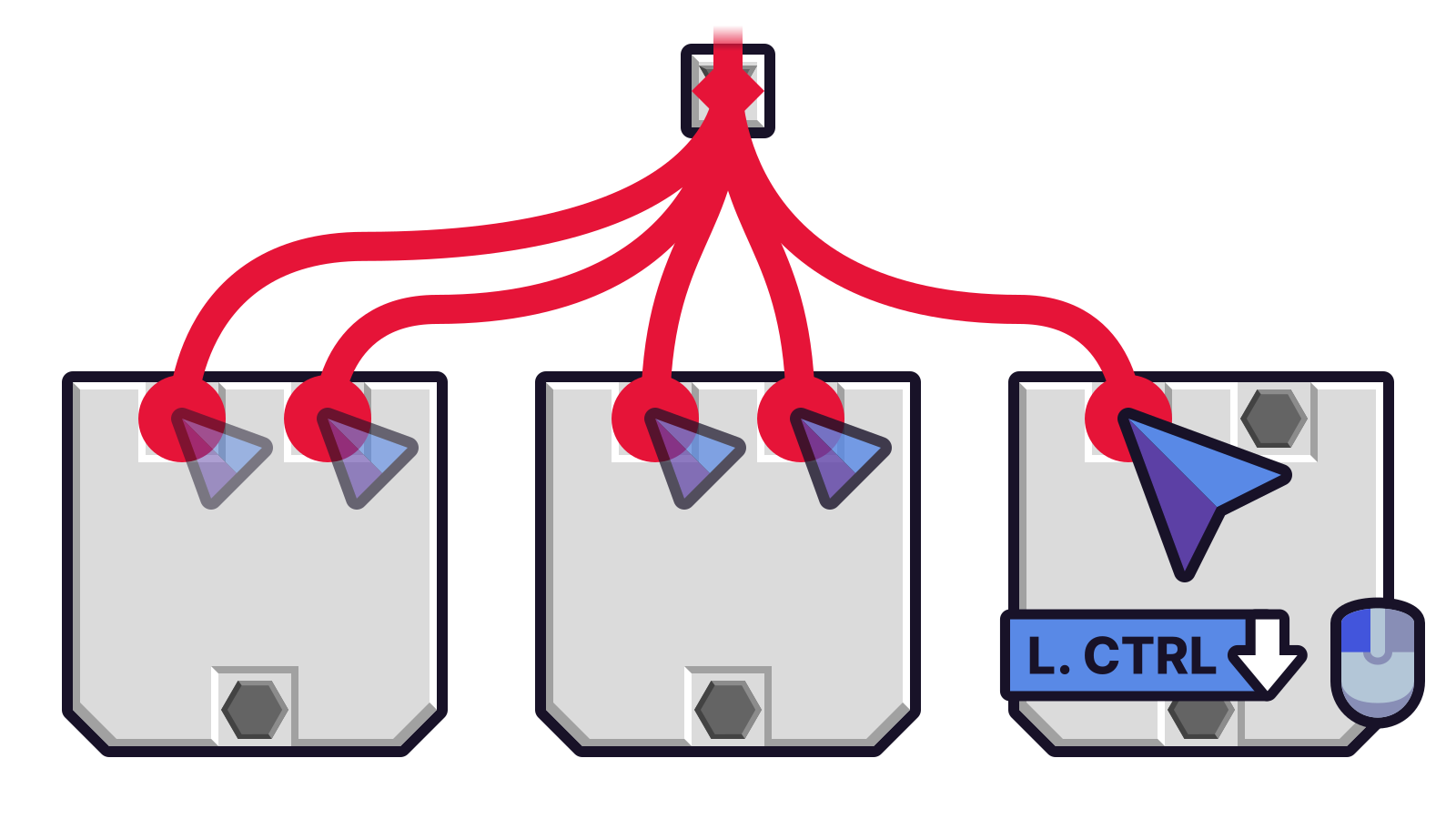
Clicking on a port while holding Left Ctrl will automatically select the last port to start from again. This is useful for bulk wire operations as this allows you to continue connecting to other ports with the same wire.
Connector X-Ray★
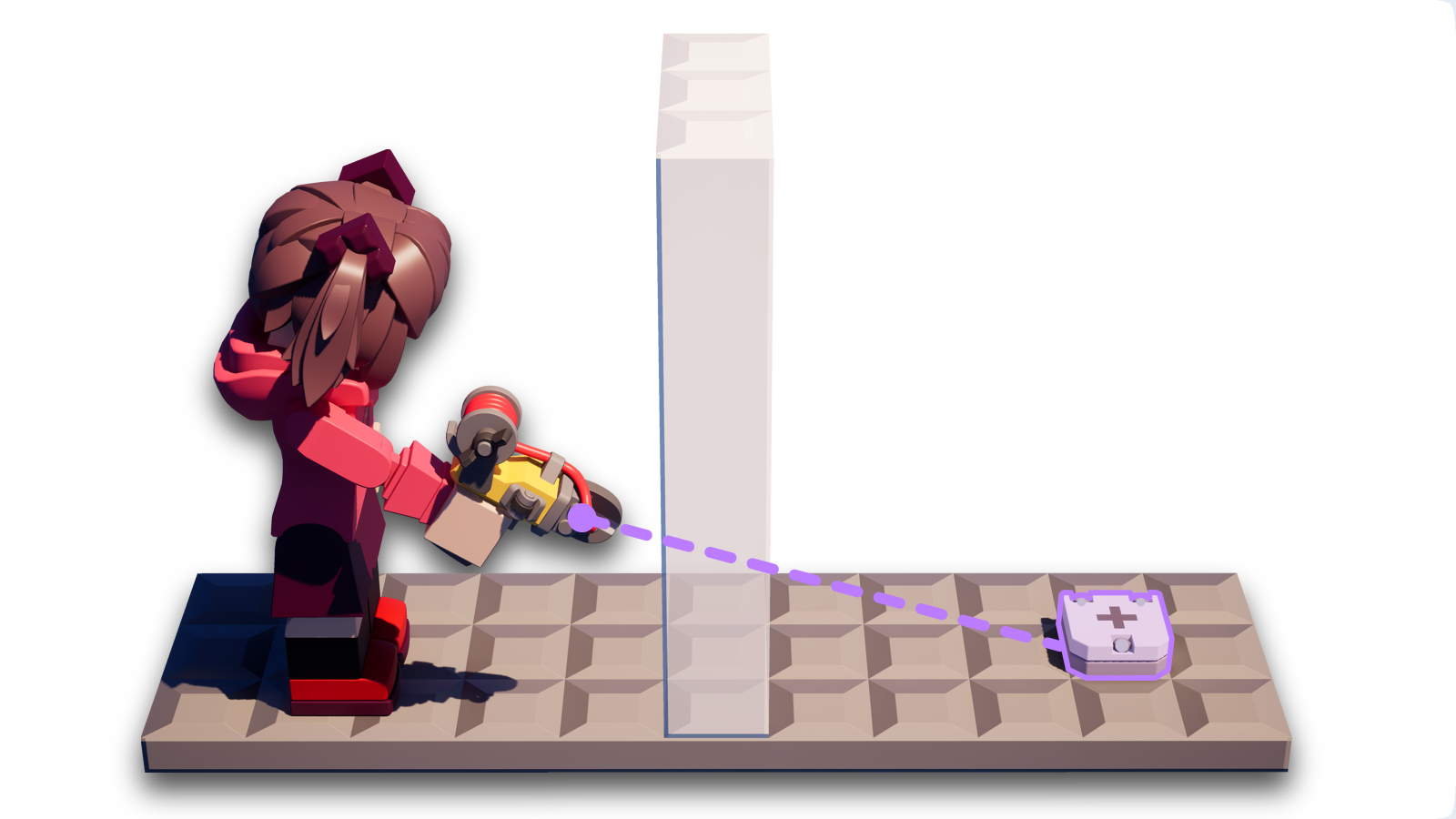
Usually, without X-Ray mode on, your Connector will be physically blocked by bricks that act as barriers to an interactive brick. However, you can solve this by turning on the X-Ray mode.
X-Ray mode is useful for accessing wiring systems that can't be accessed behind bricks even when they're transparent.
The C key acts as a toggle for the X-Ray mode.
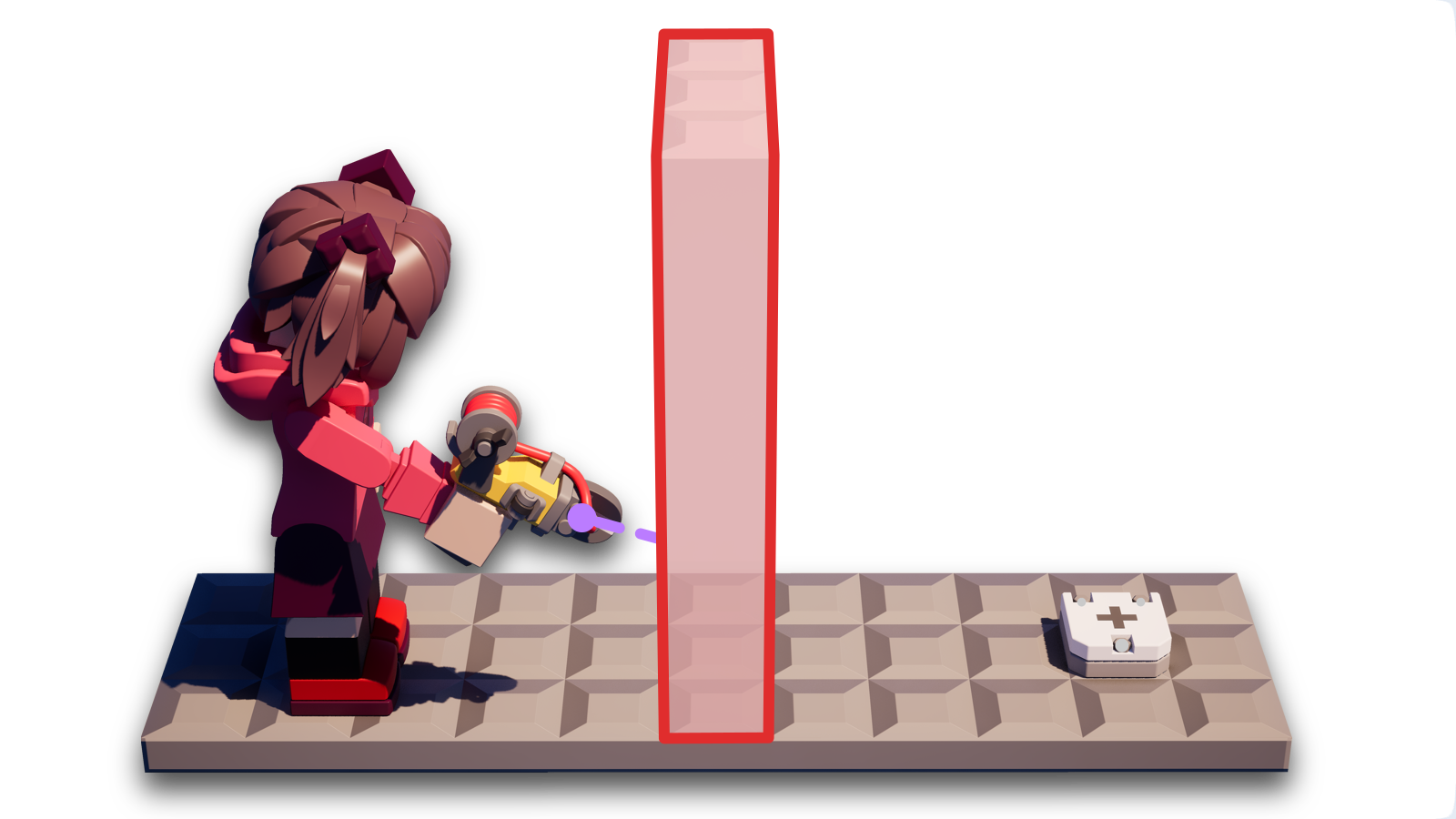
To check if your Connector's X-Ray is enabled, look at the text hint on the bottom-left corner that says
Enable X-Ray or Disable X-Ray.