Mouse Mode★
The Mouse Mode of the Placer allows you to place objects using the mouse and comes with additional features added into it.
As per the name, the mouse is the focus of this mode. It is used for nearly every operation in this mode.
Placing an object★
-
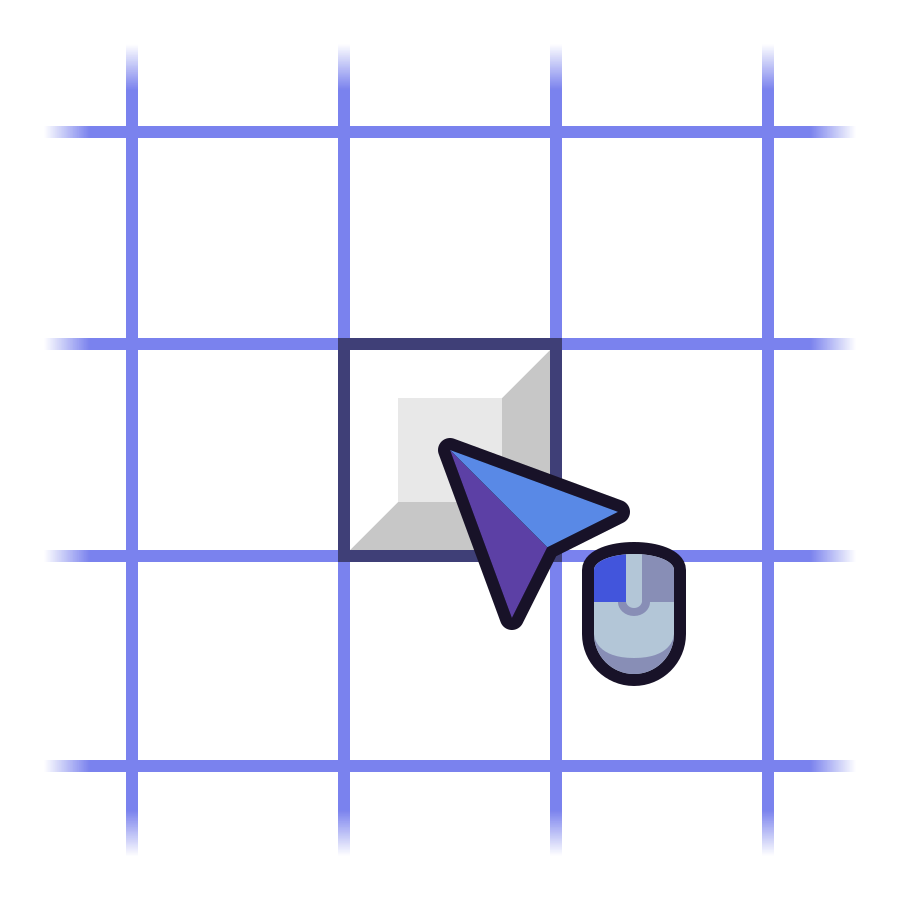
Move your mouse over the spot you want to place the object on.
-
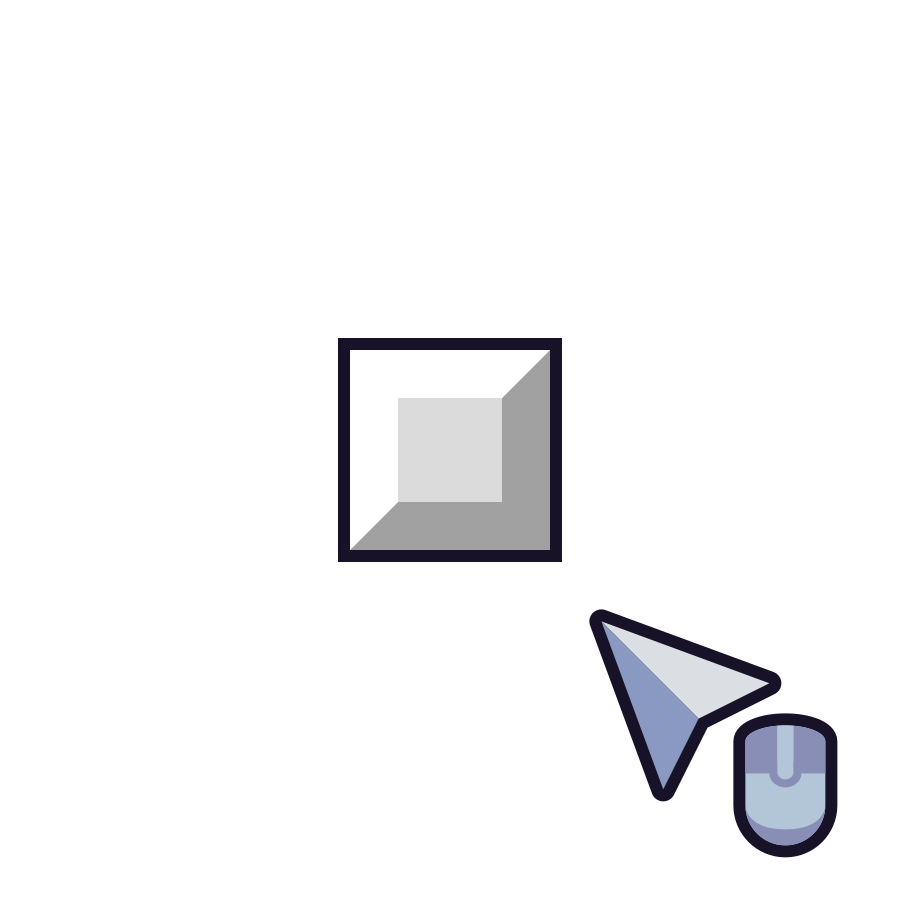
Click without dragging to place the object once you're done adjusting.
Set rotation before placing★
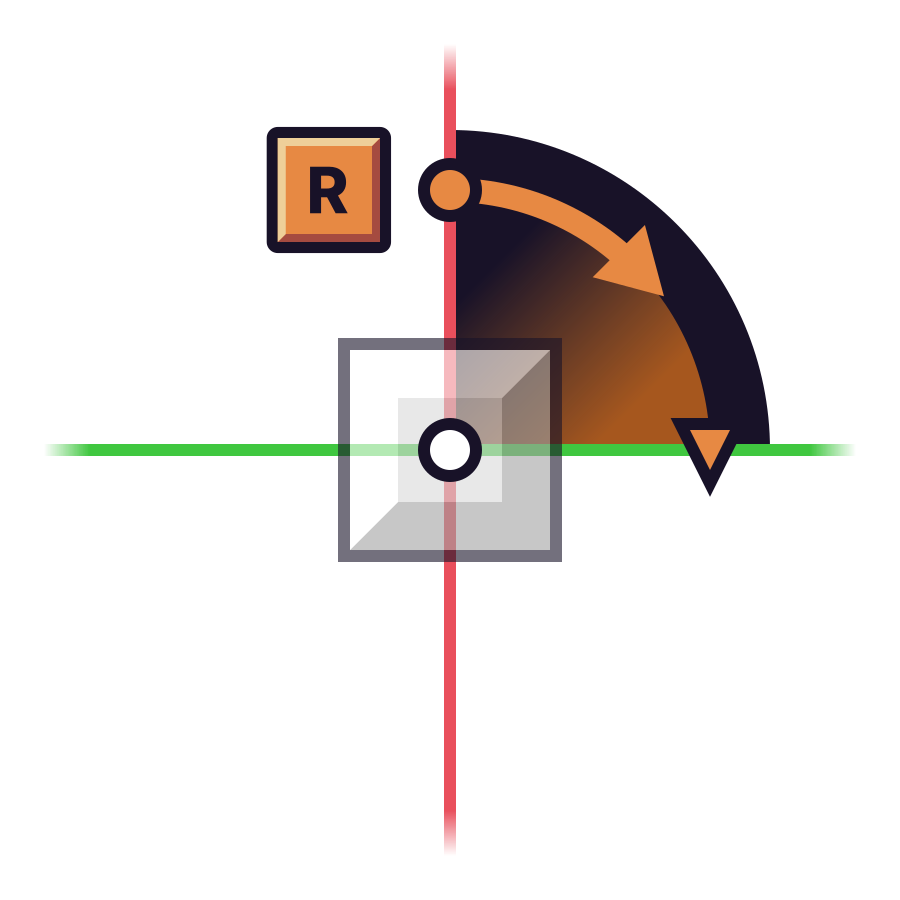
Simple rotation can be done in increments of 90 degrees, relative to the rotation of the grid with the Builder.
Pressing R changes the rotation clockwise by 90 degrees.
Set orientation before placing★
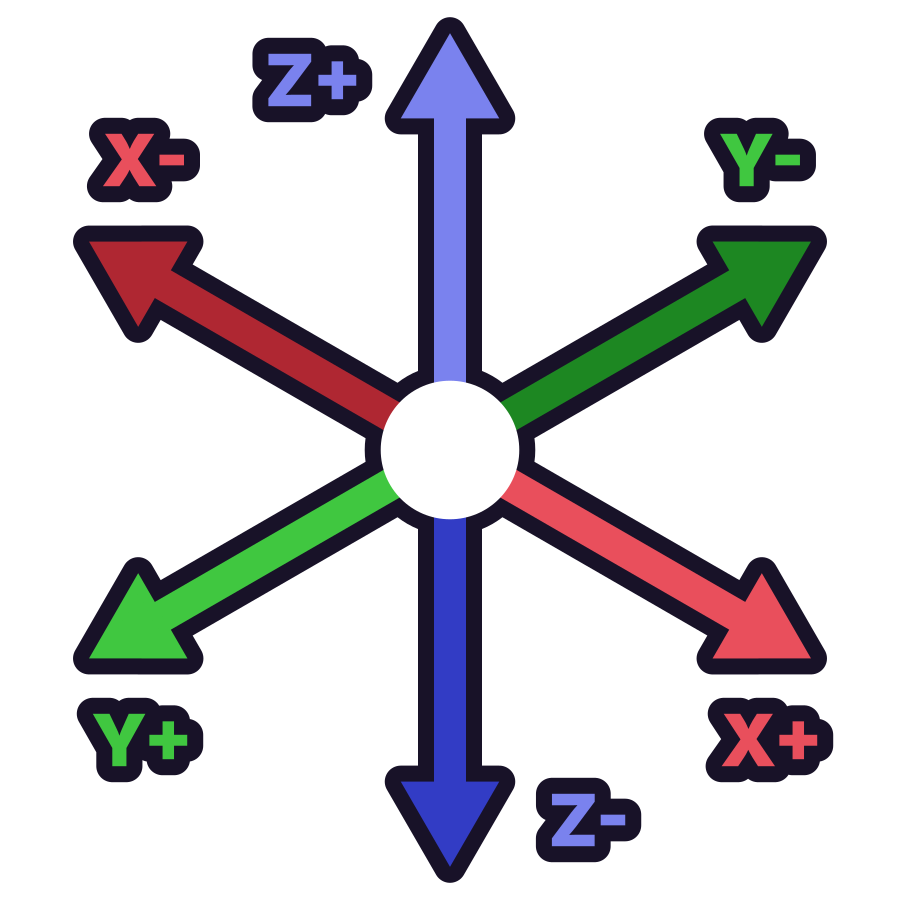
By default, objects are oriented upwards (Z+).
There are six orientations. Since this game uses Unreal Engine, the axes are arranged like this:
-
-
-
X axis:
X+: forwardX-: backward
-
Y axis:
Y+: to the leftY-: to the right
-
Z axis:
Z+: uprightZ-: upside down
-
You can change the orientation by holding R and moving your mouse to the direction you want your object to orient to.
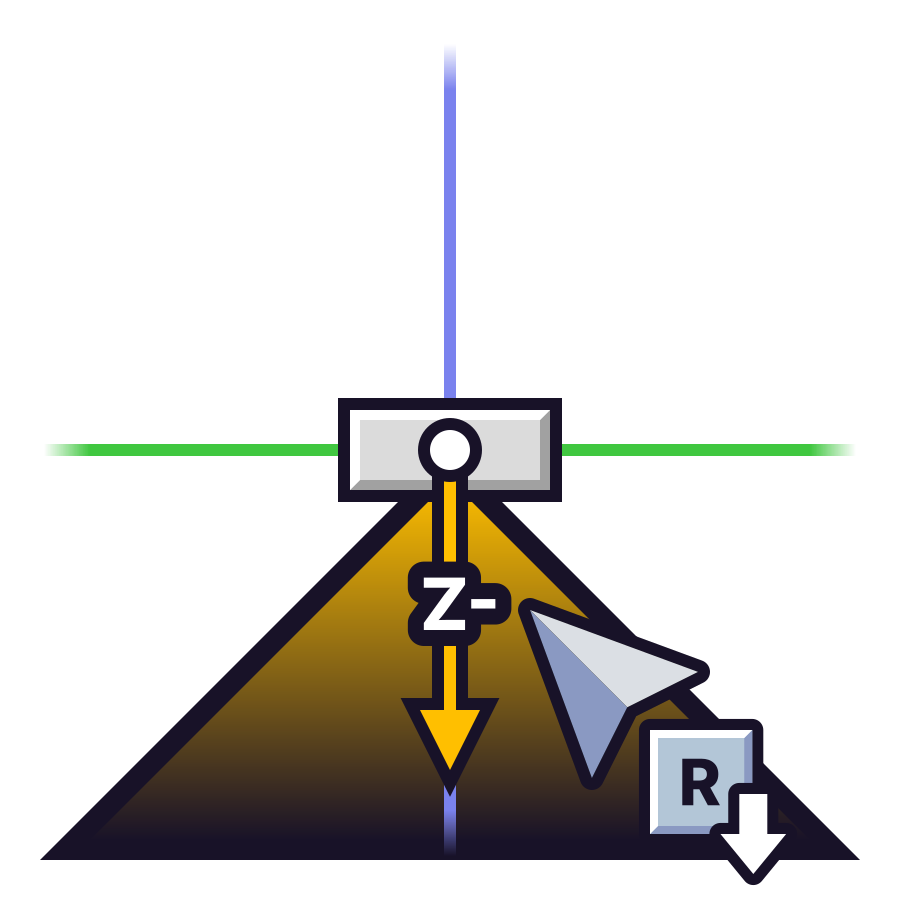
Once you're done, release R to apply that orientation.
Note
Joints will orient to the surface they're placed on.
Mid-air placement★
The builder allows you to place objects without having to set up supporting structures or being constrained by physical limits.
Place floating★
Holding Alt will allow you to place objects at a floating position relative to your location and your camera.
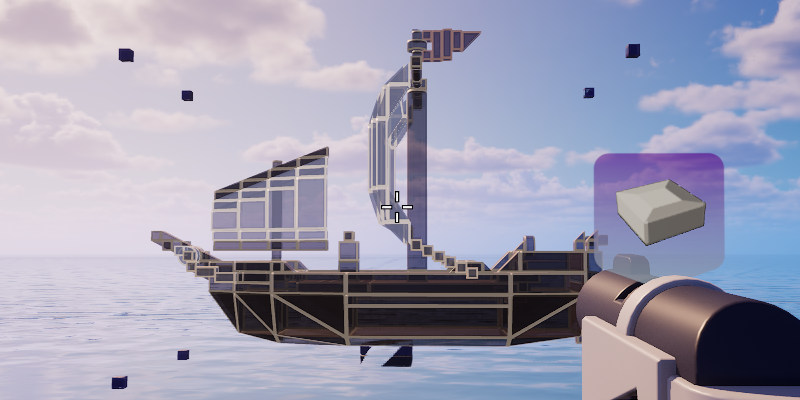
Floating placement
While holding Alt, you can use the scroll wheel to adjust the distance between you and the object itself.
- Scrolling up will push the object further away from you.
- Scrolling down will bring the object closer to you.
Place locked★
Holding Ctrl will lock the movement of your previewed object relative to the surface of a brick.
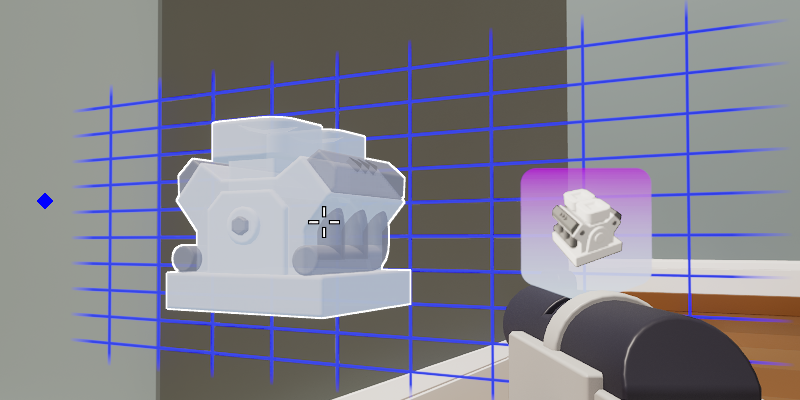
Mouse mode plane locking
While holding Ctrl, you can use the scroll wheel to adjust the position of the previewed object relative to the original surface.
- Scrolling up will push the object further away, relative to your view.
- Scrolling down will bring the object closer to you, relative to your view.
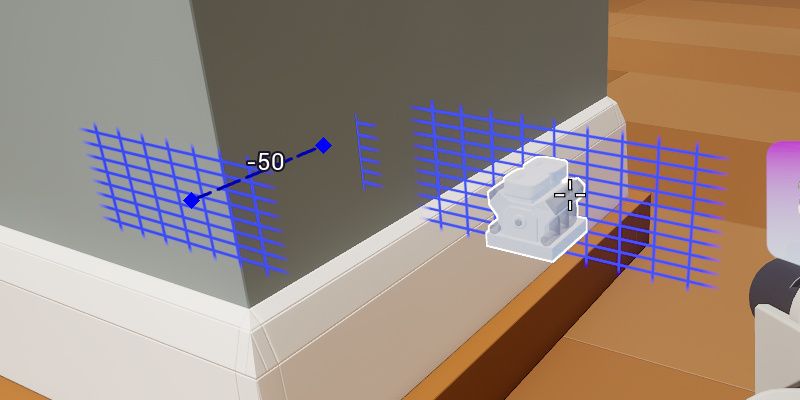
Mouse mode plane locking, scrolled by 50 units (5 studs)
Deleting objects★
The Mouse Mode of the Builder allows you to delete objects, including entities and brick grids.
Deleting individual objects★
-
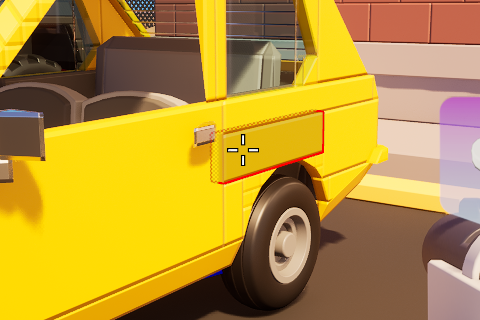 To delete an individual object, hold the
Right Mouse Button, and aim at a brick
or a singular entity.
To delete an individual object, hold the
Right Mouse Button, and aim at a brick
or a singular entity. -
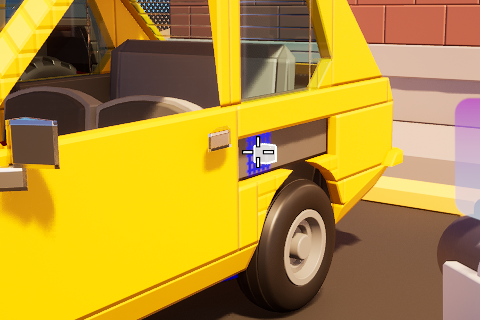
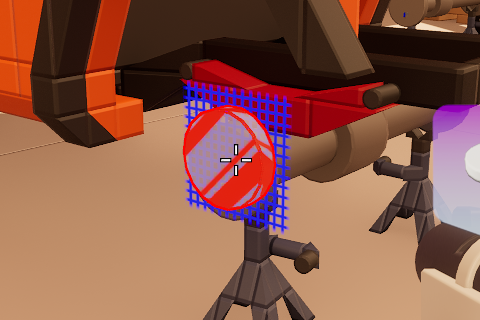
Release the Right Mouse Button to delete the object highlighted in red.
Deleting entities★
-
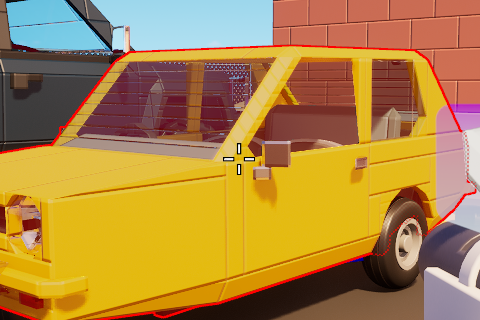
Hold both Alt and the Right Mouse Button at the same time, and aim at a brick grid. This excludes the global brick grid from being deleted.
-
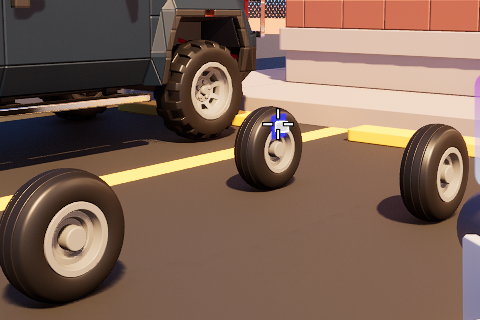
Release the Right Mouse Button to delete the brick grid/entity highlighted in red.
Picking using the Builder★
The Mouse Mode of the Builder allows you to pick bricks, use their color as the current color, put them in the quickbar's temporary slot, or add them directly into the quickbar.
Picking bricks★
-
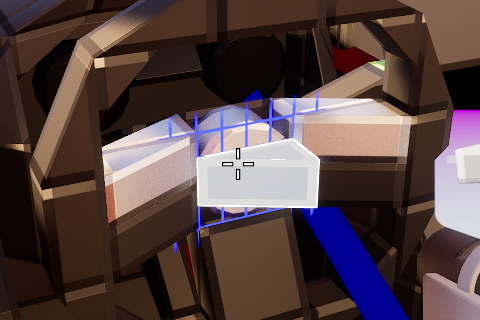
With the Builder equipped, aim at a brick you want to pick.
Press the Middle Mouse Button to add the brick to the temporary quickbar slot.
By default, the temporary quickbar slot doesn't appear on its own.
-
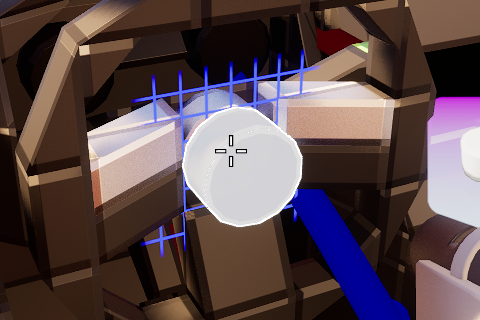

The temporary slot will be automatically selected upon picking. This allows you to immediately use the picked brick.
Attempting to use the Mouse Scroll Wheel will remove the brick and the slot itself.
Picking colors★
-
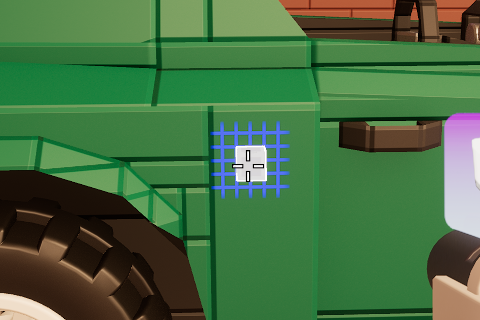
With the Builder equipped, aim at a brick you want to copy the color of.
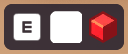
The current selected color in the interface is white.
-
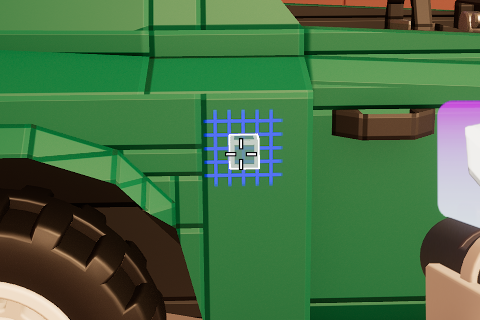
Hold Left Ctrl, and press the Middle Mouse Button to pick the color of the brick you're aiming at.
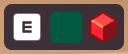
The current selected color in the interface is now green, just like the car.
Adding picked bricks to quickbar★
-
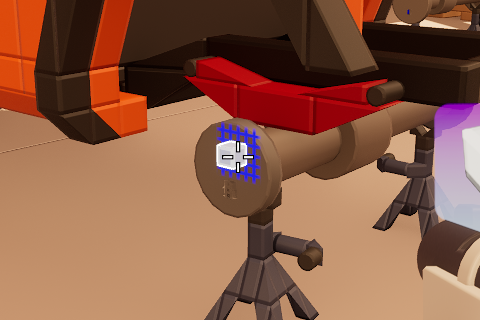
With the Builder equipped, aim at a brick you want to pick.
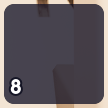
Quickbar slots must be empty to pick and add bricks. If none are empty, this will not work.
-
Hold Left Ctrl and Left Alt at the same time, then press the Middle Mouse Button to add the picked brick into a quickbar slot.
This slot is now filled with the picked brick and automatically selected for you.