Choosing a world★
Caution
If you're accessing the World Select menu through Load World in-game, save the current world manually before loading another world into your server! The game will not automatically save your progress for you when you load another world. Even if you turned on auto saving for your server, it may not be granular enough to capture and save smaller changes.
You can choose and download worlds to play in the "Select A World" menu.
Discover tab★
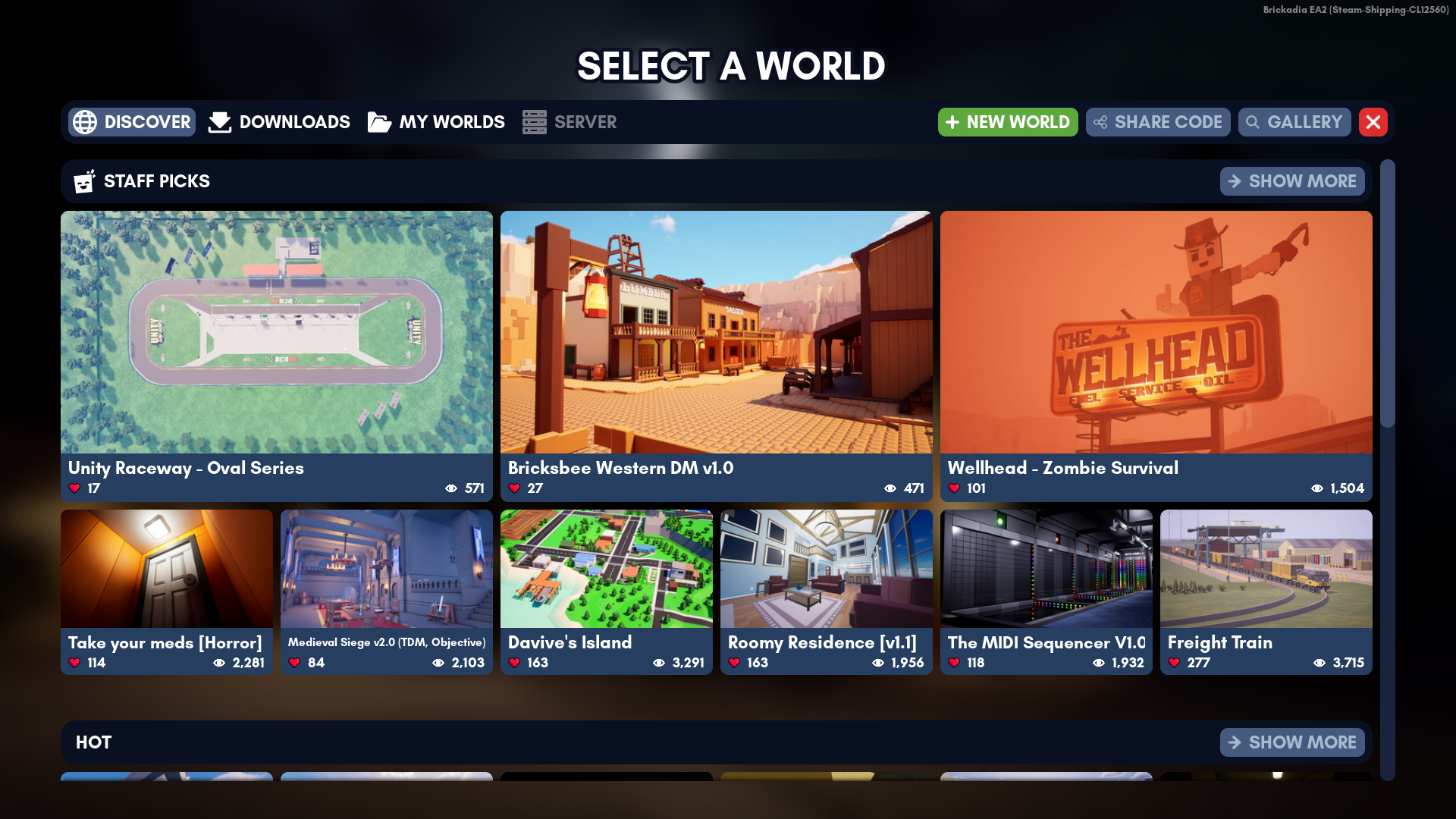
The Discover tab provides access to the Gallery, where you can explore curated worlds uploaded by users of varying experience levels and selected by staff. The gallery is the number one official destination for world downloads.
Pressing Show More on any of these categories will open the Gallery search dialog with the search mode set to the respective category.
Staff Picks★
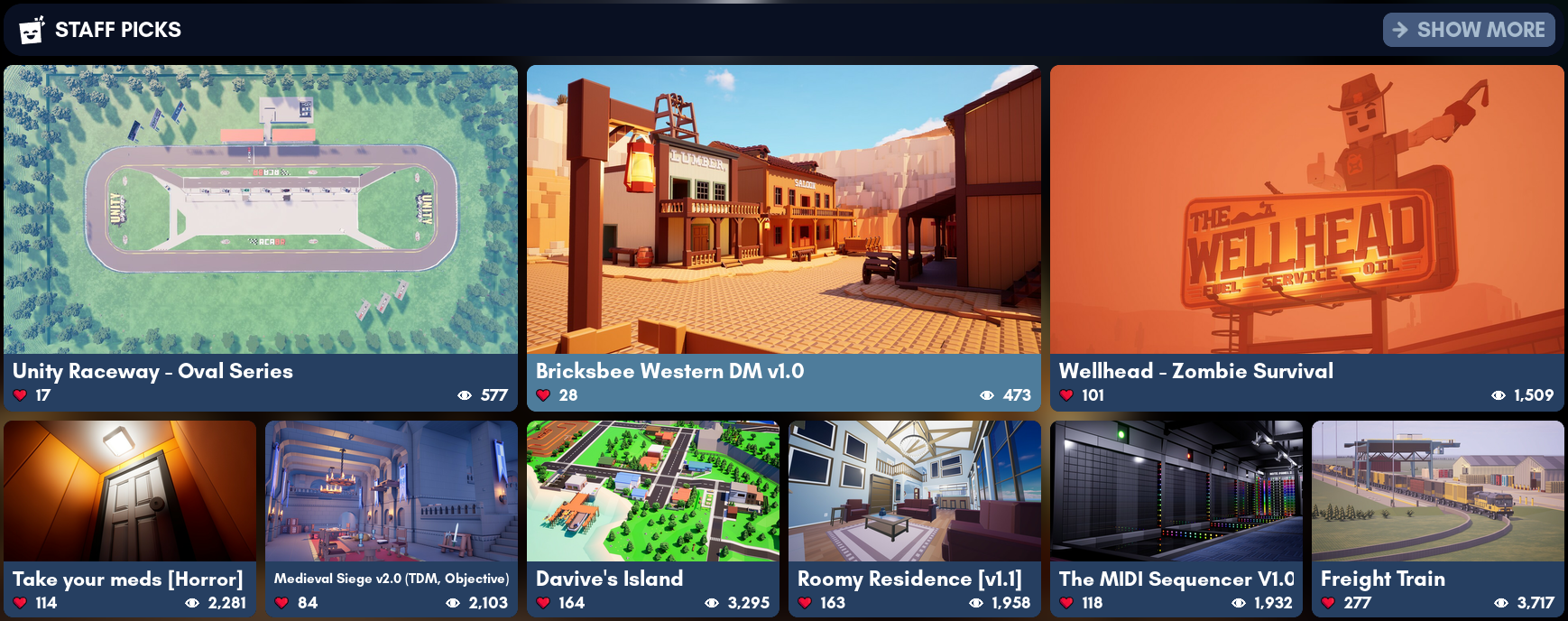
An entire section dedicated to worlds curated by the staff of Brickadia due to their great quality or significance in the community. Want the best of Brickadia? Look in this section.
Instead of the normal 12 items on screen, this section of the Discover tab will only show 9 items, 3 large and 6 small.
Hot★
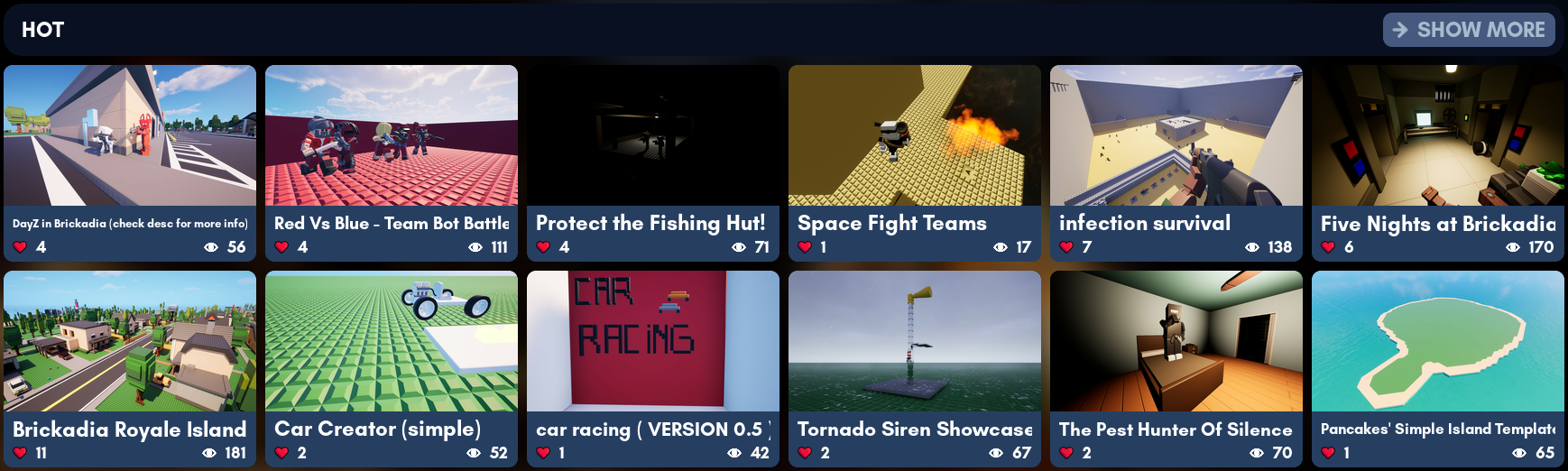
Who's playing what in Brickadia? This section shows worlds currently popular right now in the community, ranked by likes and views recently accumulated.
Top★
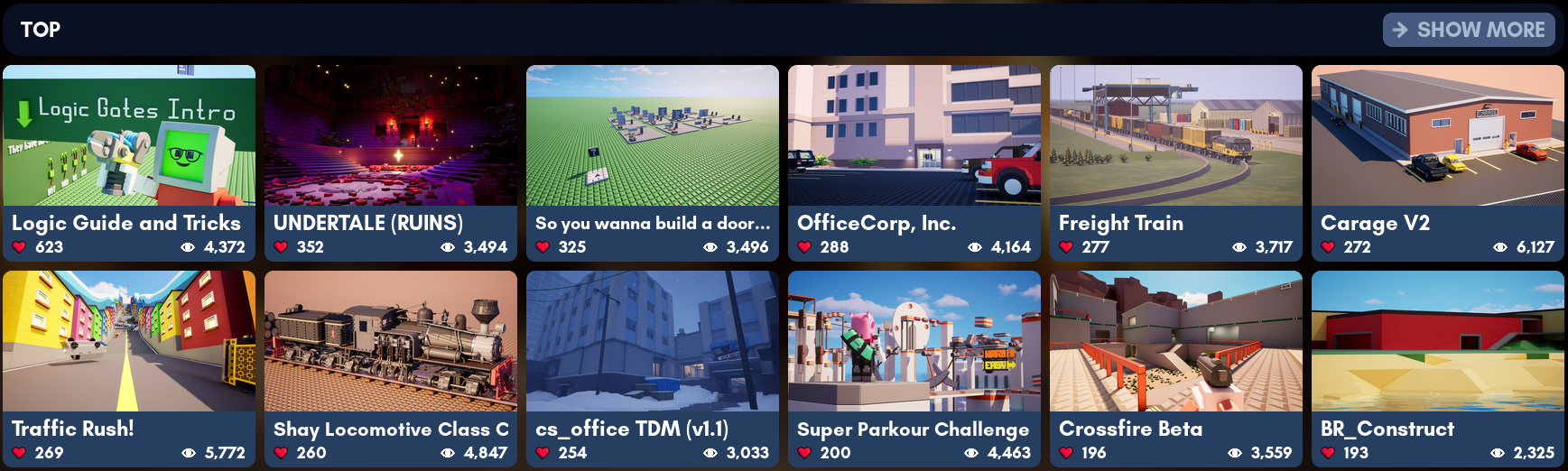
Looking for something that stood the test of time? This section houses the top worlds of all time, ordered by the most likes, then most views.
New★
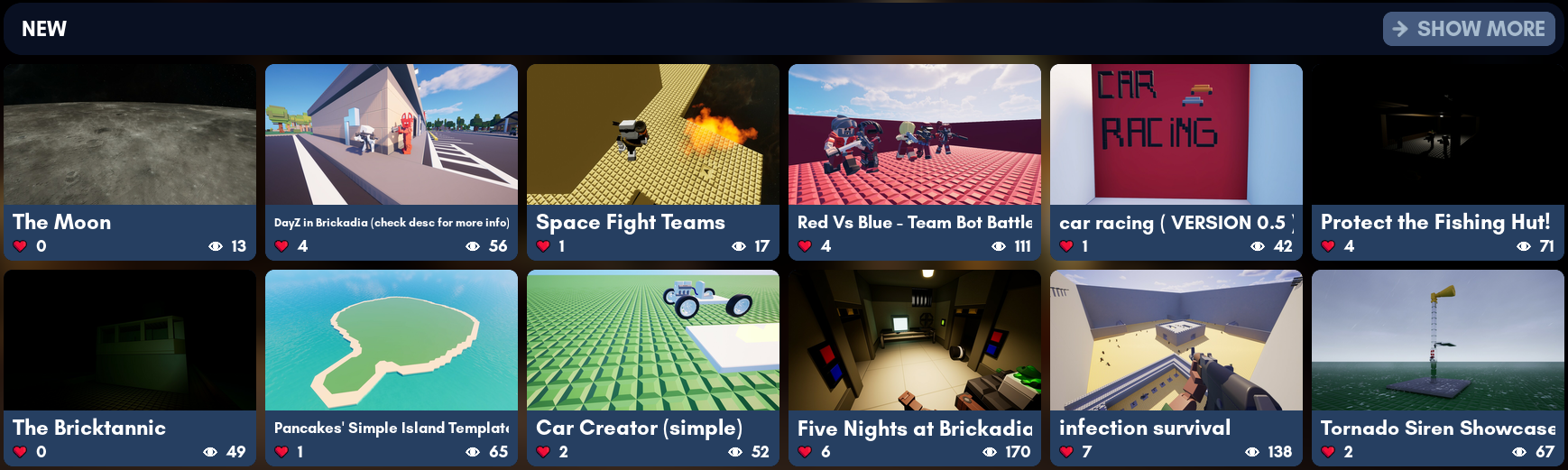
The literal newest worlds for you to browse. Will you get lucky and find an underrated gem? This section might be the best place to do so.
Gallery world page★
Double clicking on a world will open this dialog and show you information of the world itself. The information in this dialog includes:
- World name
- World thumbnail
- Uploader display name
- Upload date
- Likes
- Views
- Tags
- Description
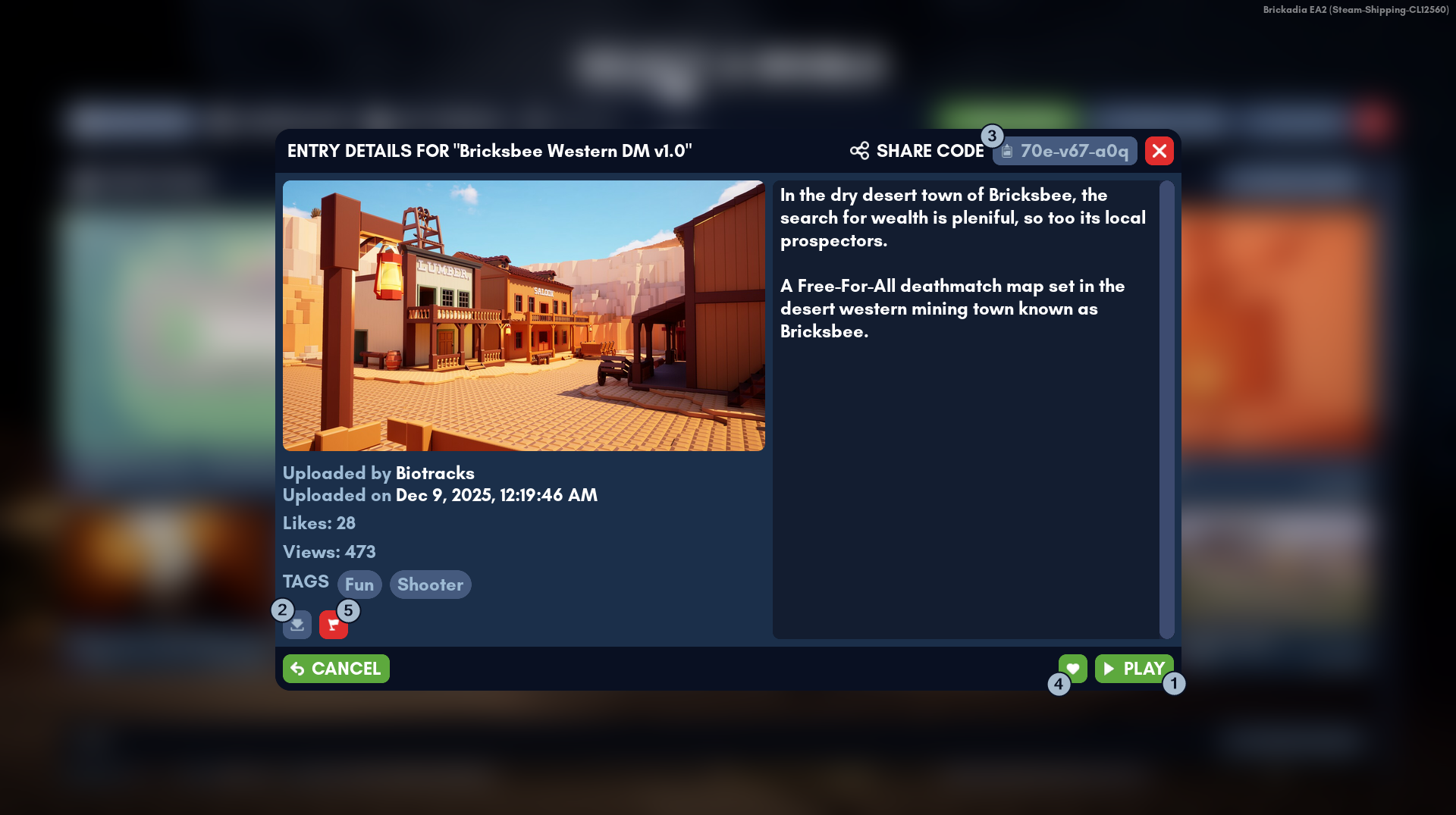
There are five notable buttons in this dialog:
- The Play button downloads this world and lets you host with it or play on it immediately.
- The save button downloads this world into the local Downloads directory for later.
- The Share Code button copies the share code for this world into your computer's clipboard.
Normally, a share code would have this format:xxx-xxx-xxx - The button gives a like on your behalf for this world as a way to give kudos. This adds to the world's total likes.
You can retract your like later by pressing the same button when it looks like this: - The button is for reporting worlds with content that breaks the rules.
To close this dialog, click the button on the top-right corner or the Cancel button on the bottom-left corner.
Downloads★
Manage your downloaded worlds from the Discover tab/Gallery.
Searching downloaded worlds★
Searching worlds in the Gallery★

To search worlds in the gallery, click the Gallery button on the top-right corner to browse all worlds with keywords and filters.
Plain text search★
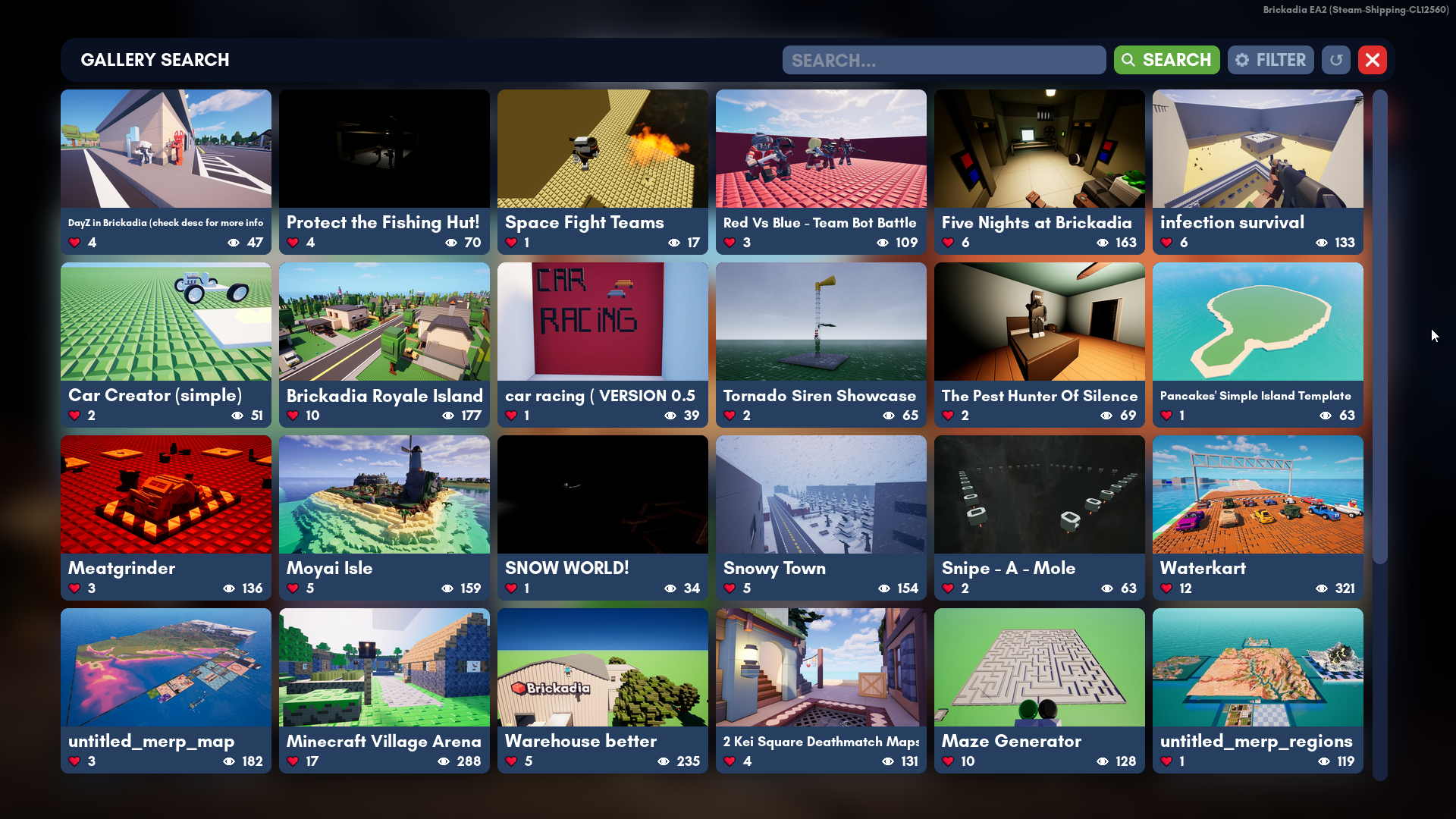
Click on the Search... box and start typing away. Think about a specific kind of world.
Press Enter on the keyboard or click the Search button to get search results that fit your keywords.
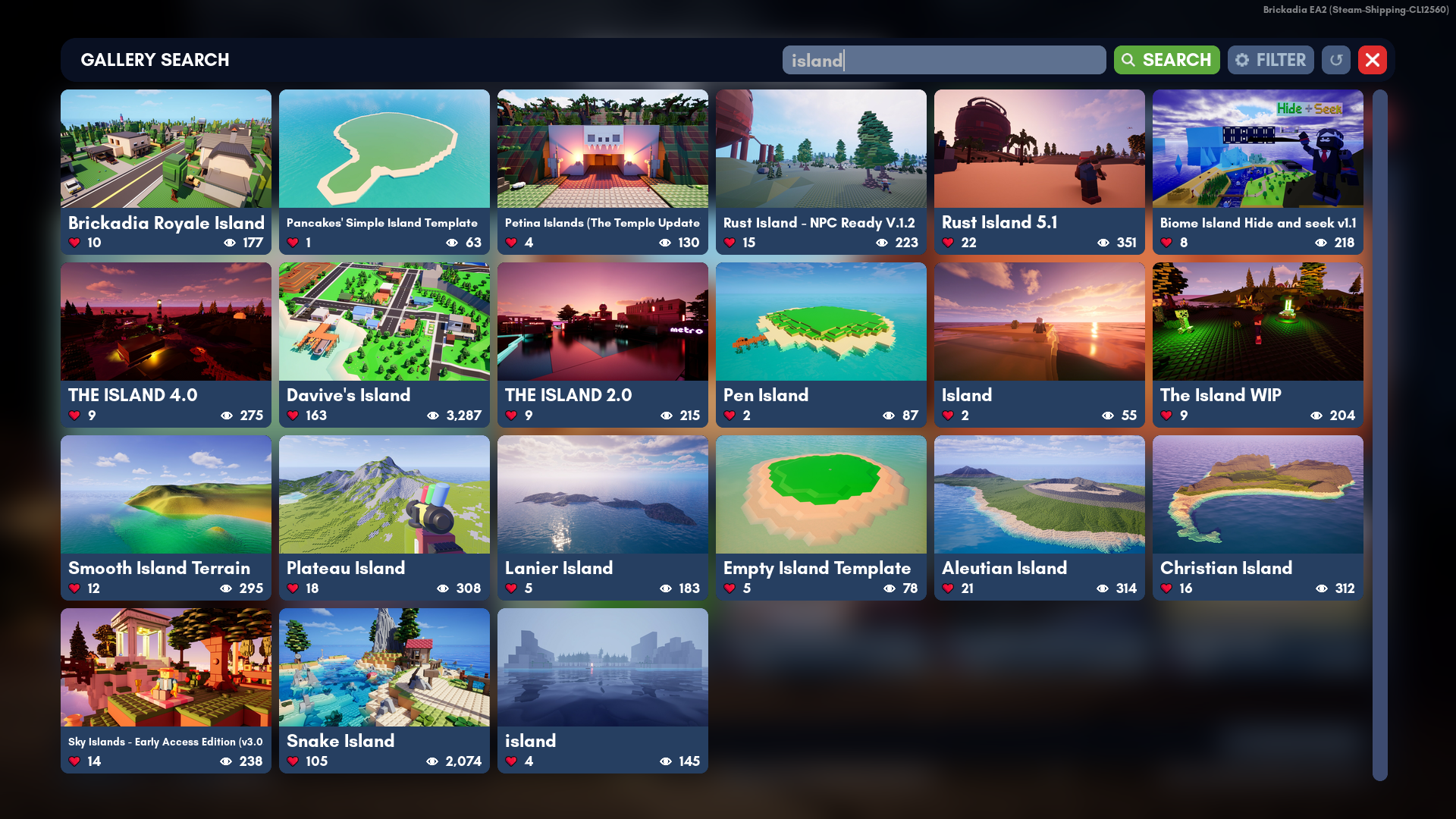
Searching for worlds with the keyword "island"
Filtering search results★
Clicking the Filter button on the top-right corner will bring up this dialog.
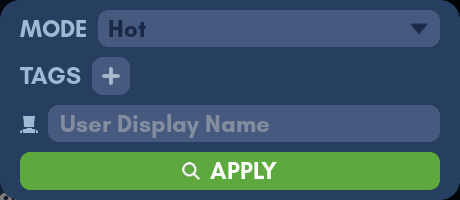
You can filter your search results with certain criteria with this dialog.
Clicking the Apply button will filter and refresh your results.
Search mode★
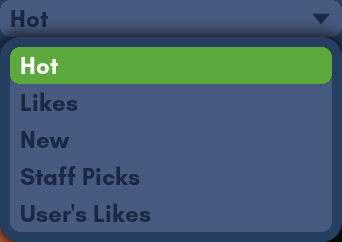
There's a dropdown to select a search mode from the modes below:
Statistical:
- Hot
Sort worlds based on current engagement with the world. - Likes
Sort worlds by most liked first. - New
Sort worlds by latest publish date first.
Exclusive:
- Staff Picks
Include only staff picked worlds. - User's Likes
Include only worlds you liked.
Using tags★
Click to add a tag from the list of tags. You can add a maximum of 3 tags per search.

To remove tags, hover over them and click them when they turn red to remove them.

Example of how tags work:
- Filtering by Colorful will show all worlds with the Colorful tag
- Filtering by Megabuild and Showcase will only show worlds that have both the tag Megabuild and Showcase alongside their other tags
- Worlds with the tag Megabuild only will not appear in search
- Worlds with the tag Showcase only will not appear in search
Specify display name★

Only include worlds published by the user with this display name (if they have any, that is).
Refresh search results★

To manually update your search results, click the button on the top right.
Use world share codes★
Click the Share Code button on the top-right corner to access this dialog.
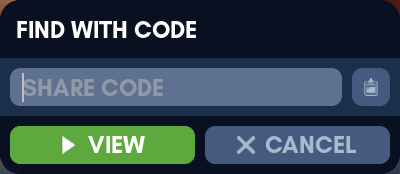
Enter or paste a share code into the Share Code box. The share code must be for a world, not a prefab.
Alternatively, clicking the button will automatically find valid share codes you've copied in the clipboard.
Click the View button to view the world in the gallery that corresponds with the code you just entered.
Click the Cancel button to abort using share codes.
Creating a new world★
Click the New World button on the top-right corner, which will bring up a dialog to select an environment where your new world will take place.
Select one of the environments to house your world in. You cannot change this after selecting the environment!
Click the Create New World button to confirm creating a new world.
Since you're currently in your server, this will instantly take you to your newly created world.