Peaks★
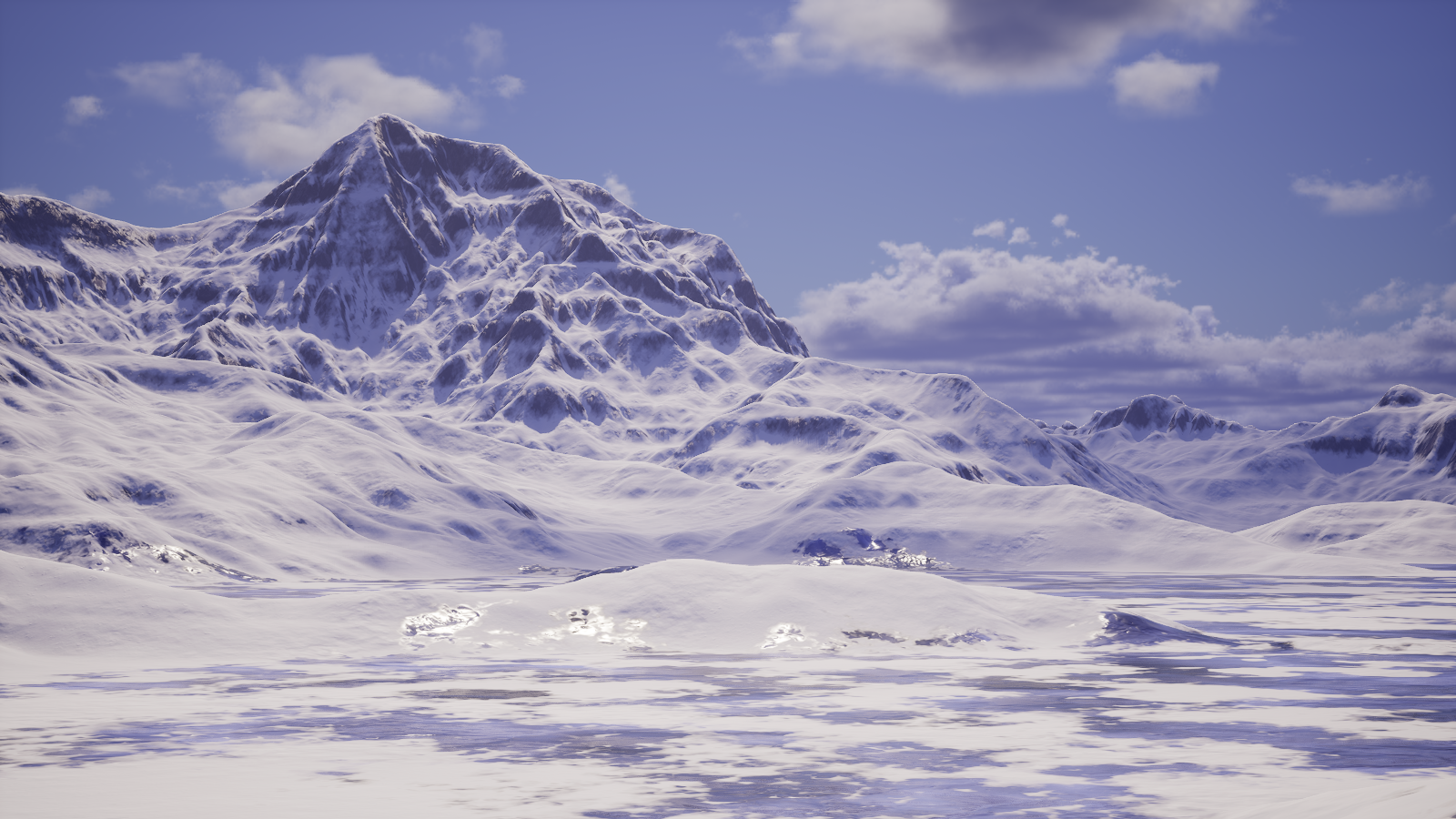
The Peaks environment is full of snowy and mountainous terrain, perfect for those who are looking for a place that resembles the arctics.
Sky★
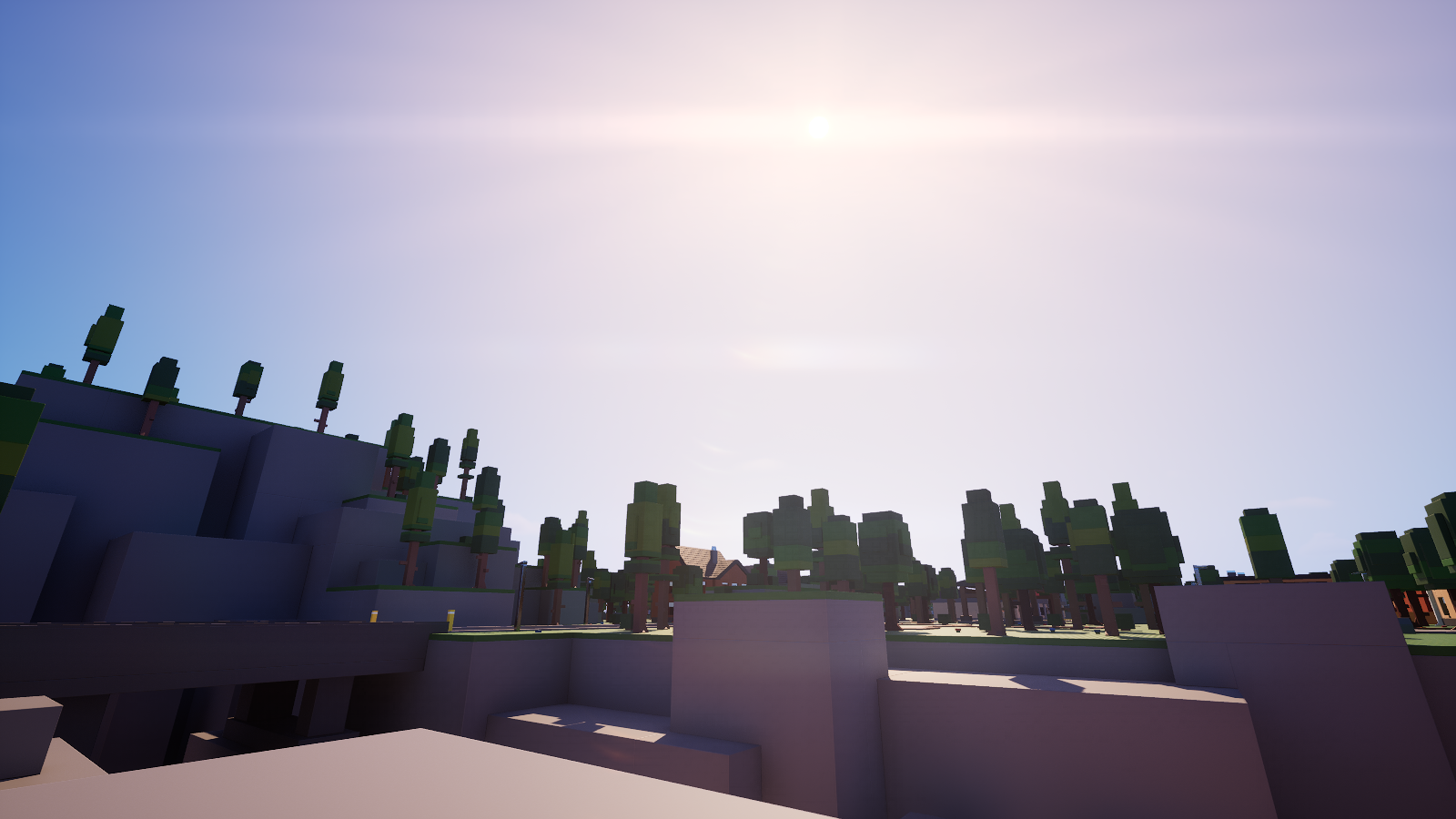
You can customize the sky with the following parameters:
- Time Of Day: The time of day
- Animate Time Of Day: Whether or not to enable dynamic time of day
- Day Length
- Night Length
- Sun Angle
- Sun Scale
- Sun Horizon Scale: The scale of the sun when it's sunrise/sunset
- Sunlight color
- Sky Intensity: The intensity of the sky and its light
- Sky Color
Time of Day★
You can set the current time of day when it is not animated.
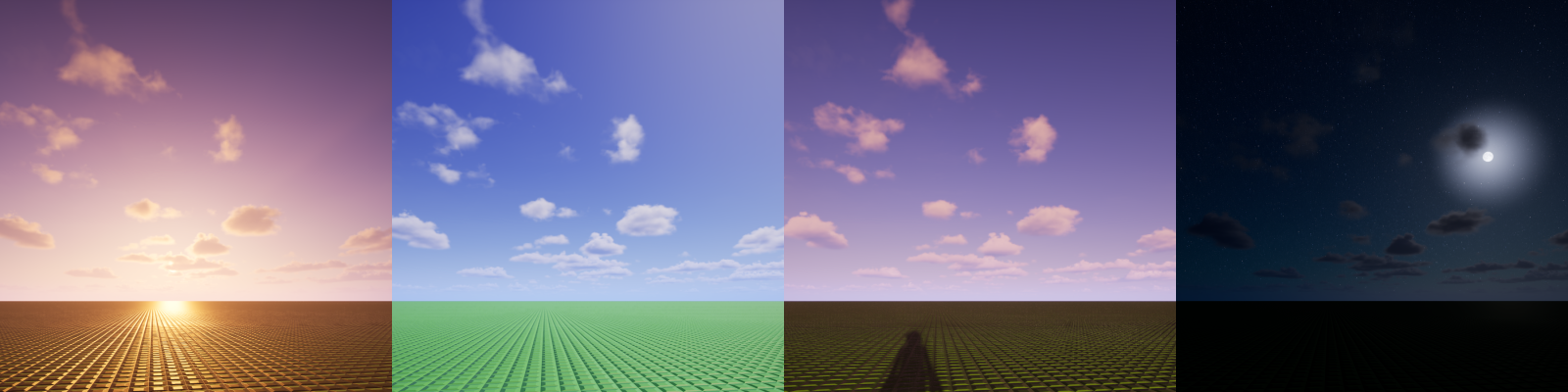
Various times of day:
6.5hr, 12hr, 17.5hr, 20hr
One thing to keep in mind is that the unit is hours, but does not show minutes or seconds. This table should help you translate the unit into the 24 hour format or the AM/PM format.
| Example | 24-hour format | AM/PM format |
|---|---|---|
| 4.00hr | 4:00 | 4:00 AM |
| 9.50hr | 9:30 | 9:30 AM |
| 13.75hr | 13:45 | 1:45 PM |
| 23.25hr | 23:15 | 11:15 PM |
Animate Time Of Day★
This option determines if the time of day progresses in real-time. If enabled, will disallow you to edit the time of day as it is being animated.
- Disabled: Static time of day, no progression of time
- Enabled: Dynamic time of day with progression of time, day length determined by Day Length and Night Length.
There are two parameters you can customize when the time of day is being animated:
Day Length★
The length of daytime, from 6:00 to 18:00 (12 hours total).
Night Length★
The length of nighttime, from 18:00 to 6:00 (12 hours total).
Both of these options combine into an ingame day's total length. For example:
| Day length | Night length | Whole day lasts for |
|---|---|---|
| 30min | 15min | 45 minutes |
| 5min | 5min | 10 minutes |
| 10min | 7.5min (7 minutes 30 seconds) | 17 minutes, 30 seconds |
| 720min (12 hours) | 720min (12 hours) | 1,440 minutes (24 hours) |
You can prioritize day length or night length depending on your design for the world. If you want a balanced day distribution, make both options the same amount of minutes.
Sun Angle★
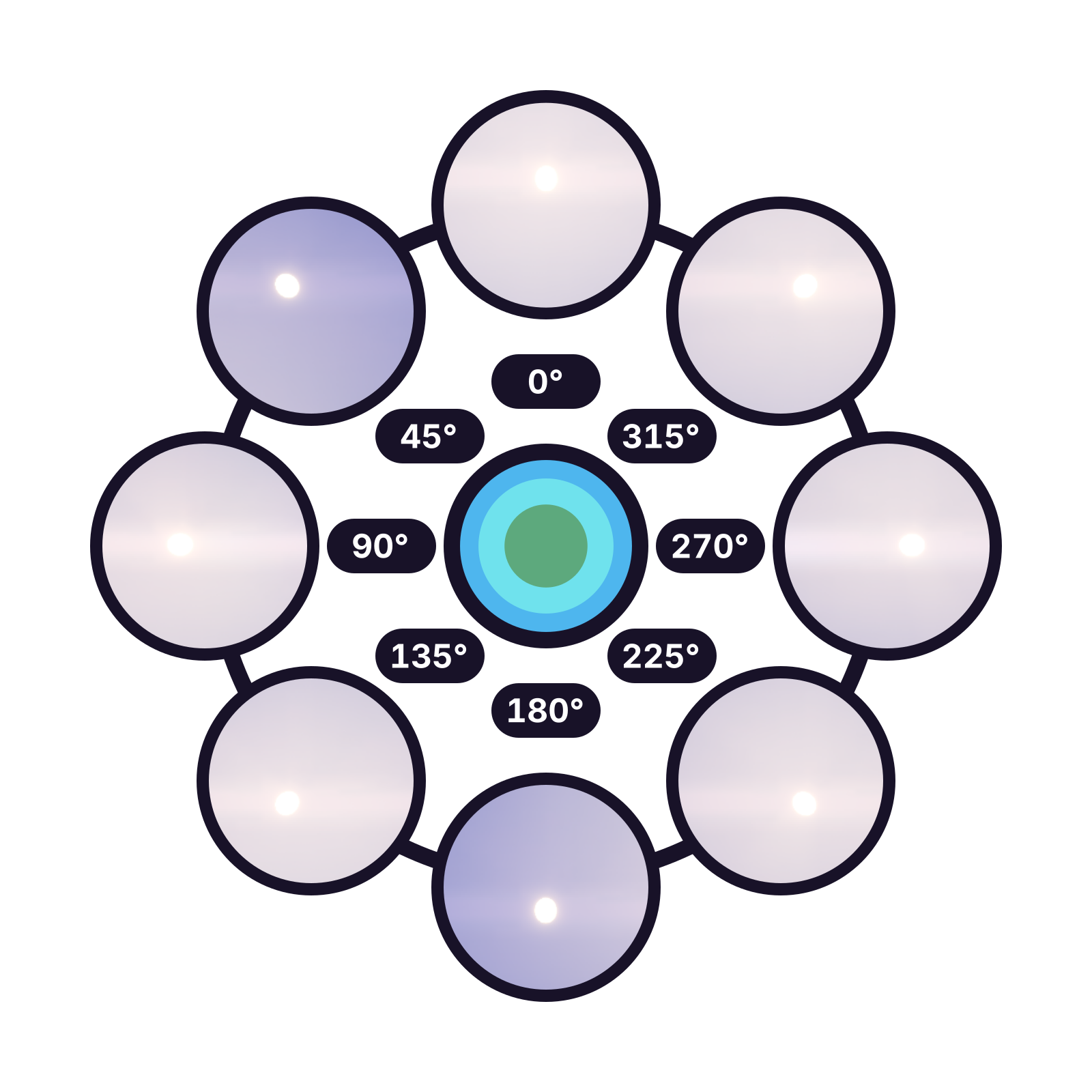
Sun angles and their values
The position of the sun and moon around a circular line. You can adjust the angle from 0 degrees to 360 degrees, just like a full circle.
You can use this to re-align certain shadows or fine-tune the direction of shadows. You can also design mechanics around visibility of the sun/moon at certain angles.
Sun Scale★
You can adjust the sun scale with percentages, from 0% to 500%. This will be multiplied with the Sun Horizon Scale option when the time of day approaches sunrise and sunset.
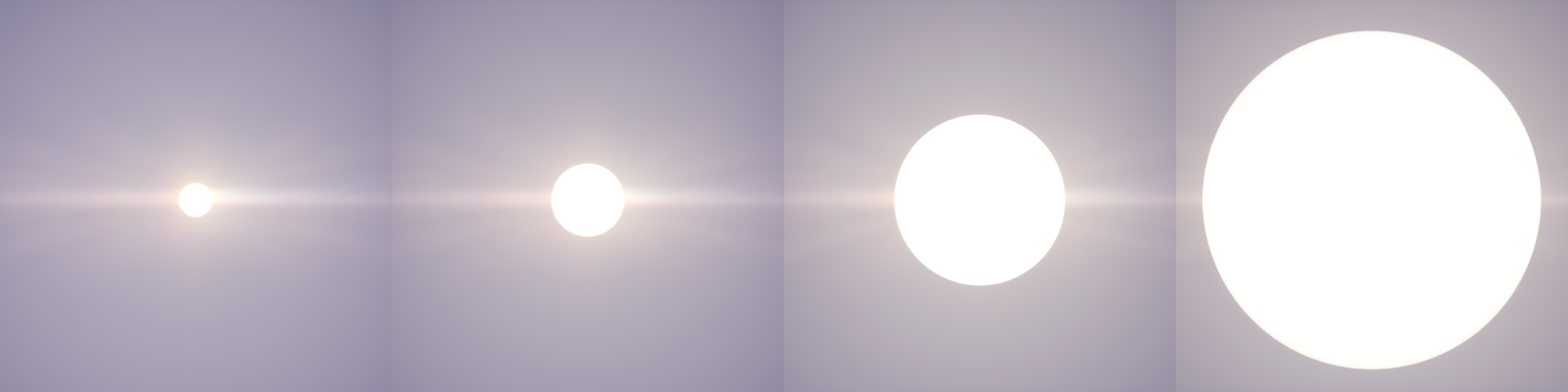
Various sun scale values:
50%, 100%, 250%, 500%
Sun Horizon Scale★
You can adjust how large the sun is relative to its current normal size when the time of day approaches sunrise or sunset. This scales relative to the Sun Scale option, so you might want to make additional adjustments after setting the Sun Scale.
The example below is configured with 85% Sun Scale.
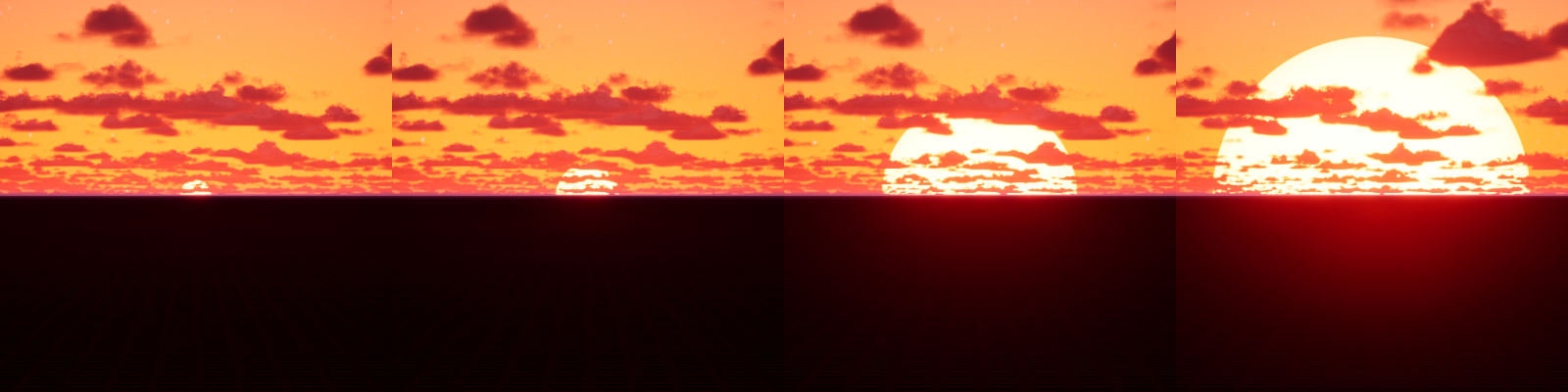
Various sun horizon scale values:
0.5x, 1x, 3x, 5x
Sunlight color★
You can control the color of the direct sunlight that hits the world at day. This can be used to apply a colored or off-white tint to the world itself. Making the color darker will also make the sunlight dimmer.
The example below is configured with a blue color sky at 100% sky intensity.
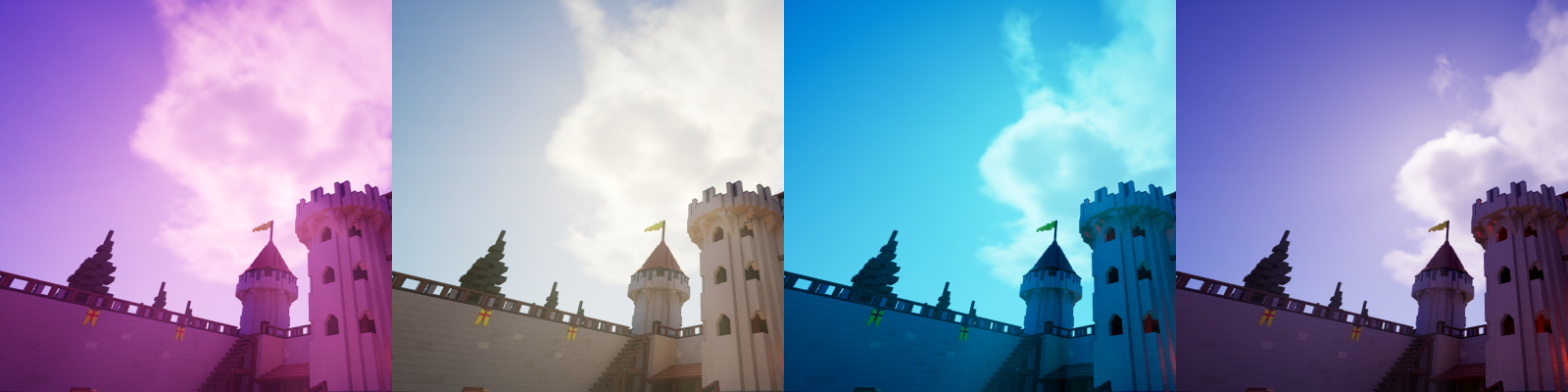
Various sunlight colors in order with the following hex codes:
#FF99F3, #F8FFDA, #00CDFF, #6F6789
Sky Intensity★
You can adjust the influence of the sky's ambient light from 0% to 1,000%. Setting this option to 0% will disable all ambient light and turn the sky black.
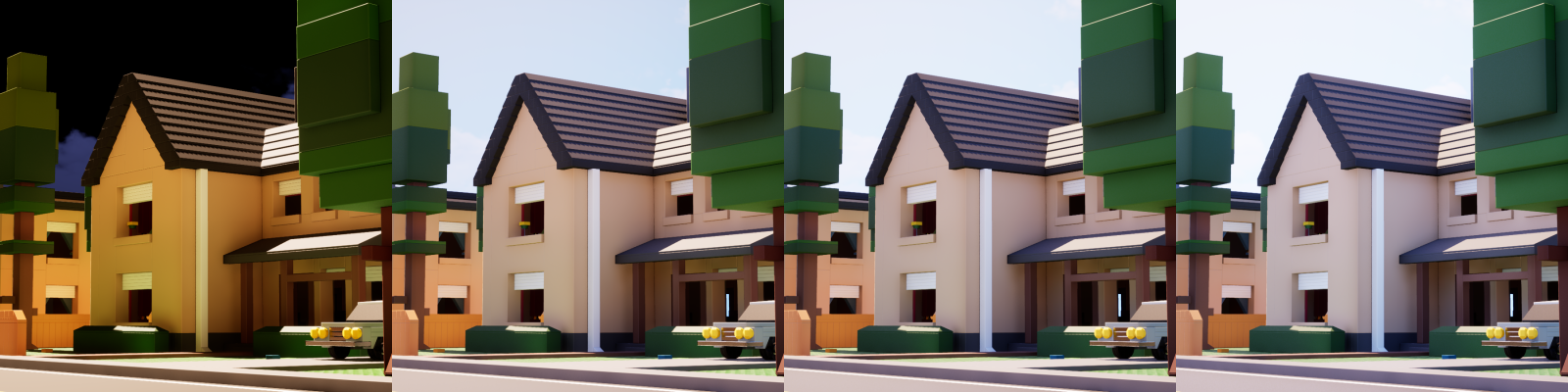
Various sky intensity percentages:
0%, 50%, 100%, 200%
Sky Color★
The example below is configured with 100% sky intensity.
You can change the color of the sky. The sky influences how ambient light in the world is colored.
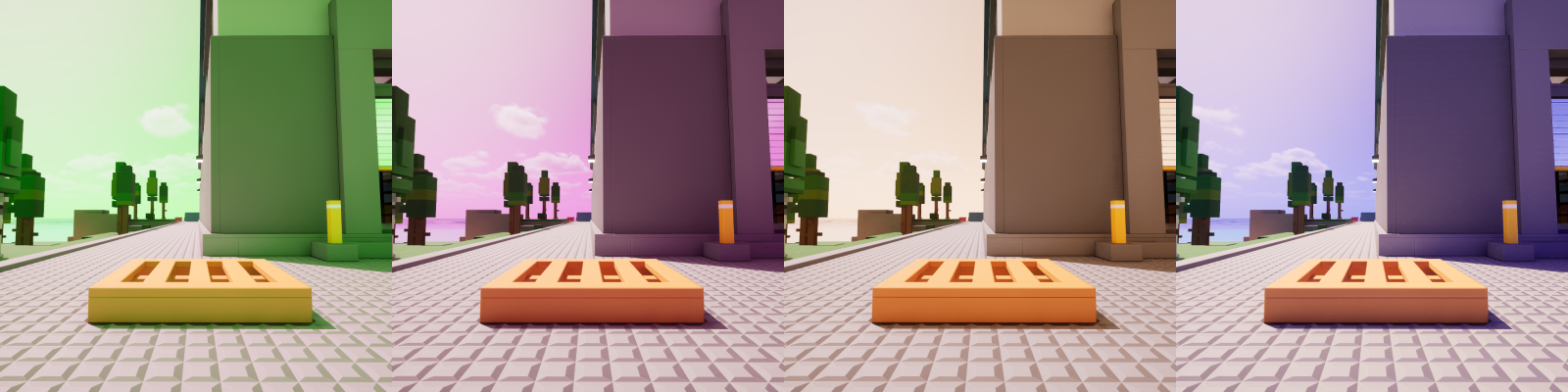
Various sky colors in order with the following hex codes:
#07FF2F, #60007C, #D2AF7C, #0016C6
Sky (Night)★
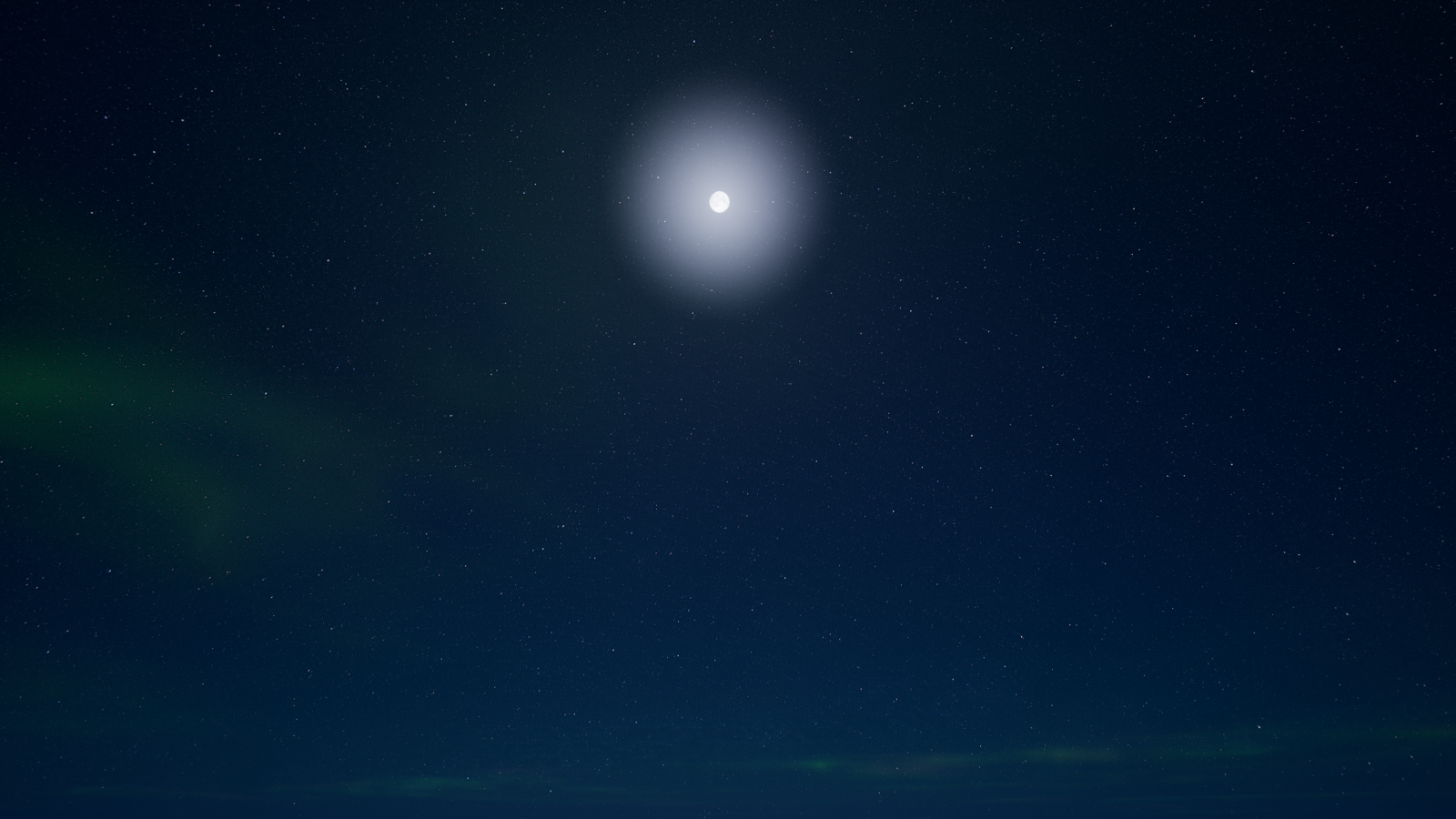
There are certain aspects of the sky that only appear at night:
- Moon: The main source of light and sky color in the sky at nighttime.
- Moon phase: The current phase of the moon
- Moon scale: The current scale of the moon
- Moonlight intensity: How bright the light from the moon is, influences the sky color
- Stars: The speckles in the sky that light up at nighttime.
- Stars intensity: How bright the stars are
- Stars color: The color of the stars
- Aurora: A rare phenomenon of lighting above the sky that occurs during night.
- Aurora intensity: The strength of the aurora effect
Moon Phase★
Specific shapes of the moon occur when sunlight hits certain parts of the Moon throughout the year in a cycle.
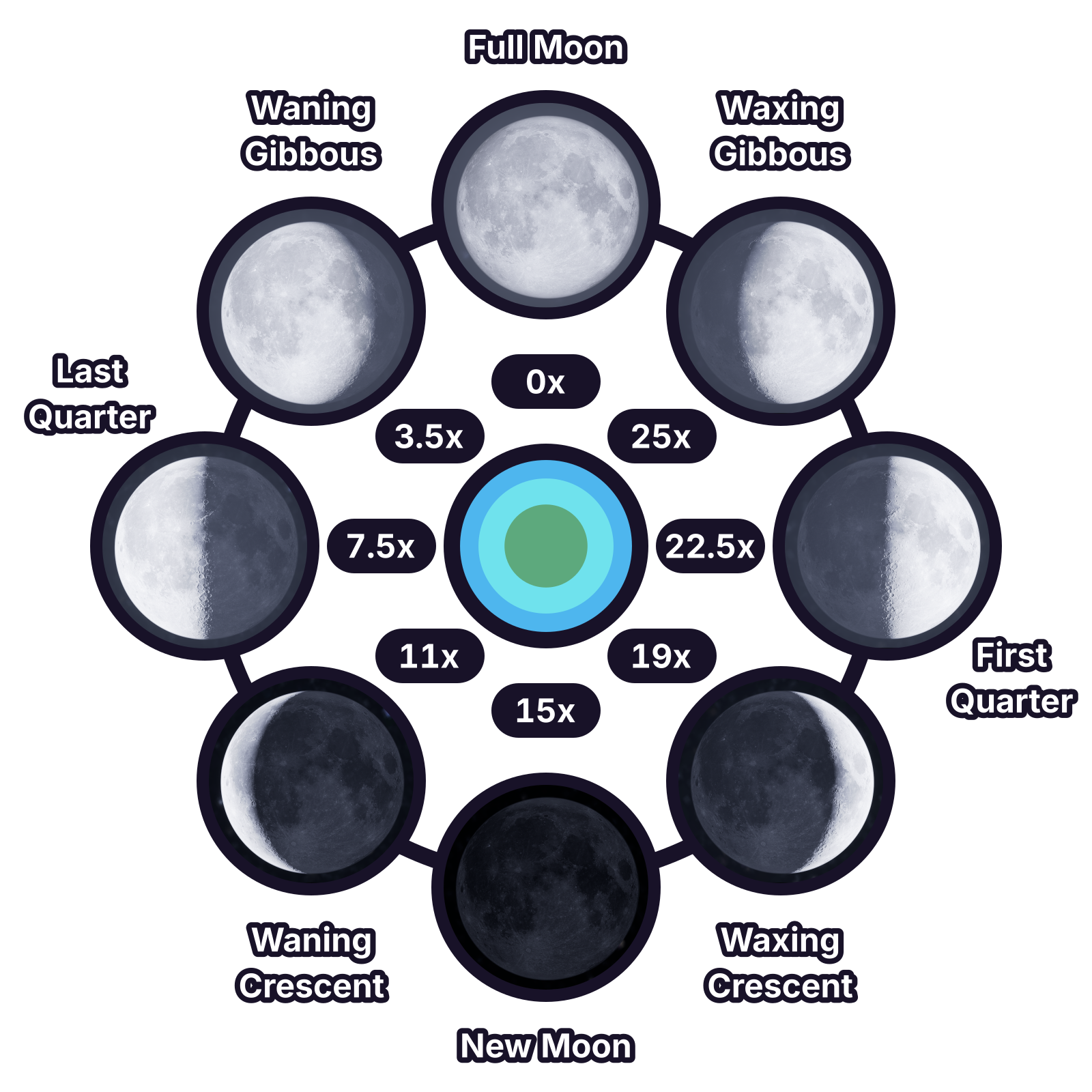
Moon phases and their values
You can edit the moon phase in Brickadia using a multiplier that goes from 0x to 29.5x.
The table below serves as a guide for achieving certain moon phases. It is not exact, but will get you 95% of the way there.
| Value | Moon phase / lunar phase |
|---|---|
| 0x | full moon |
| 3.5x | waning gibbous |
| 7.5x | last quarter |
| 11x | waning crescent |
| 15x | new moon |
| 19x | waxing crescent |
| 22.5x | first quarter |
| 25x | waxing gibbous |
| 29.5x | full moon |
Moon Scale★
You can adjust the moon scale as a percentage, from 0% to 500%.
- Higher values enlarge the moon
- Lower values shrink the moon
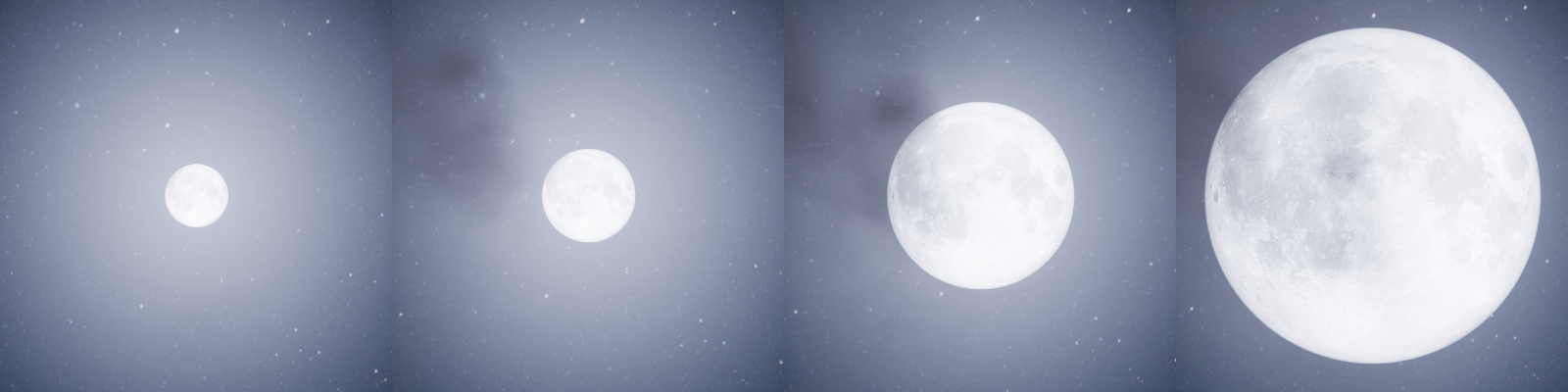
Various moon sizes in order:
70%, 140%, 280%, 500%
It is not possible to remove the moon entirely at 0% percentage, as it still shows a tiny sliver of a moon.
Moonlight Intensity★
The brightness of the moonlight during night time. The moonlight is the main source of global lighting at night time.
- Higher values provide more prominent moonlight
- Lower values provide more subtle moonlight
- 0% removes all moonlight
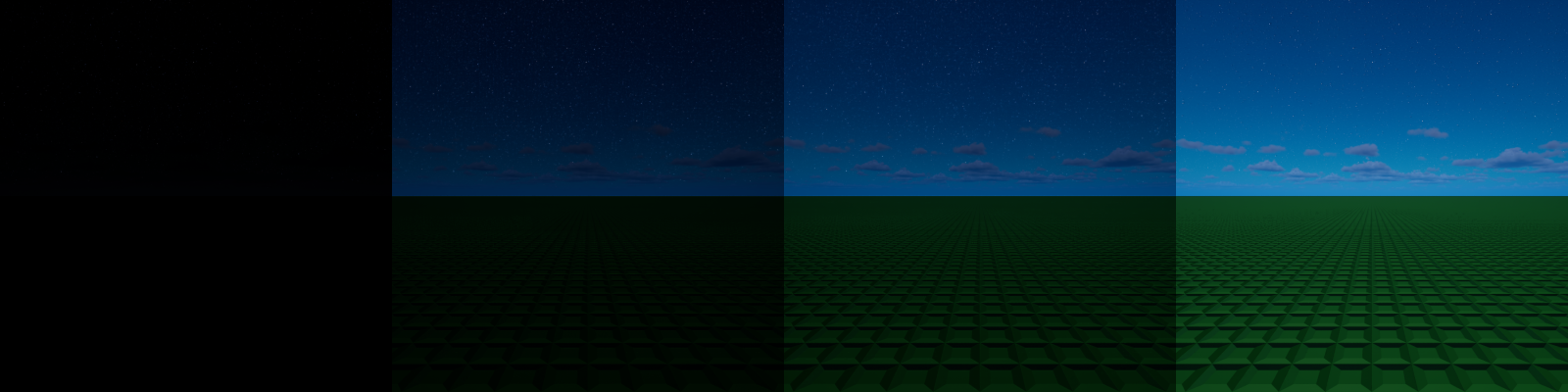
Various moonlight intensity values in order:
0%, 50%, 100%, 200%
Moonlight Color★
You can color or tint the moonlight. This will also influence the sky color.
The example below is configured with 50% moonlight intensity.
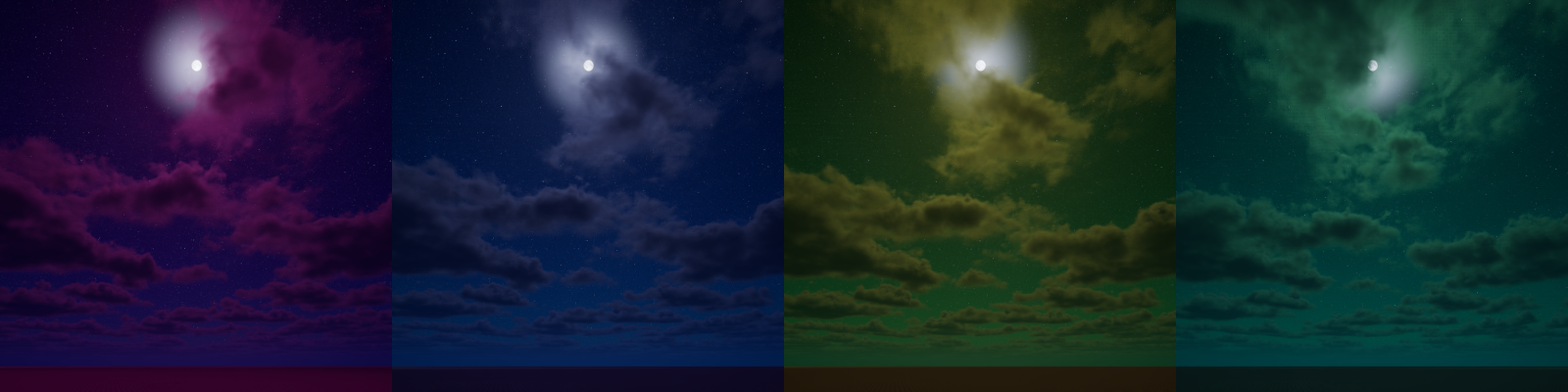
Various moonlight colors in order with the following hex codes:
#EF73DD, #98ABEF, #EAEF80, #7DEFC8
Stars Intensity★
You can adjust the brightness of stars in the sky at nighttime, up to 15x.
- Higher values provide brighter stars
- Lower values provide dimmer stars
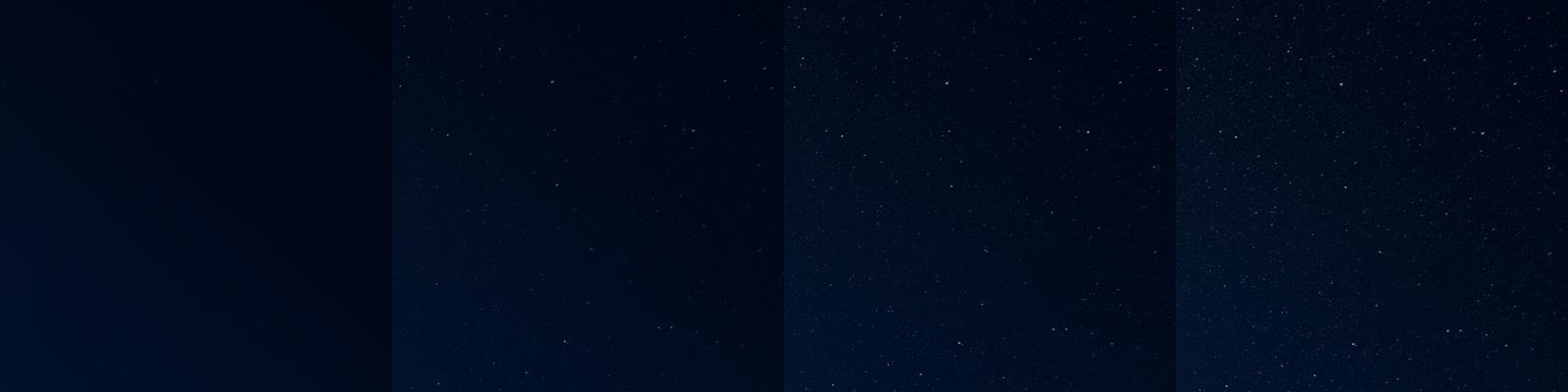
Various stars intensity values in order:
0x, 5x, 10x, 15x
Stars Color★
You can recolor the stars. Note that some color variation will still be present even if you use a different color.
The example below is configured with 15x stars intensity to show the colors clearer.
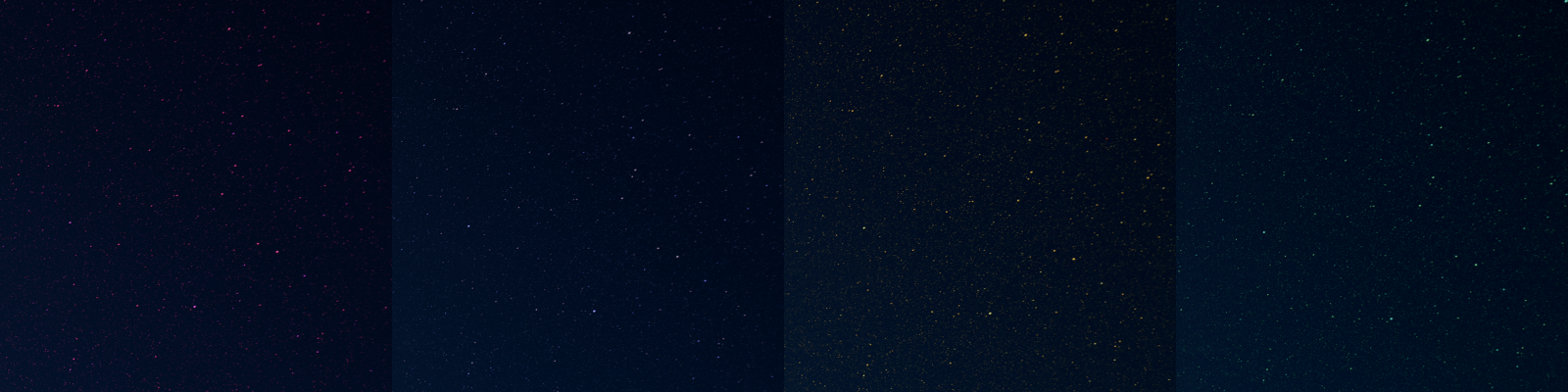
Various stars colors in order with the following hex codes:
#EF73DD, #98ABEF, #EAEF80, #7DEFC8
Aurora Intensity★
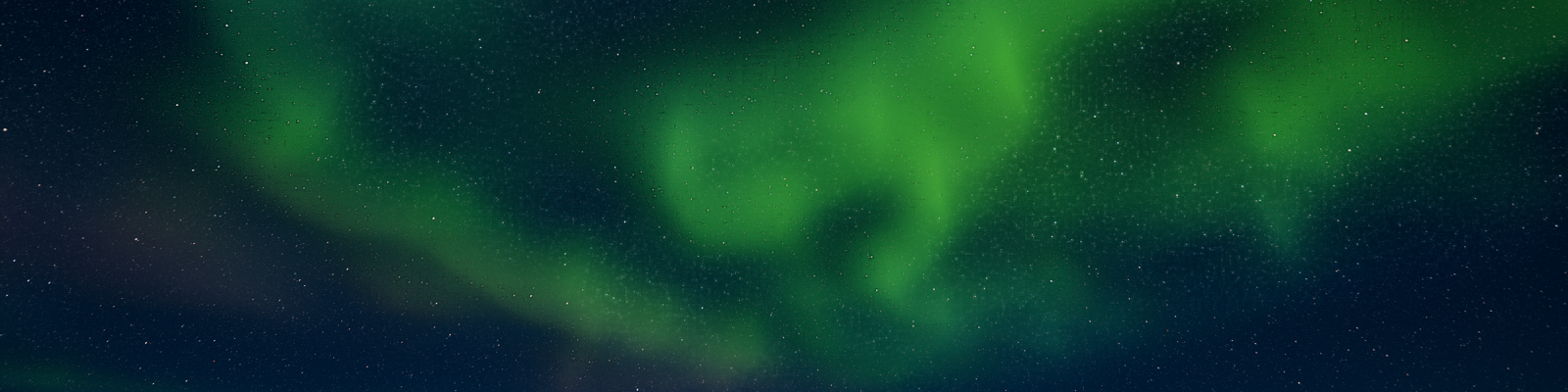
To show auroras at night, you can turn up the aurora intensity value.
- Lower values will provide a more subtle aurora effect
- Higher values will provide a more prominent aurora effect.
Weather★
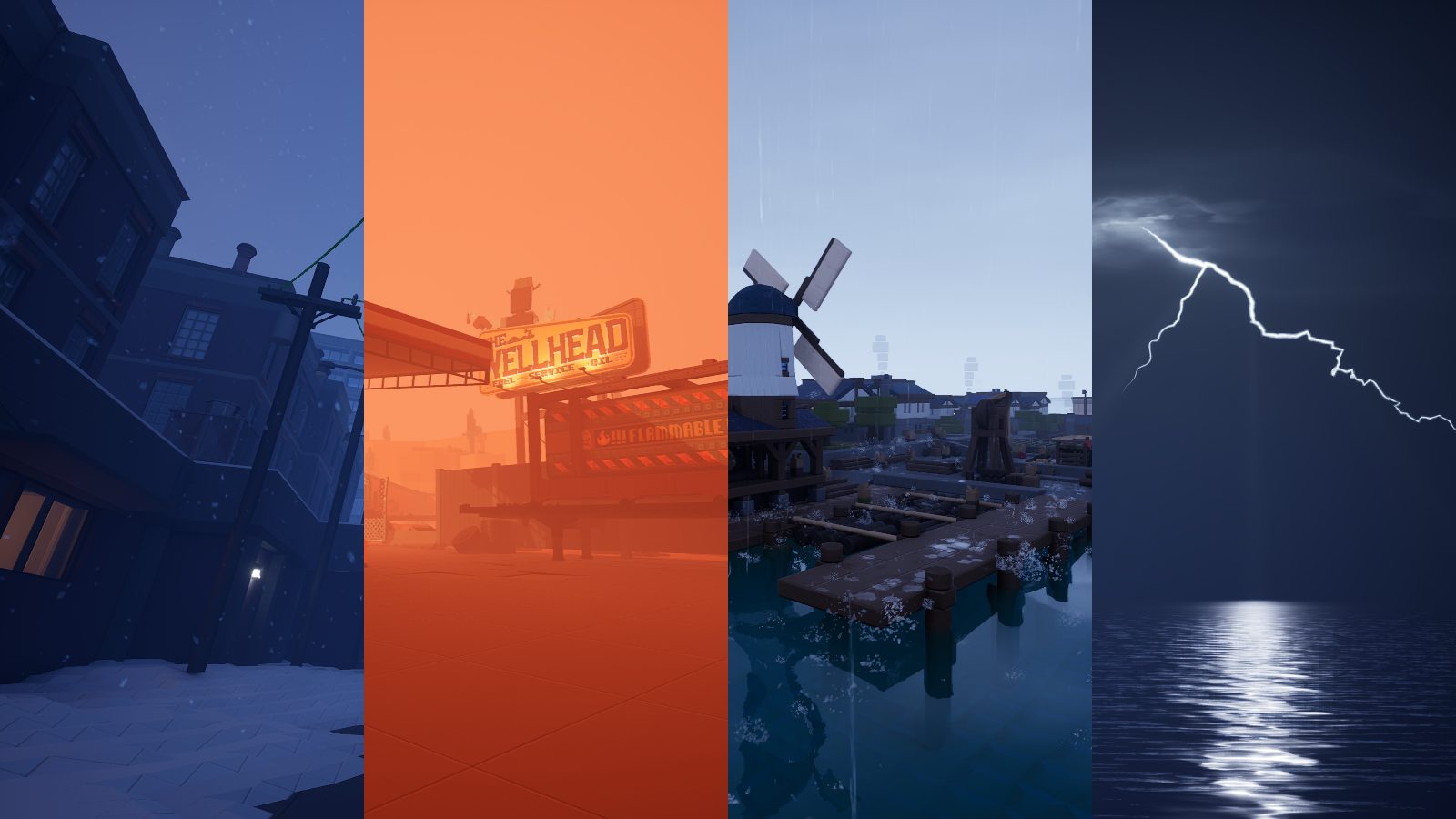
You can tweak and add weather conditions into your environment using these settings:
- Cloud Coverage: The amount of cloud coverage over the sky
- Rain: The amount of rainfall in the environment
- Snow: The amount of snow in the environment
- Dust: The amount of rainfall in the environment
- Thunder: The amount of thunder in the environment
- Close Lightning: Whether or not to visually add lightning to the environment
- Wind: The amount of wind in the environment
- Wind Angle: The angle of the wind effect
- Rain Volume: The volume of rainfall
- Close Thunder Volume: The volume of lightning
- Distant Thunder Volume: The volume of the distant thunderstorm sounds
- Wind Volume: The volume of the wind
You can also stack weather conditions on top of each other, providing ample opportunity for creating uniquely intense environments.
Cloud Coverage★
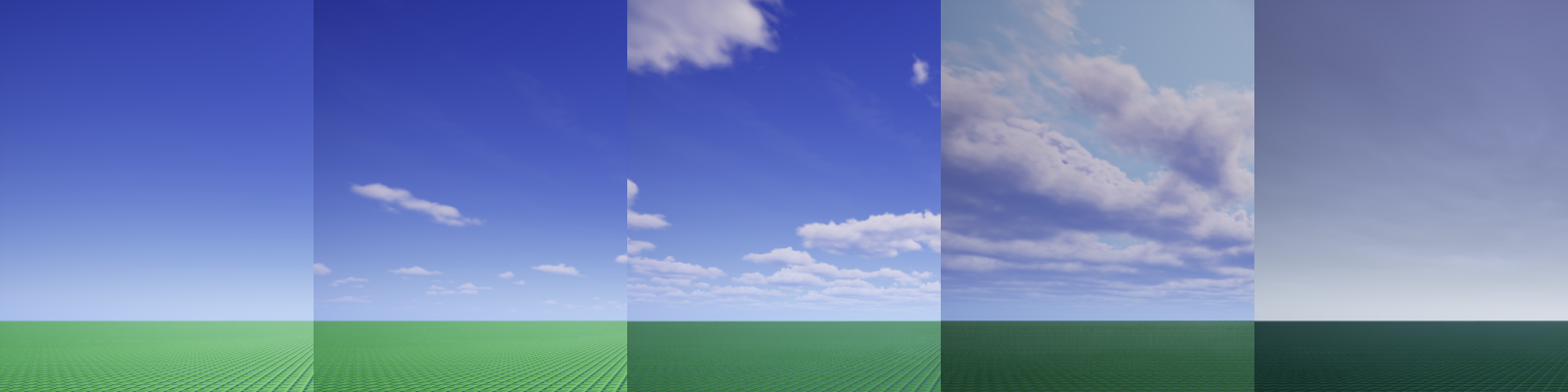
Various cloud coverage percentages:
0%, 25%, 40%, 50%, 100%
Rain★
You can control how much rain there is with a percentage from 0% to 100%.
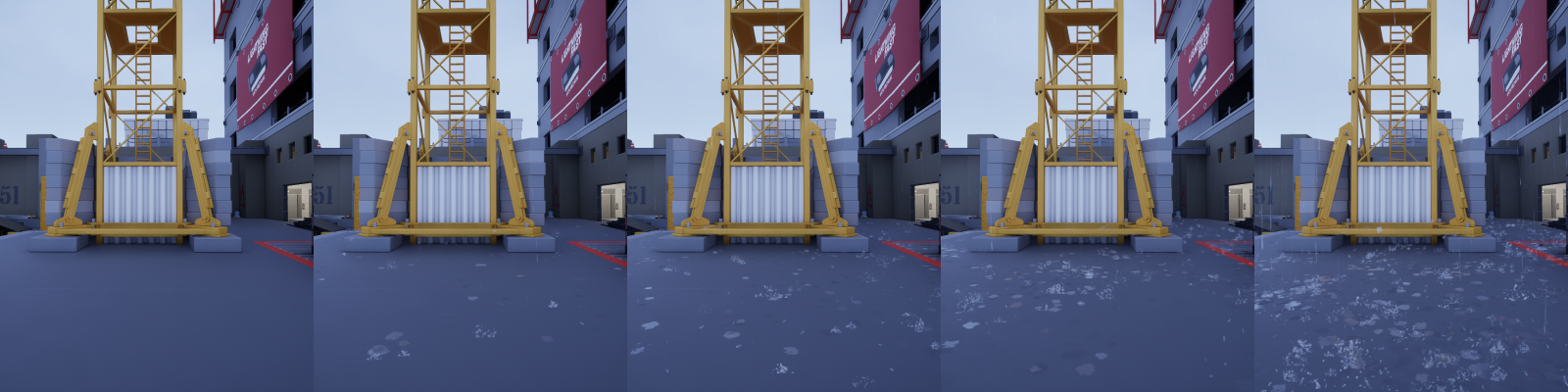
Various rain percentages:
0%, 25%, 50%, 75%, 100%
Snow★
You can control how much snow there is with a percentage from 0% to 100%.
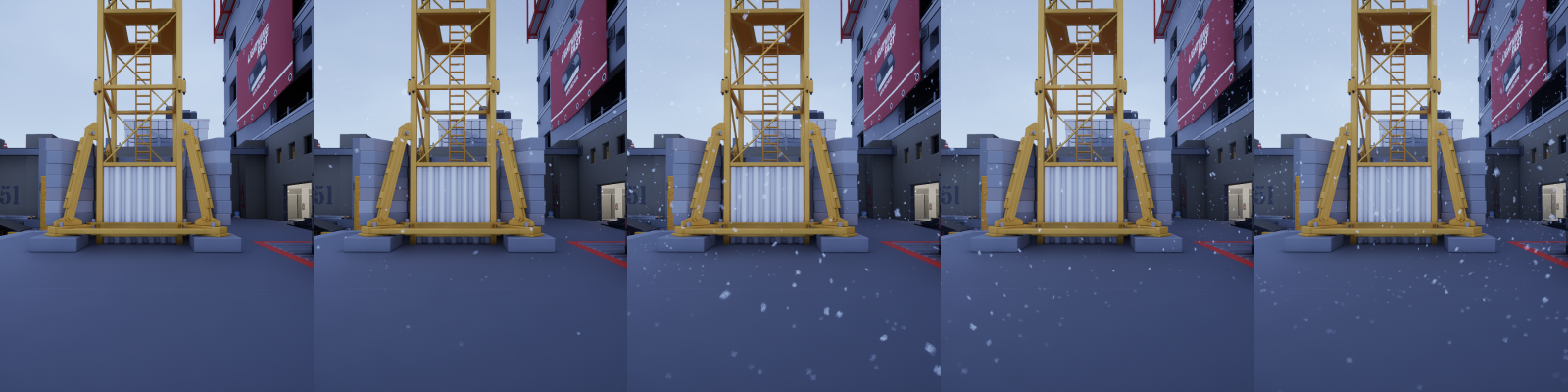
Various snow percentages:
0%, 25%, 50%, 75%, 100%
Dust★
You can control how much dust there is with a percentage from 0% to 100%.
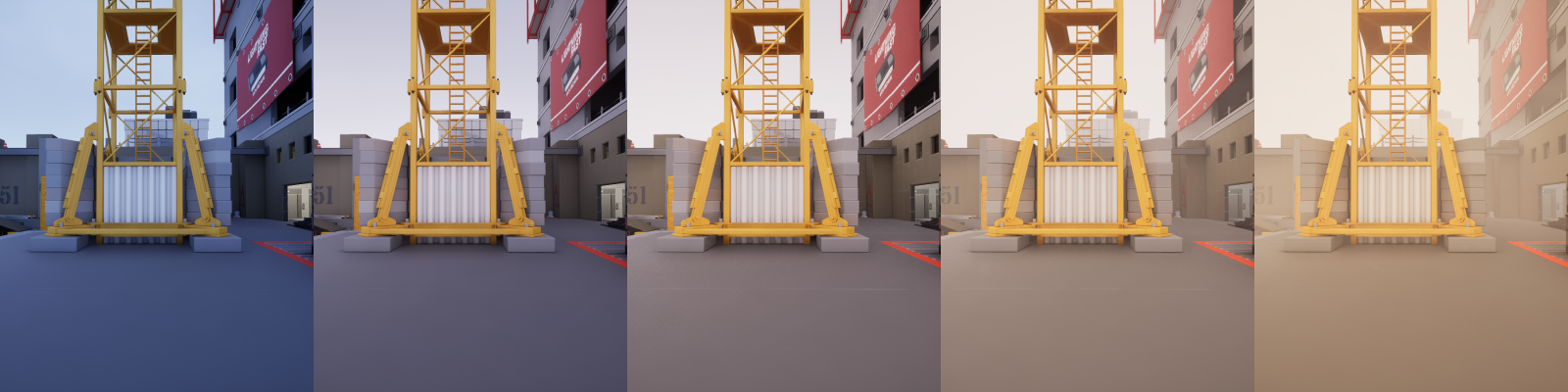
Various dust percentages:
0%, 25%, 50%, 75%, 100%
Thunder★
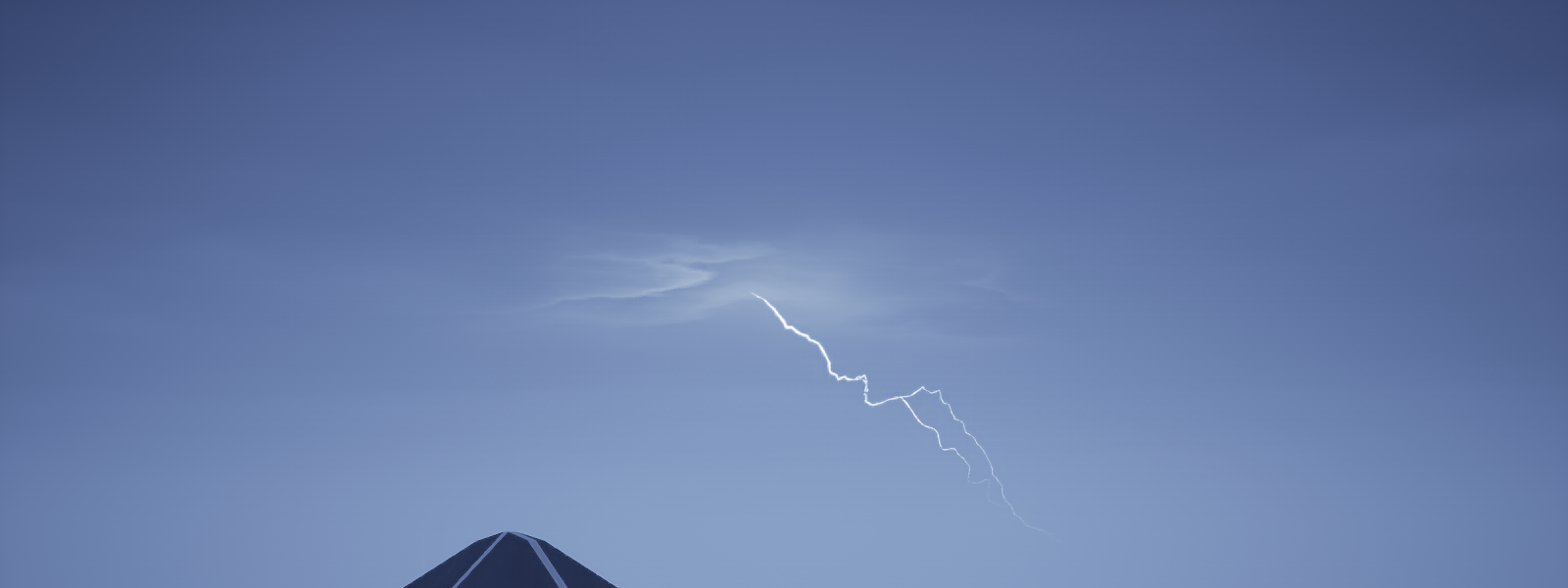
You can control the loudness of thunder sound effects. If you have Close Lightning on, you will see flashes of lightning every now and then:
Close Lightning★
Whether or not to emit lightning in the sky during a thunderstorm (> 0% Thunder).
Wind★
How loud the windy sound effects are, and how much weather particles get influenced by the wind.
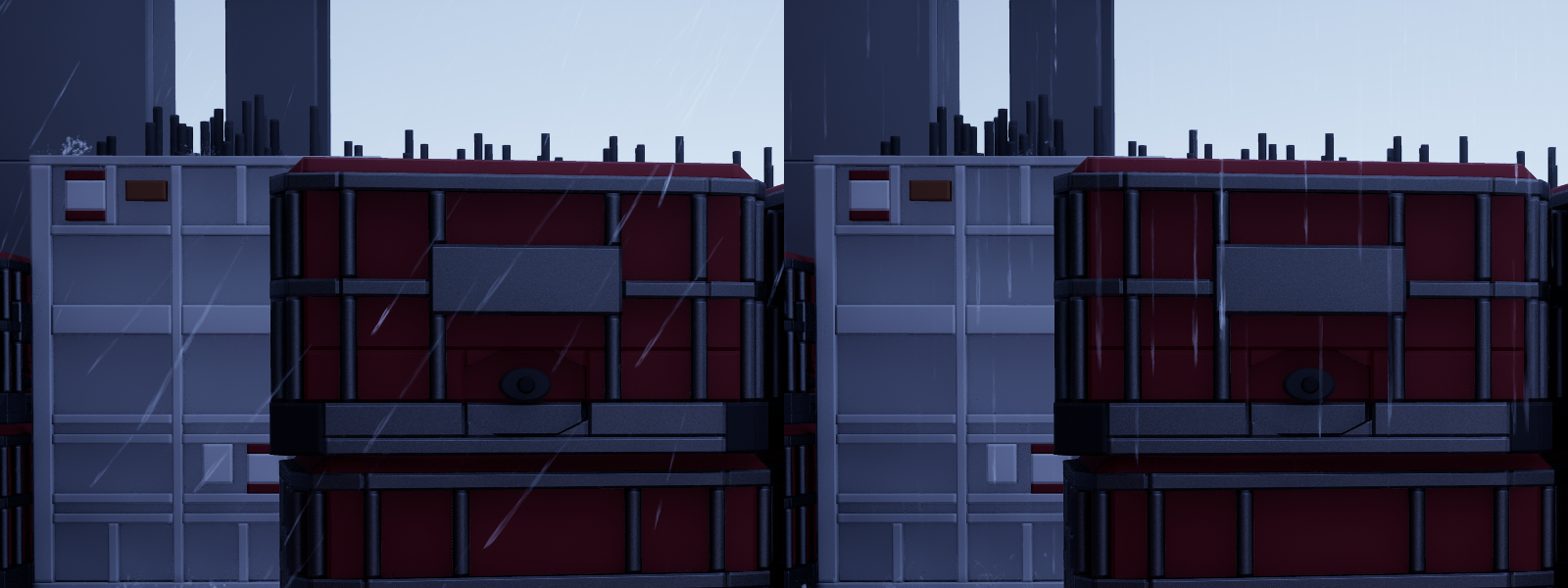
Rain with wind vs. no wind
Wind Angle★
The direction of the wind, from 0 degrees to 360 degrees.
Rain Volume★
The volume of the rain sound effects.
Close Thunder Volume★
The volume of the lightning sound effects.
Distant Thunder Volume★
The volume of the thunder sound effects.
Wind Volume★
The volume of the wind's sound effects.
Fog★
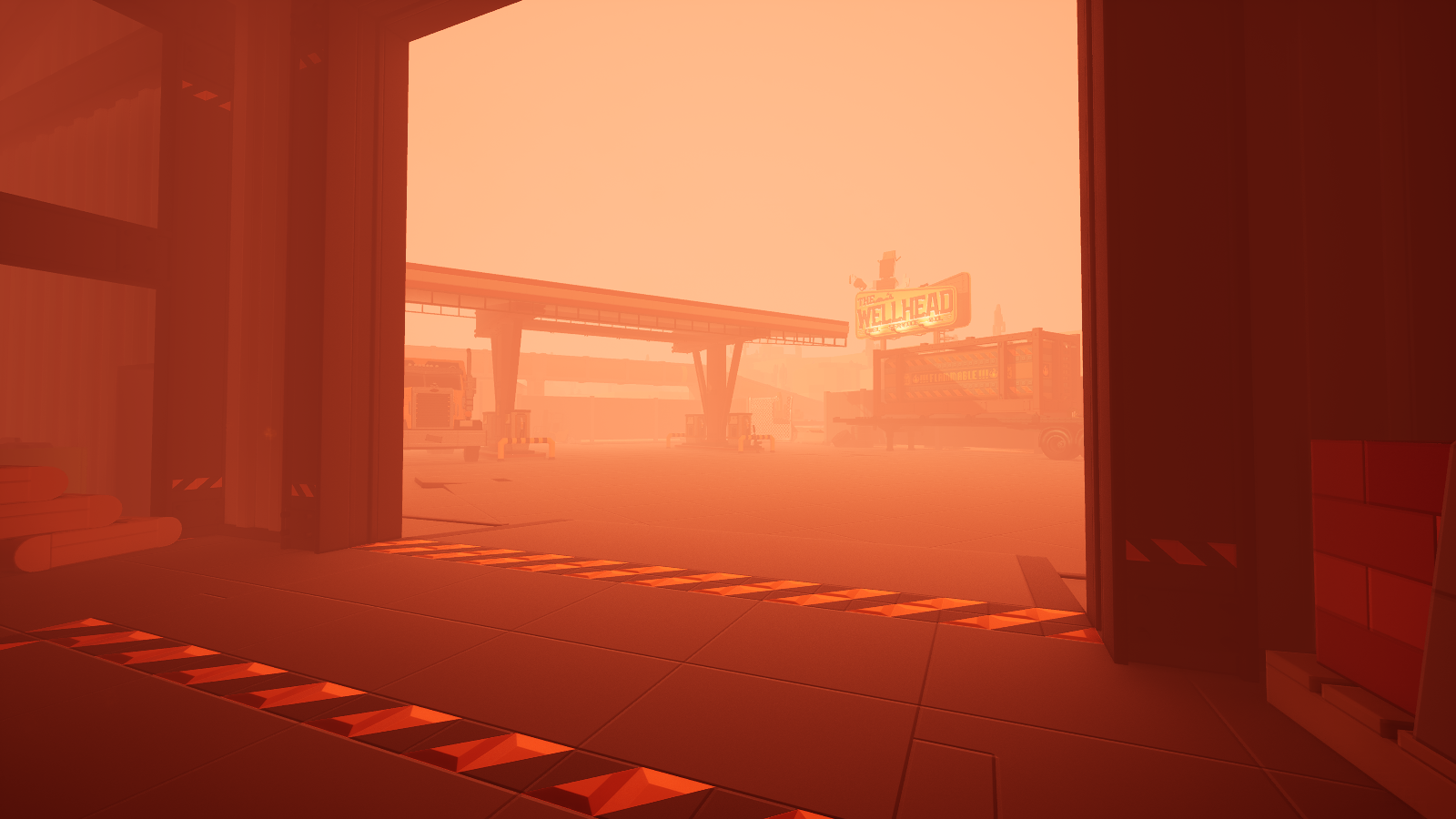
The fog can be customized with these parameters:
- Fog Color: The fog's overall color
- Clear Fog Density: The overall density of the fog regardless of cloud coverage level since Cloudy Fog Density does not do anything due to a bug
- Clear Fog Height Falloff: The concentration of fog at higher altitudes with lower Cloud Coverage percentage
- Cloudy Fog Height Falloff: The concentration of fog at higher altitudes with higher Cloud Coverage percentage
Fog Color★
The color of the environment's fog.
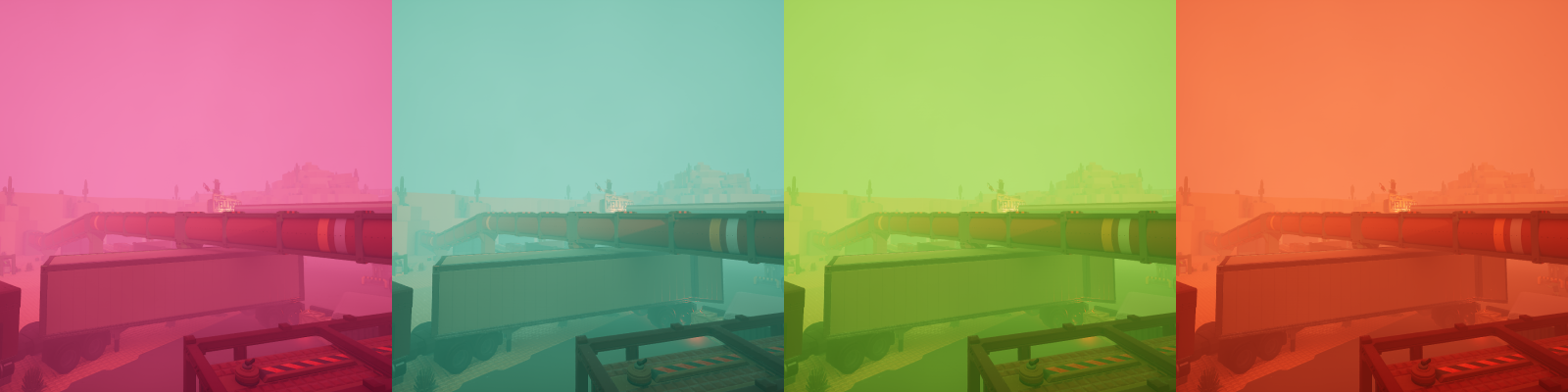
Various fog colors with the following hex codes:#FF87FE, #58ECFF, #83FF53, #FF803B
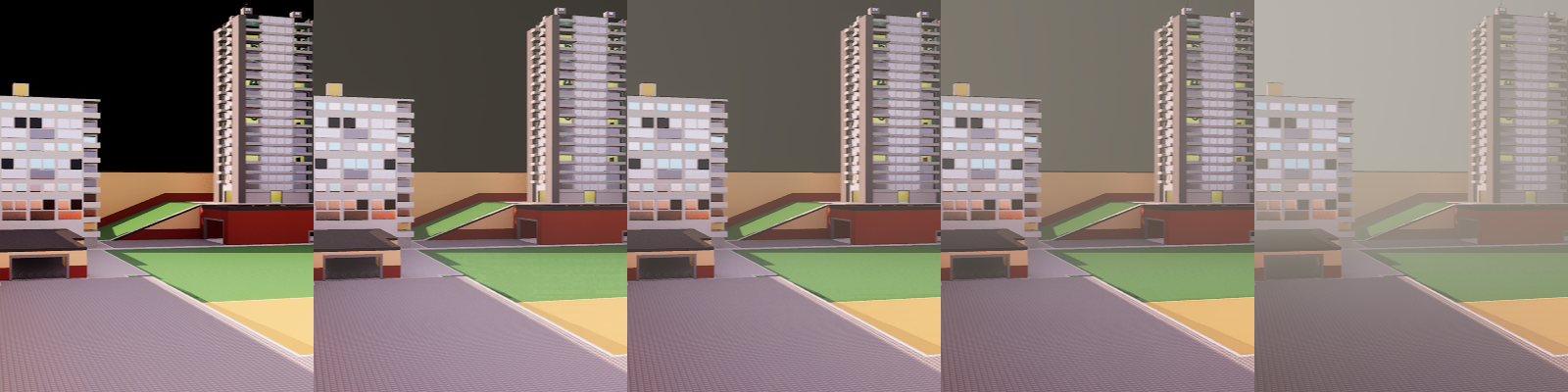
Clear Fog Density★
The density of the fog from 0.005 to 6. The more density there is, the nearer the fog will start affecting the visibility of objects.
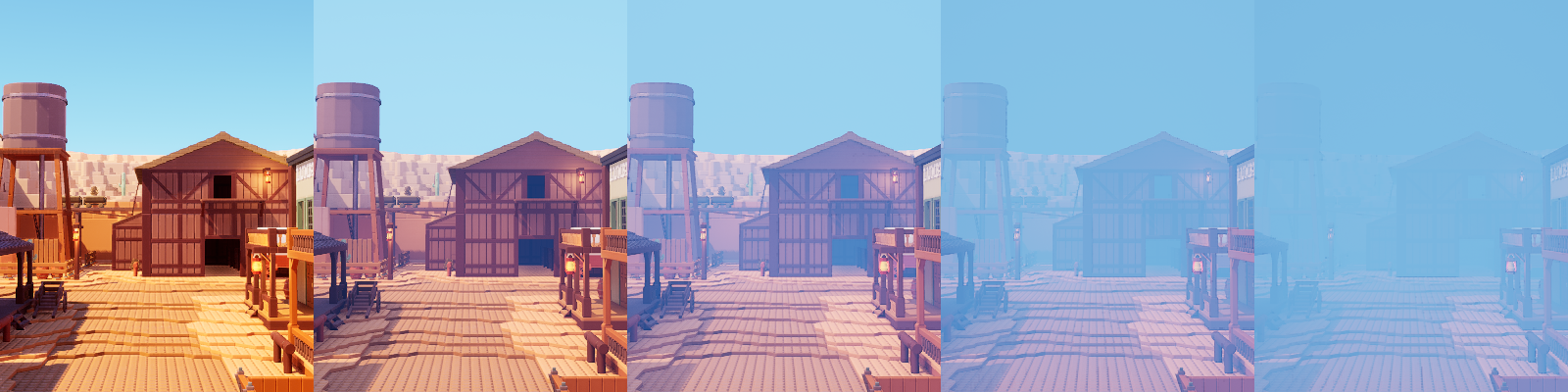
Various clear fog density values in order:
0.01, 0.1, 0.5, 2, 4
Cloudy Fog Density★
Bug
This environment setting does not work. Ignore it for the time being and use the Clear Fog Density parameter to control both clear and cloudy fog density.
Clear Fog Height Falloff★
Controls the amount of fog at higher altitudes in the environment, from 0.01 to 5. This specific setting works at lower cloud coverage levels.
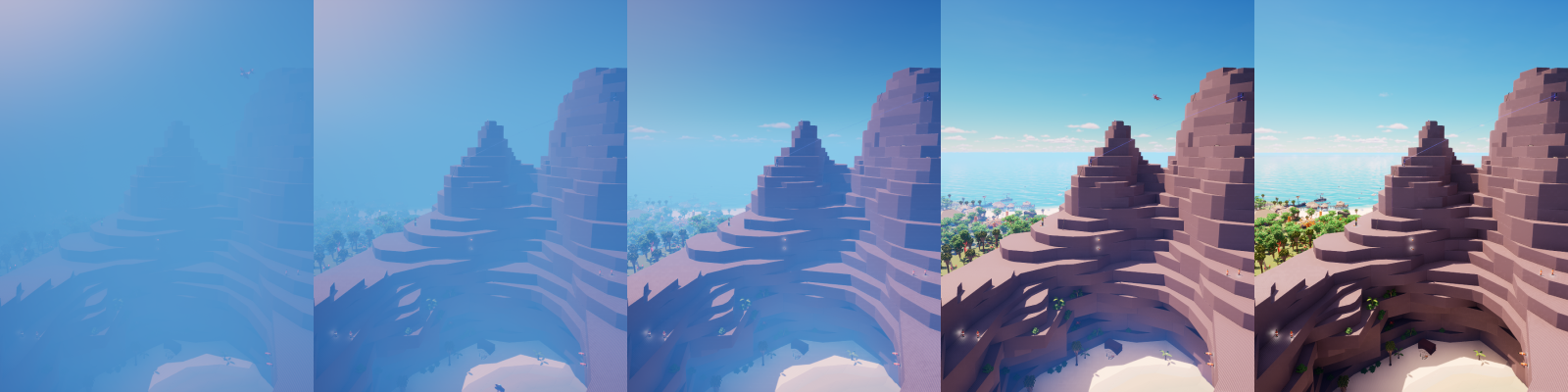
Various clear fog height values at fog density 1 in order:
0.01, 0.5, 1, 2.5, 5
Cloudy Fog Height Falloff★
Controls the amount of fog at higher altitudes in the environment, from 0.01 to 5. This specific setting works at higher cloud coverage levels.
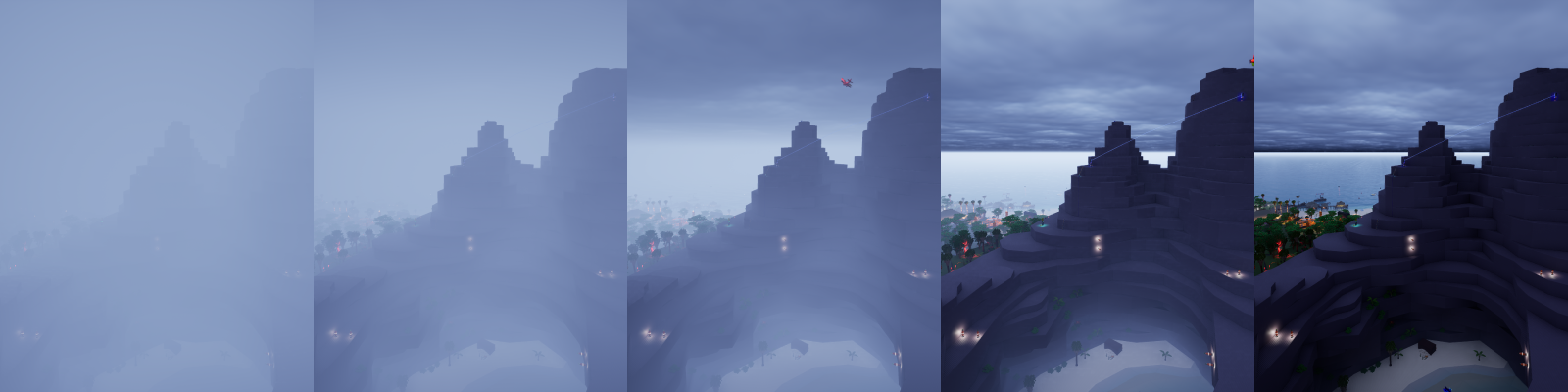
Various cloudy fog height values at fog density 1 in order:
0.01, 0.5, 1, 2.5, 5
Water★
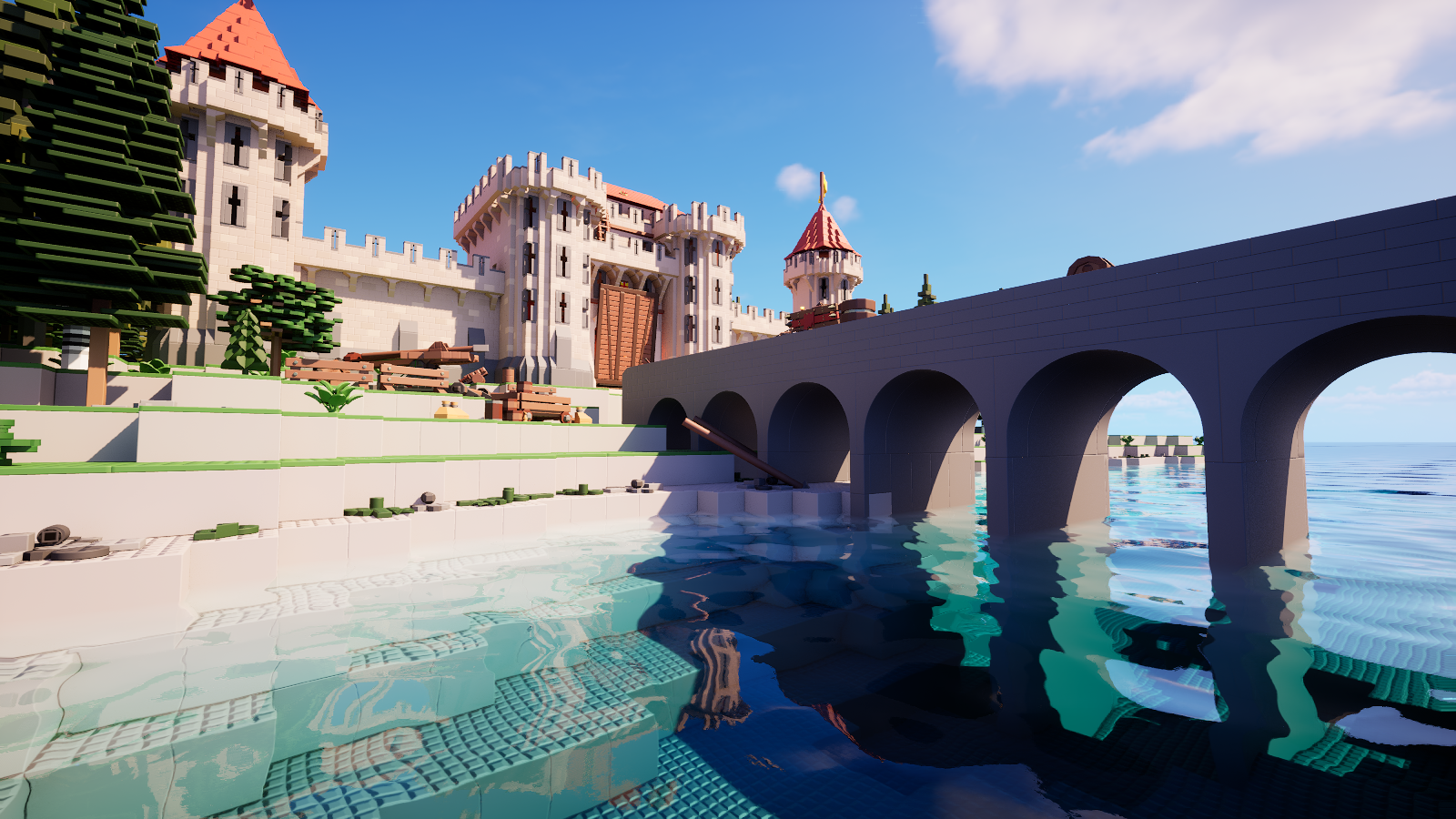
You can have swimmable water globally and configure it to kill players upon contact in minigames. There are also various parameters that you can customize with water to give it a dirty or toxic water like-appearance.
- Height: The height of the water
- Color Absorption: How much color the water absorbs
- Scattering: How much scattering for each color is applied on the water surface
- Fog Intensity: The intensity of the fog
- Fog Ambient Color: The ambient/primary color of the fog
- Fog Ambient Strength: The strength of the ambient/primary color for the fog
- Fog Scattering Color: The scattering/secondary color of the fog
- Fog Scattering Strength: The strength of the scattering/secondary color for the fog
Height★
Water height in plates. Depending on the size of the world you're building, the water height requirement may be vastly different across a variety of worlds.
The maximum possible water height in all the maps that share this environment setting is 5,000 plates.
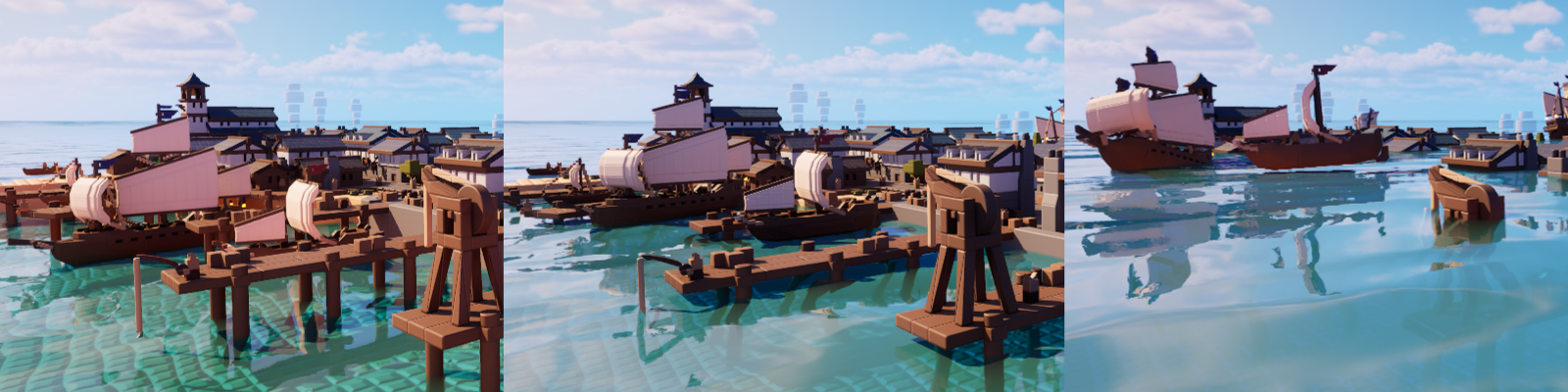
Various water heights at a small build's scale
Color Absorption★
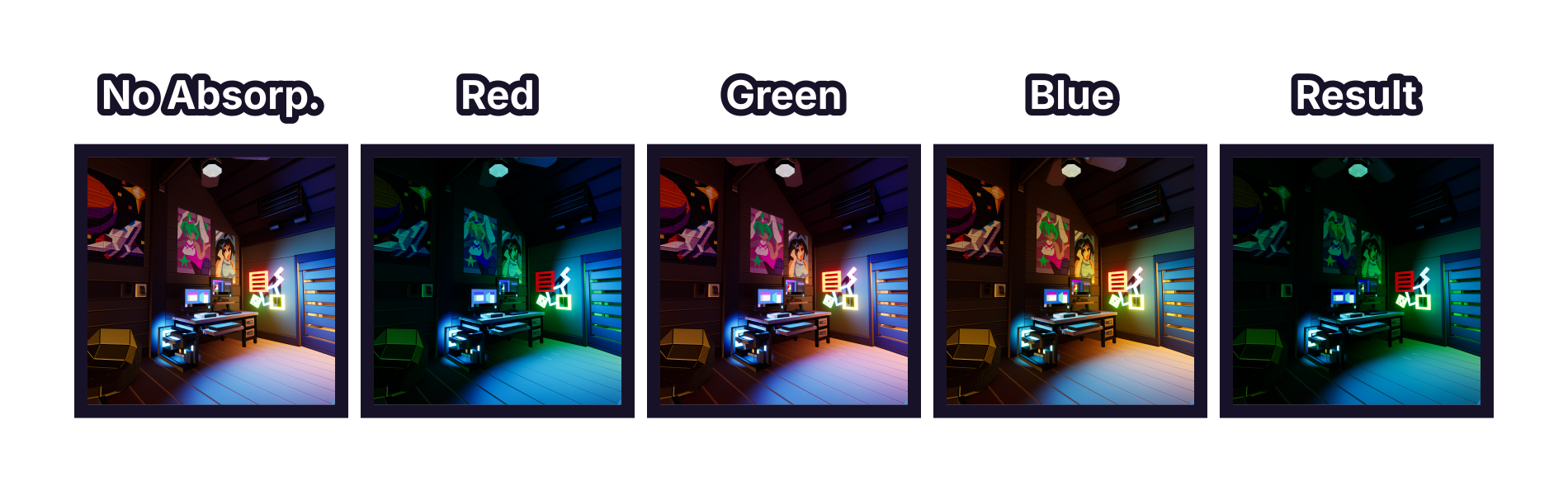
Water color absorption composition illustrated with layers
How much light is taken away in the water. In simpler words, these values determine how much each color channel is obstructed through the water.
These values are subtractive, so a higher color absorption value means less of that color channel will be able to be seen through the water, and vice versa.
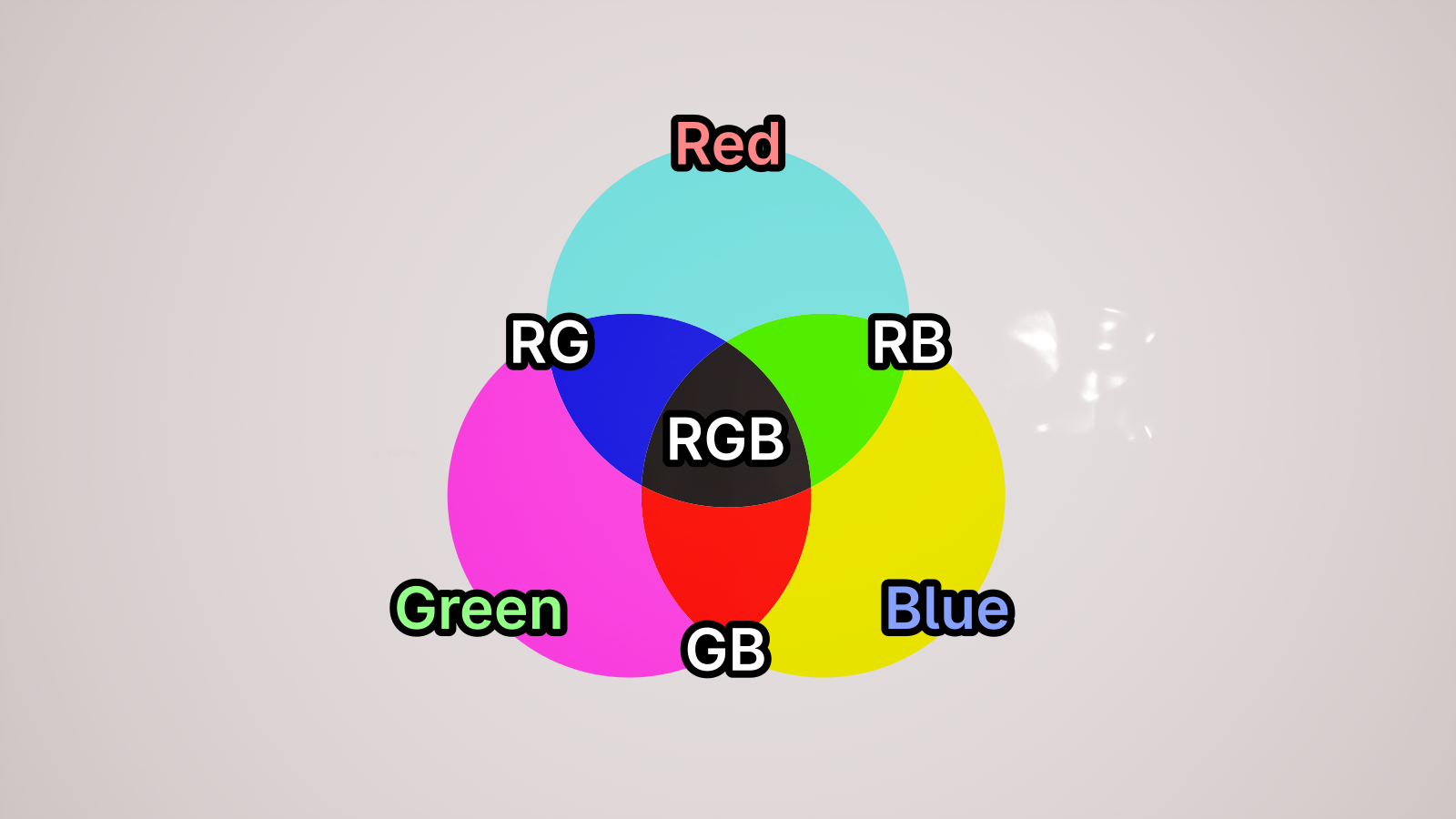
Water color absorption illustrated on white ground
Color absorption will also determine where the color channel gradually fades in the player's view. Higher values will further fade out the color channel in their view.
It's recommended to hold Left Ctrl while holding the slider for this parameter, as that will allow you to fine tune this parameter.
Scattering★
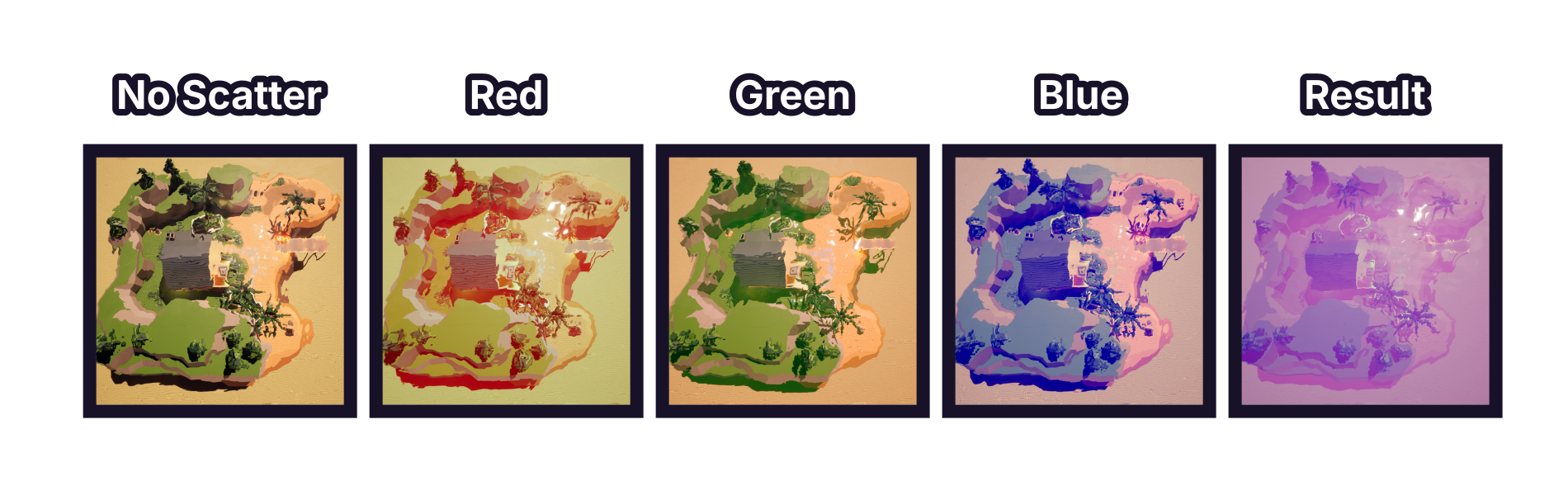
Water scattering composition illustrated with layers
Scattering will only affect the appearance of the water's surface. You can make it as muddy or as clean on the surface as much as possible.
Scattering is additive. It allows you to control how much scattering each color gets on the water surface. The higher the scattering value is for a color, that color will spread more across the water surface.
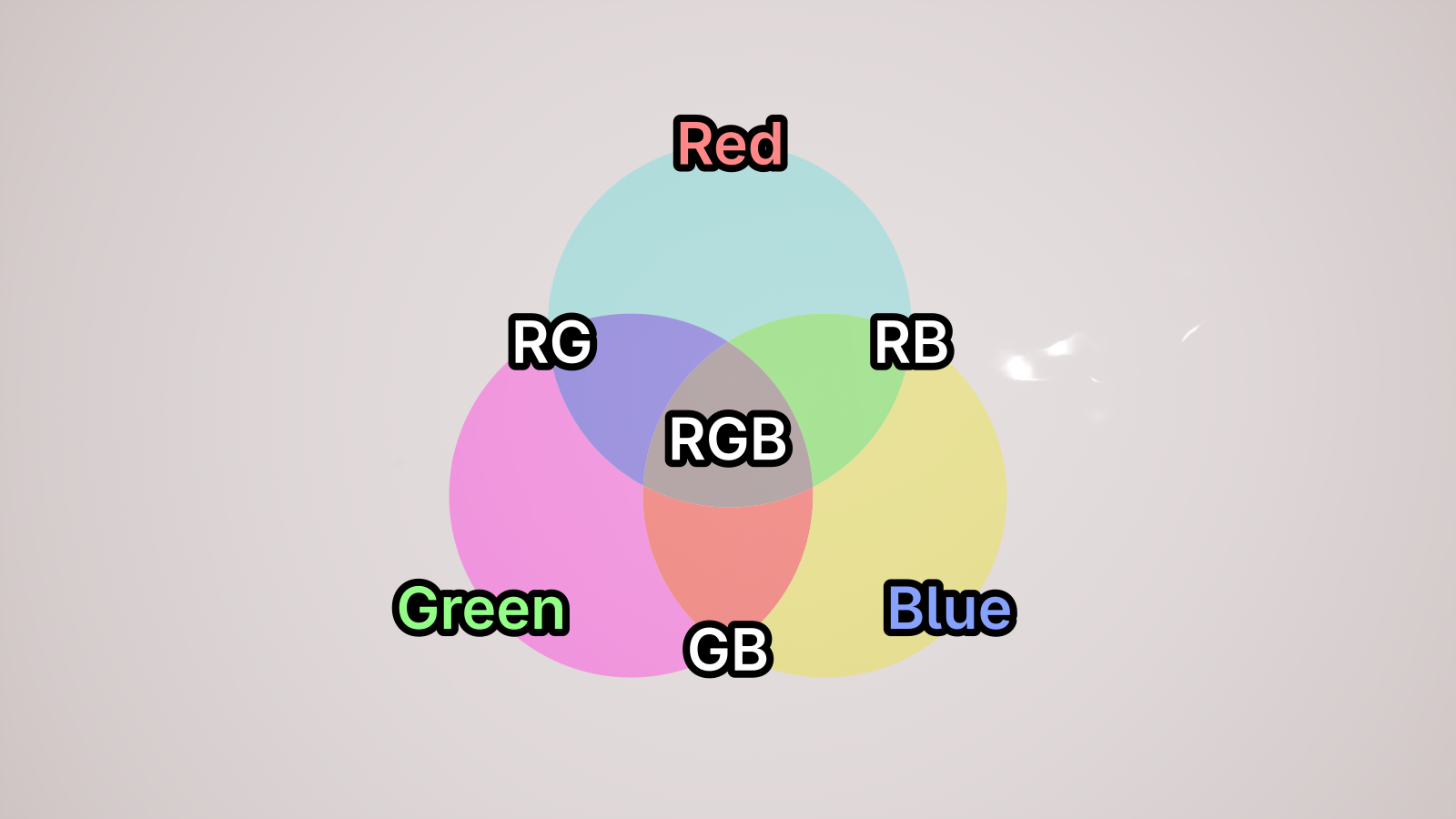
Water scattering illustrated on white ground
It's recommended to hold Left Ctrl while holding the slider for this parameter, as that will allow you to fine tune this parameter.
Fog (underwater)★
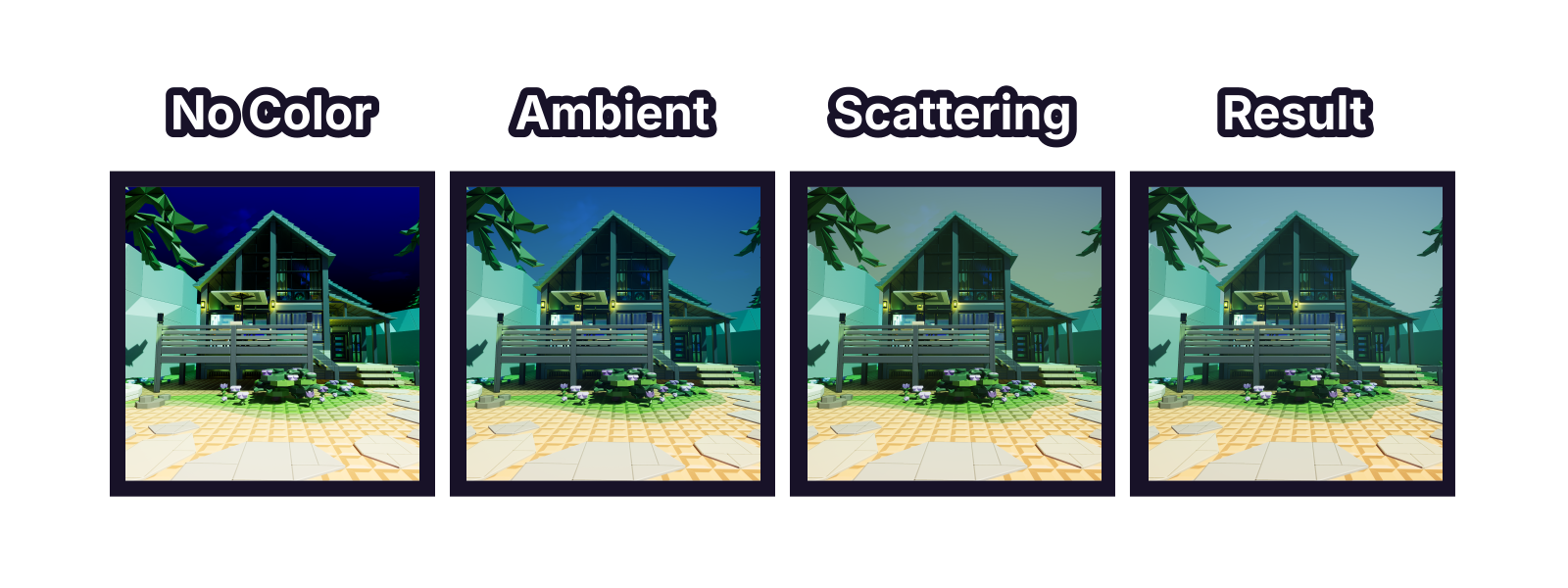
Underwater fog composition illustrated with layers
Fog Intensity★
The intensity value of the underwater fog. The more intense the fog is, the harder it is to see far-away objects.
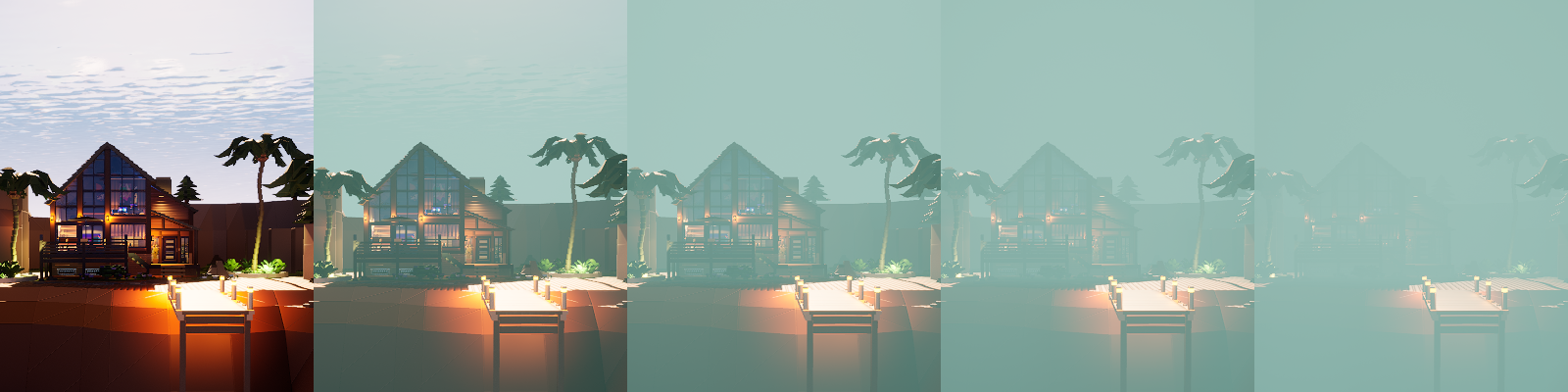
Various fog intensity values in order:
0, 0.0002, 0.0005, 0.001, 0.002
Fog Ambient Color★
The base color of the underwater fog. It will not be affected by lighting from the sun or moon.
Examples below are at 100% fog ambient strength.
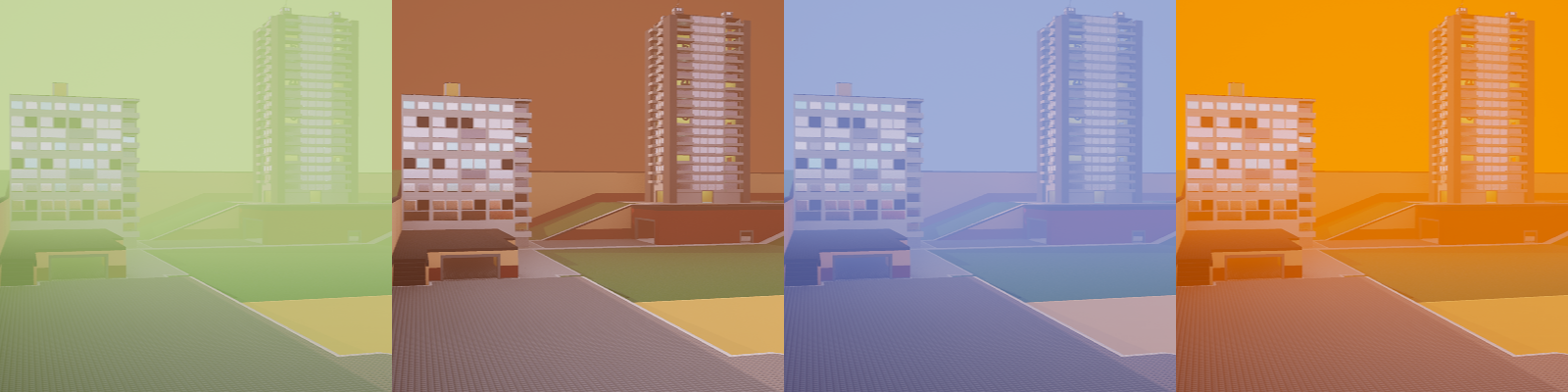
Various fog ambient colors with the following hex codes:#BBE195, #7C503F, #8599EF, #FF8100
Fog Ambient Strength★
The strength of the underwater fog's ambient color.
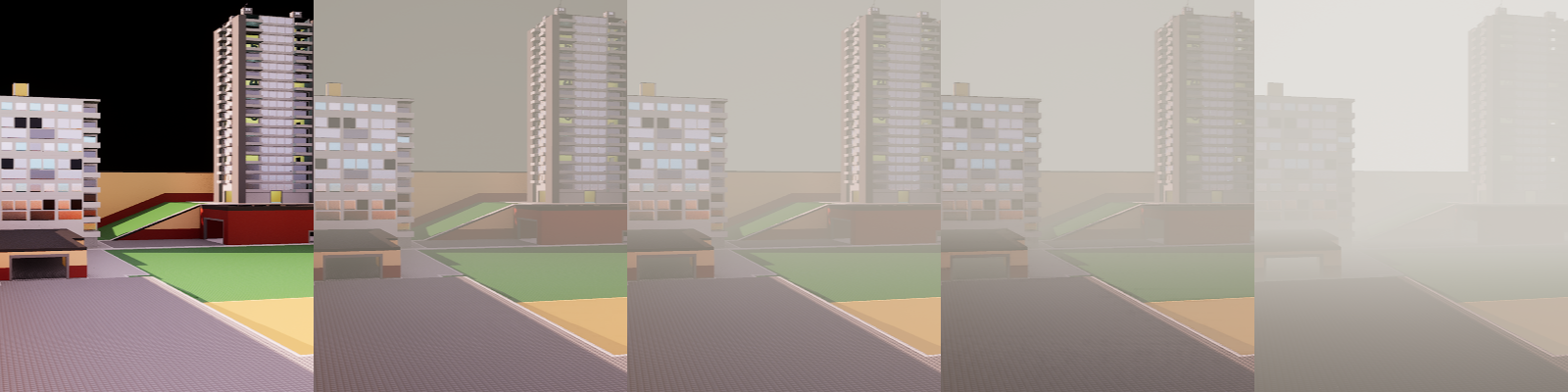
Various fog ambient strength values in order:
0%, 25%, 50%, 100%, 400%
Fog Scattering Color★
The scattering color of the underwater fog. The fog will be tinted with this color. Scattering is affected by the sun and moon's lighting, and the scattering color will be brighter around them.
Examples below are at 100% fog scattering strength.
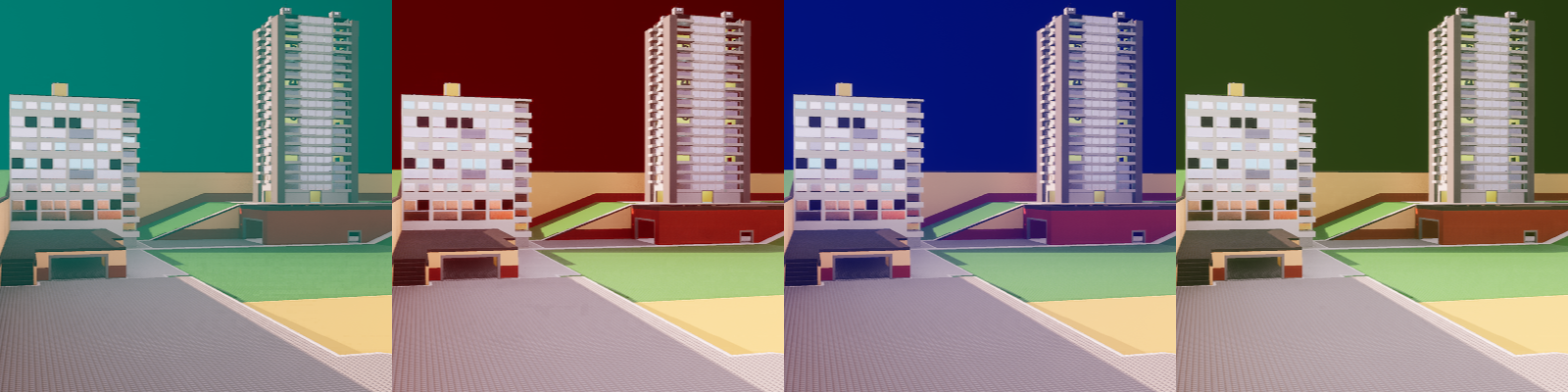
Various fog scattering colors with the following hex codes:#40FFFC, #B20500, #4268FF, #63864A
Fog Scattering Strength★
The strength of the underwater fog's scattering color.
Various fog scattering strength values in order:
0%, 25%, 50%, 100%, 400%