Follow Mode★
The Builder's Follow Mode allows you to place an object using your movement keys. The camera will always focus on the current object being placed, hence the word "Follow" in Follow Mode.
Both the keyboard and the mouse will be utilized in this mode, albeit the mouse strictly only acting as a means to control the camera around the current object.
Note
Rebinding the movement keys will also rebind the Follow Mode functions. Keep this in mind while configuring your control settings.
Placing an object★
Your movement keys are used to move to the spot you want to place your object on.
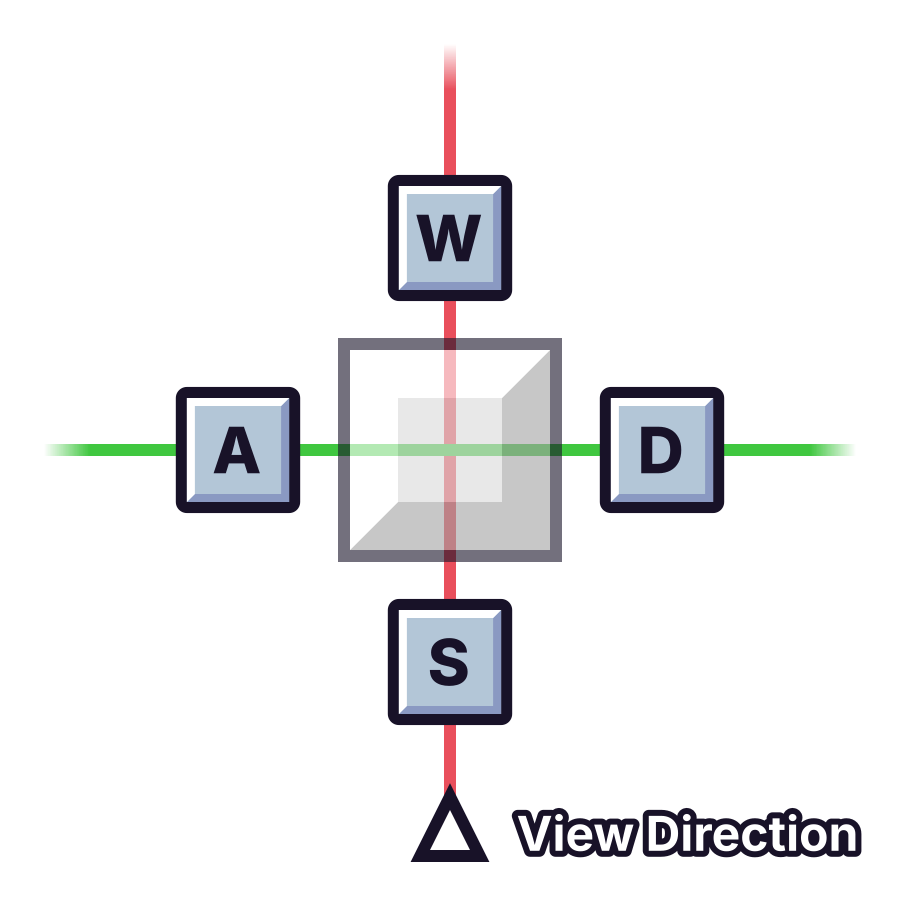
All horizontal directions are relative to your camera.
- W: Move object forward
- S: Move object backward
- A: Move object to the left
- D: Move object to the right
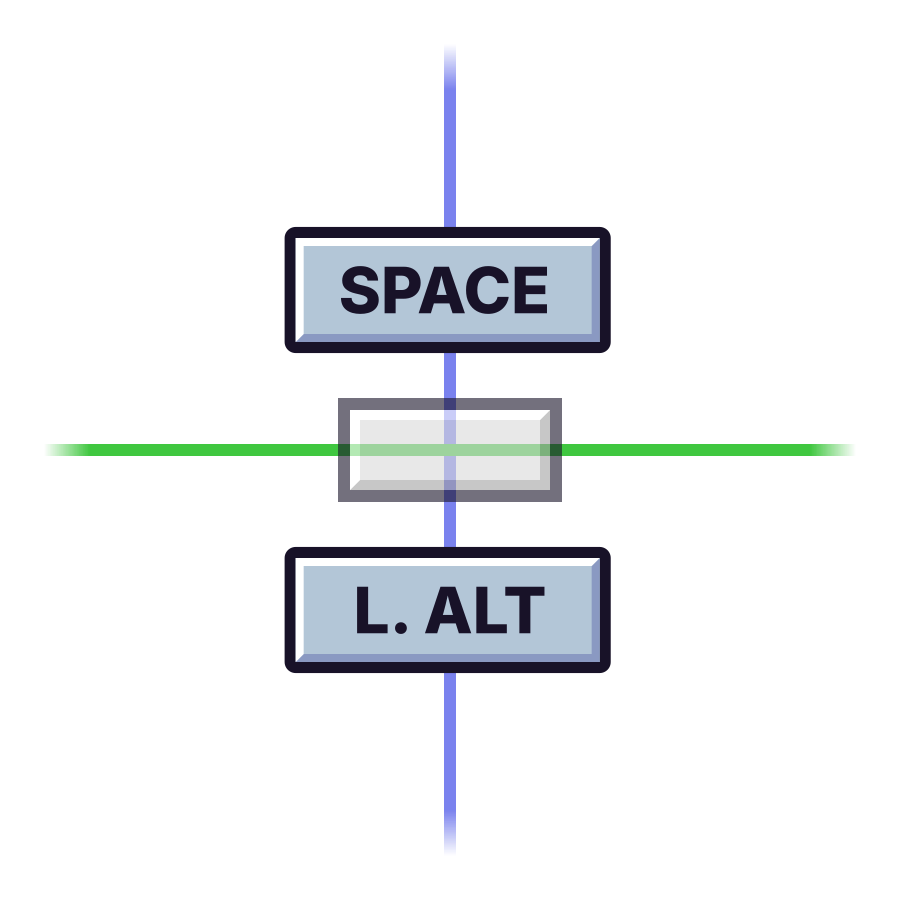
Both vertical directions are relative to the world area.
- Space: Move object up
- Left Shift: Move object down
Click to place the object.
Set rotation before placing★
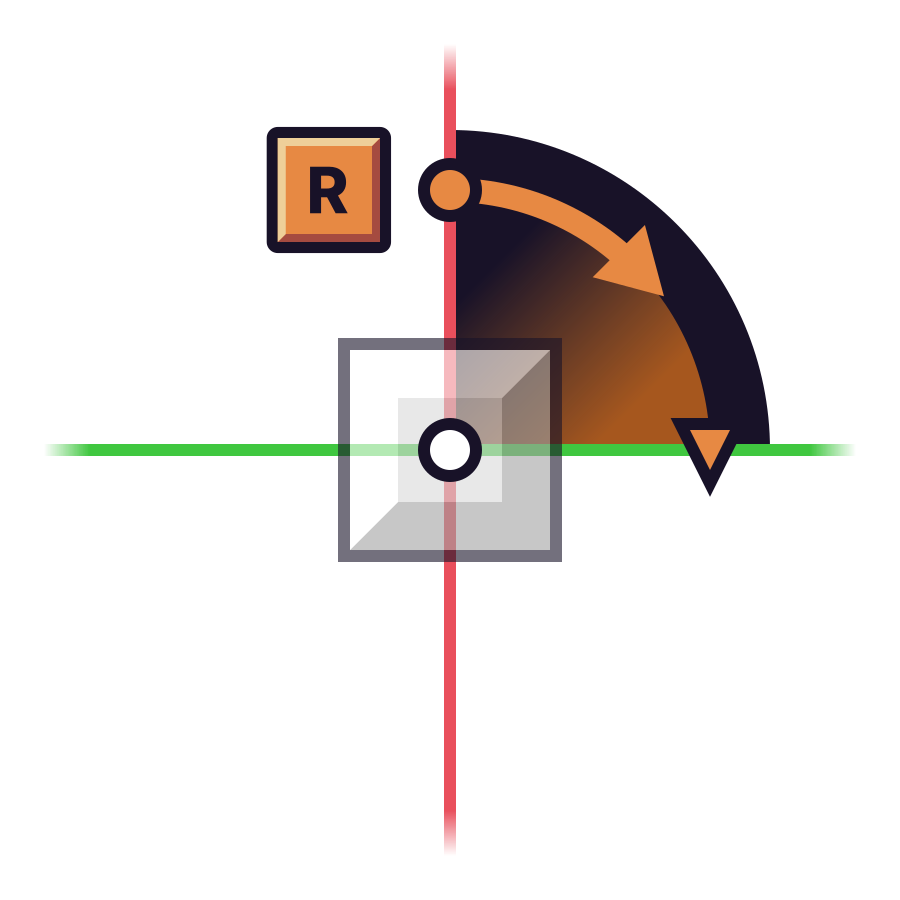
Simple rotation can be done in increments of 90 degrees, relative to the rotation of the grid with the Builder.
Pressing R changes the rotation clockwise by 90 degrees.
You can also access more advanced rotation controls through holding Left Ctrl. These will be relative to your camera.
- Hold Left Ctrl+W: Roll object forward
- Hold Left Ctrl+S: Roll object backward
- Hold Left Ctrl+A: Roll object to the left
- Hold Left Ctrl+D: Roll object to the right
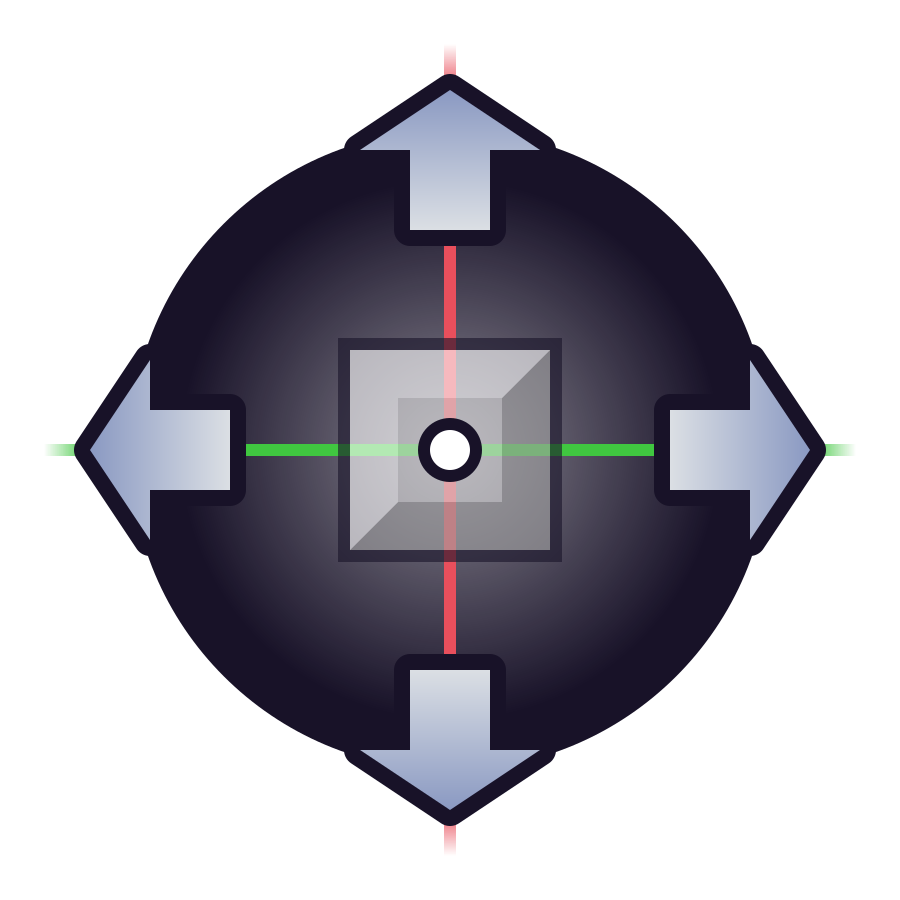
When you've finished rotating the object, let go of Left Ctrl.
Set orientation before placing★
By default, objects are oriented upwards (Z+).
Your movement keys are used to change the orientation relative to the horizontal angle you're viewing from.
Hold R and use one of these keys:
All horizontal directions are relative to your camera.
- Hold R+W: Forward
- Hold R+S: Back
- Hold R+A: Left
- Hold R+D: Right
Both vertical directions are relative to the world area.
- Hold R+Space: Up
- Hold R+Left Shift: Down
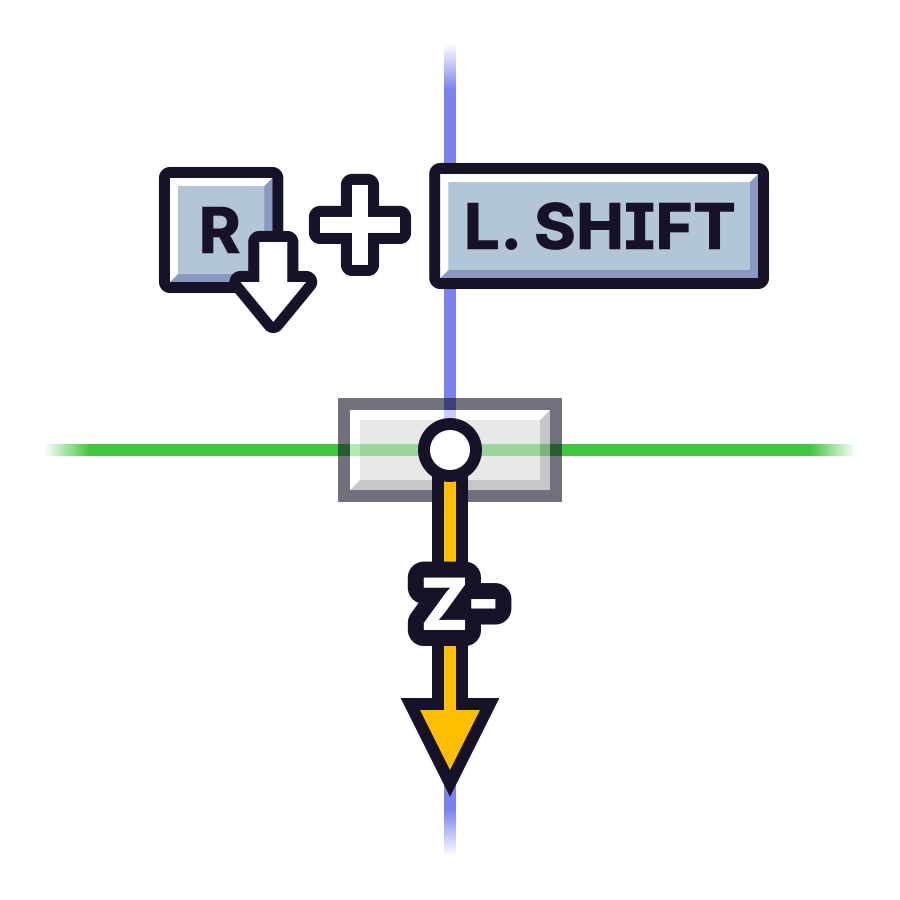
The key for the upside down orientation with the Follow Mode
Once you're done, release R.
Camera zoom★
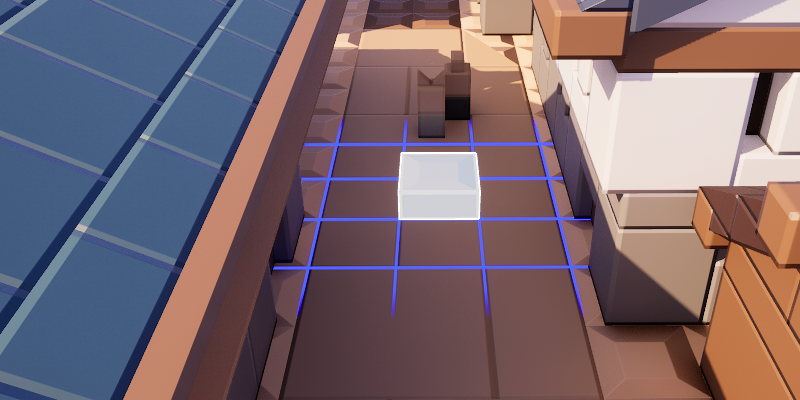
Hold Left Alt and use the Mouse Scroll Wheel to zoom the camera in or out.
-
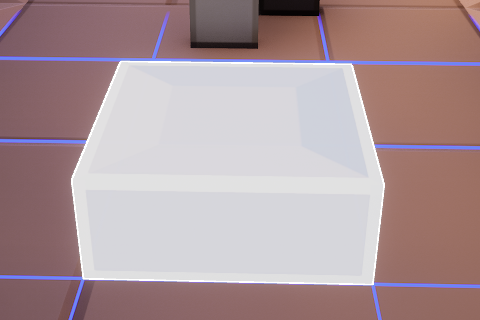
Scrolling up will zoom in.
-
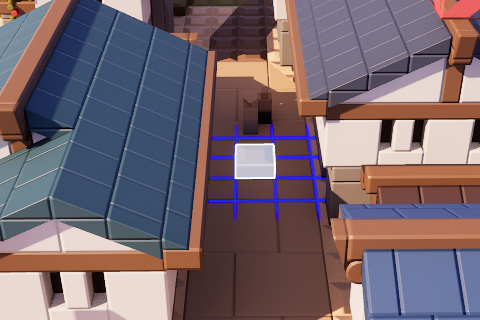
Scrolling down will zoom out.
Align to world★
Reset the object to adhere with the grid it's on locally.