Worlds: Saving★
Save current world manually★
You must have the world saved as a new file first or load an existing world in your "My Worlds" directory to use this function.
When in your server, press Esc to open up the Pause menu and click Left Mouse Button on Worlds.
Click the Left Mouse Button on Save World to save the current world. This will create a new revision of your world based on the manual save. This will not overwrite your current world.
Save current world using a command★
Open up the console using the ~ key or the F6 key when your Brickadia client is open.
Since the dedicated server is a command line program, you can get straight into using console commands.
Type in the following command:
This will save the current world.
Arguments:
[Save Screenshot](default:1)
Whether or not to save a screenshot thumbnail for the world. Dedicated servers are not supported.- Enter 1 to save the current world with a thumbnail.
- Enter 0 to save the current world without a thumbnail.
Save current world as new world★
When in your server, navigate to:
Esc Pause menu -> Worlds -> Save As
This dialog will appear with the following:
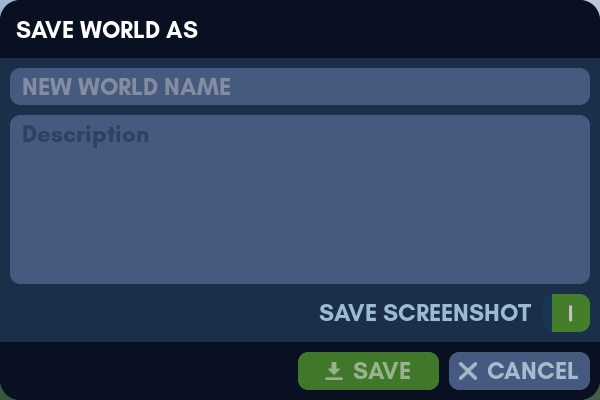
- New World Name: The name of the new world that you will create upon using Save As.
- Description: The description of the new world. Keep it as brief or as descriptive as you wish.
- Save Screenshot: Whether to include a screenshot upon using Save As.
Click Save to save a new world with this name and description.
Click Cancel to abort saving the new world.
Save current world as new world using a command★
search: exclude: true
Open up the console using the ~ key or the F6 key when your Brickadia client is open.
If you want your console output to be visible during this process, press the ~ key or the F6 key again to show the console output.
Finally, press the ~ key or the F6 key for the third time to close the console.
Since the dedicated server is a command line program, you can get straight into using console commands.
Type in the following command:
This will save the current world as a new world.
Arguments:
[Path]
Path to save the new world in. No need to add .brdb at the end of the file name.[Save Screenshot](default:1)
Whether or not to save a screenshot thumbnail for the world. Dedicated servers are not supported.- Enter 1 to save the current world with a thumbnail.
- Enter 0 to save the current world without a thumbnail.
Example usages:
This saves a new world called "playhouse" onto your Worlds directory. The thumbnail will be a screenshot of your view.
This saves a new world called "playhouse" in the folder named "toyhouse" if it exists.
If the "toyhouse" folder doesn't exist, a new folder of that name will be created. The thumbnail will be a screenshot of your view.
This creates a new world called "Brickadia HQ" directly into the "My Worlds" directory. The thumbnail will be a static screenshot of the map used for the world.
Troubleshooting★
Invalid bundle path while saving new world★
- The following characters cannot be used to name a world:
?,@,#,^,*,",.,:,|,\,/,<,>- Consider using substitute words instead.
Bundle already exists while saving new world★
LogBRBundleManager: Error: Failed to create new world: Already Exists: Bundle already exists at [file path]
- If you're looking to save the current world instead, the function is
Save World, not Save As. - World names are not case-sensitive. This means the game doesn't interpret capital (upper-case) letters and lowercase letters differently when it comes to world names.
- You must delete the existing world with the same name before you can use the name for another world.