Precision Mode★
The Builder's precision mode is best used for when your mouse just isn't enough to cover your building needs. It will exclusively use the keyboard.
Warning
The initial settings that come with Brickadia for this mode may not be compatible with non-full width keyboards or certain laptops as they sometimes omit number pads. Check if the controls require a key that your keyboard doesn't have.
If the initial configuration isn't compatible, rebind your keys in the Controls menu and save a preset with your ideal configuration for future use.
Placing an object★
Use the number pad keys to move the object before placing it.
-
Num 8 Move object forward -
Num 2 Move object backward -
Num 4 Move object to the left -
Num 6 Move object to the right
You can vertically move the object before placing with consideration to either the grid or the height of a 1x1 brick.
These keys will adhere the object to the current grid snap you have.
-
Num 3 Move object up -
Num 1 Move object down
These keys will adhere the object to the height of a 1x1 brick (12 micro-units). This fits perfectly if you have a non-plate brick.
-
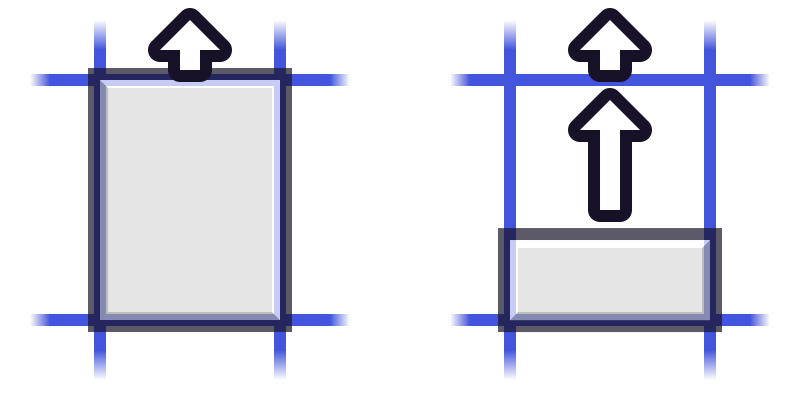
Num + Move object up -
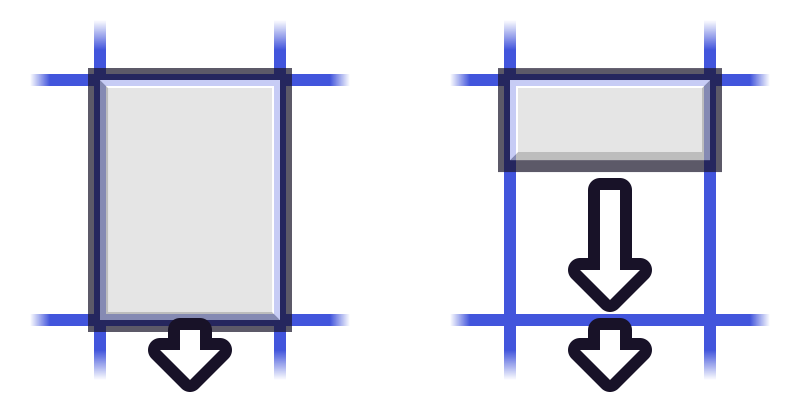
Num 5 Move object down
Press Enter to place the object.
Set rotation before placing★
Rotation can be done in increments of 90 degrees, relative to the rotation of the grid.
Simple rotation★
You can rotate objects clockwise in this mode using:
-
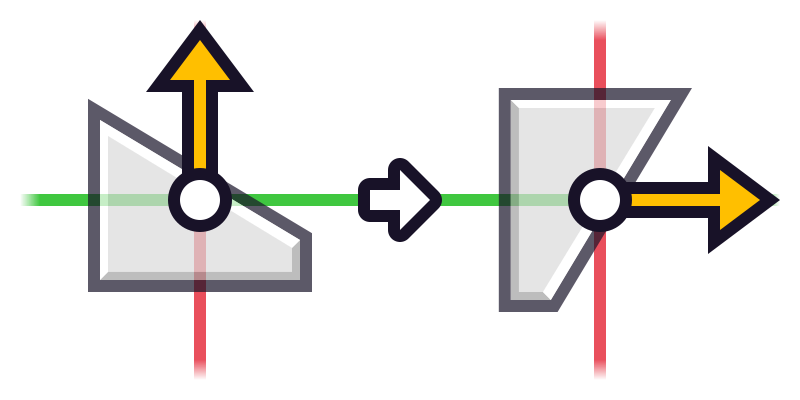
Num 9 / R Rotate object clockwise -
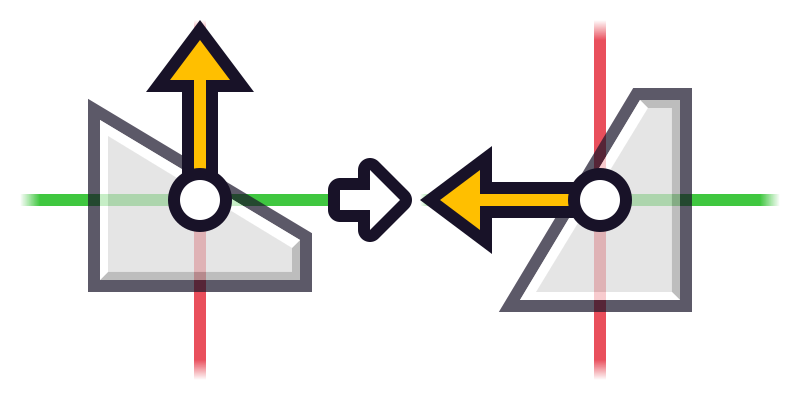
Num 7 Rotate object counter-clockwise
Advanced rotation★
You can hold Left Ctrl for advanced rotation controls. Rotation will be relative to the camera.
-
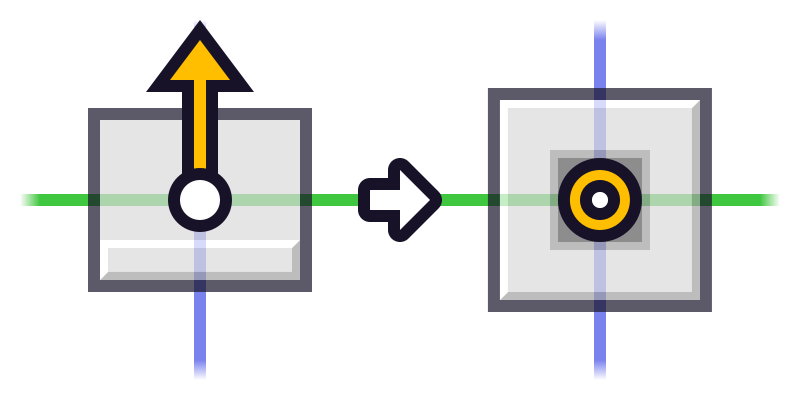
Num 8 Roll object forward -
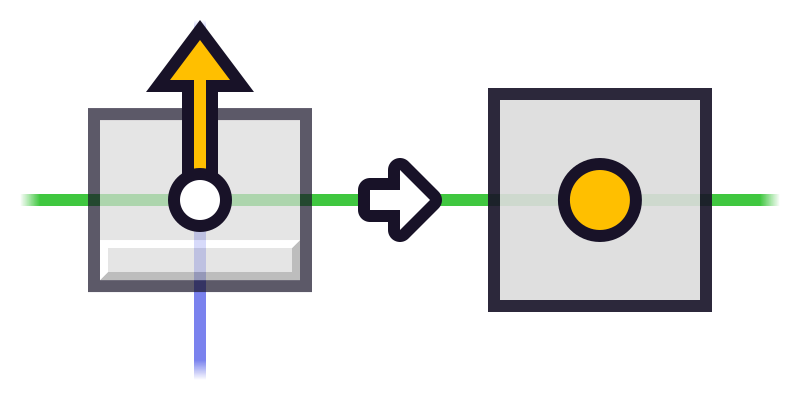
Num 2 Roll object backwards -
Num 4 Rotate object clockwise -
Num 6 Rotate object counter-clockwise -
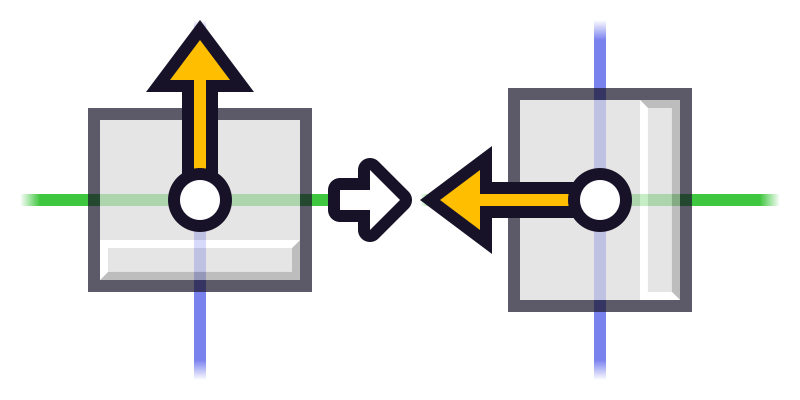
Num 7 Roll object sideways to the left -
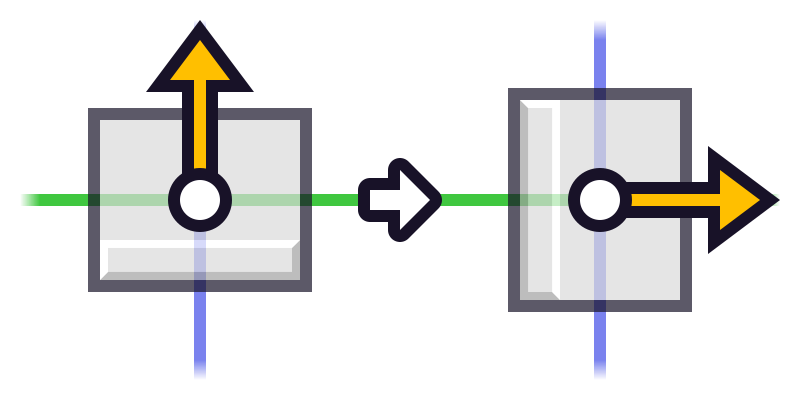
Num 9 Roll object sideways to the right
When you've finished rotating the preview object, let go of Left Ctrl.
Set orientation before placing★
By default, objects are oriented upwards (Z+).
The number pad keys are used to change the orientation. Orientation will be relative to the camera unless it's vertical orientation.
Hold Left Alt or R and press one of these number pad keys:
-
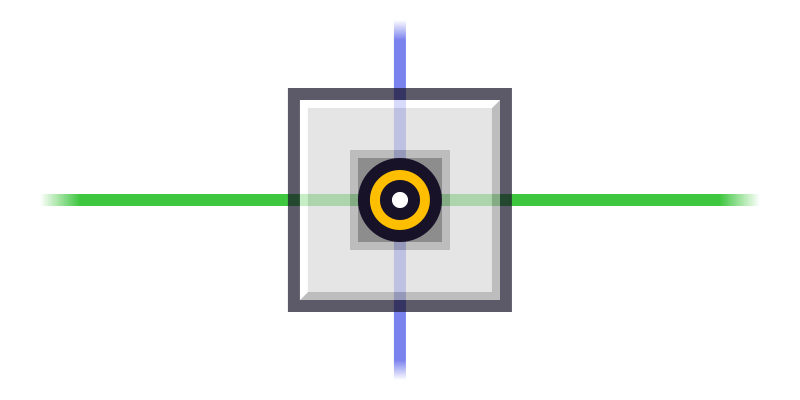
Num 2 Forward -
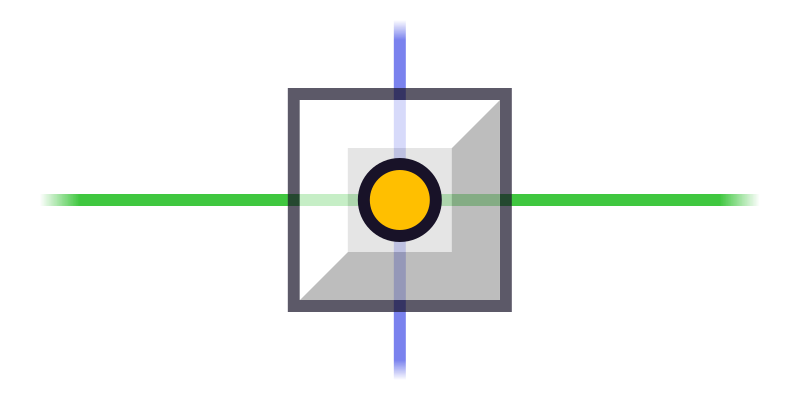
Num 8 Back -
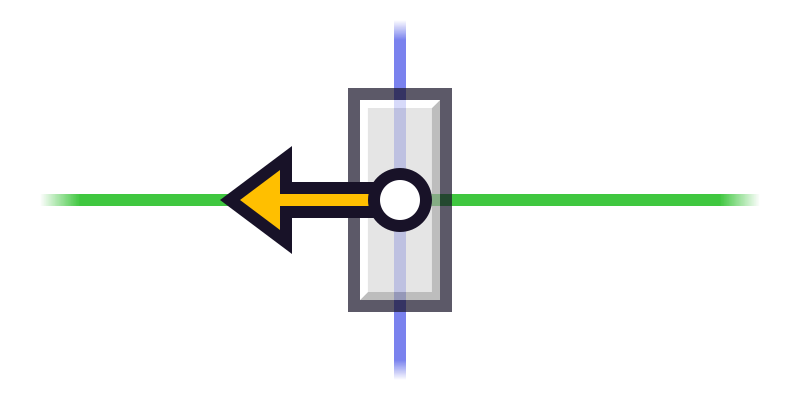
Num 4 Left -
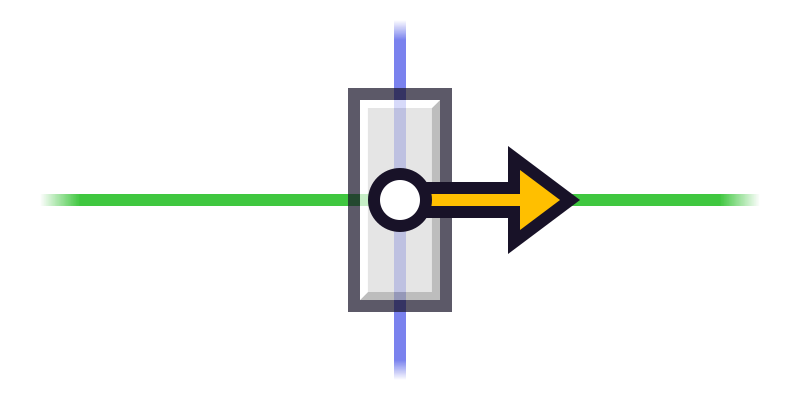
Num 6 Right -
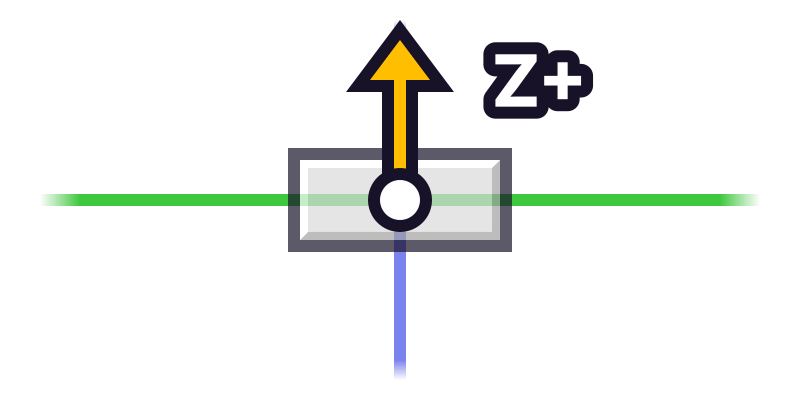
Num + Up -
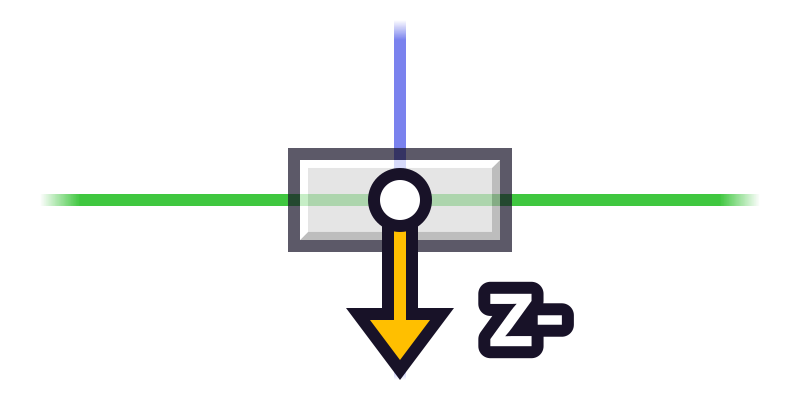
Num 5 Down
Once you're done, release Left Alt or R.
Align to world★
Reset the object to adhere with the grid it's on locally.