Environments★
Each world is situated in an environment (formerly called a map). Upon new world creation, you will be asked to select from a list of environments. Certain environments have their unique touches and features.
You cannot change environments mid-way through working on your world, so choose carefully!
List of environments★
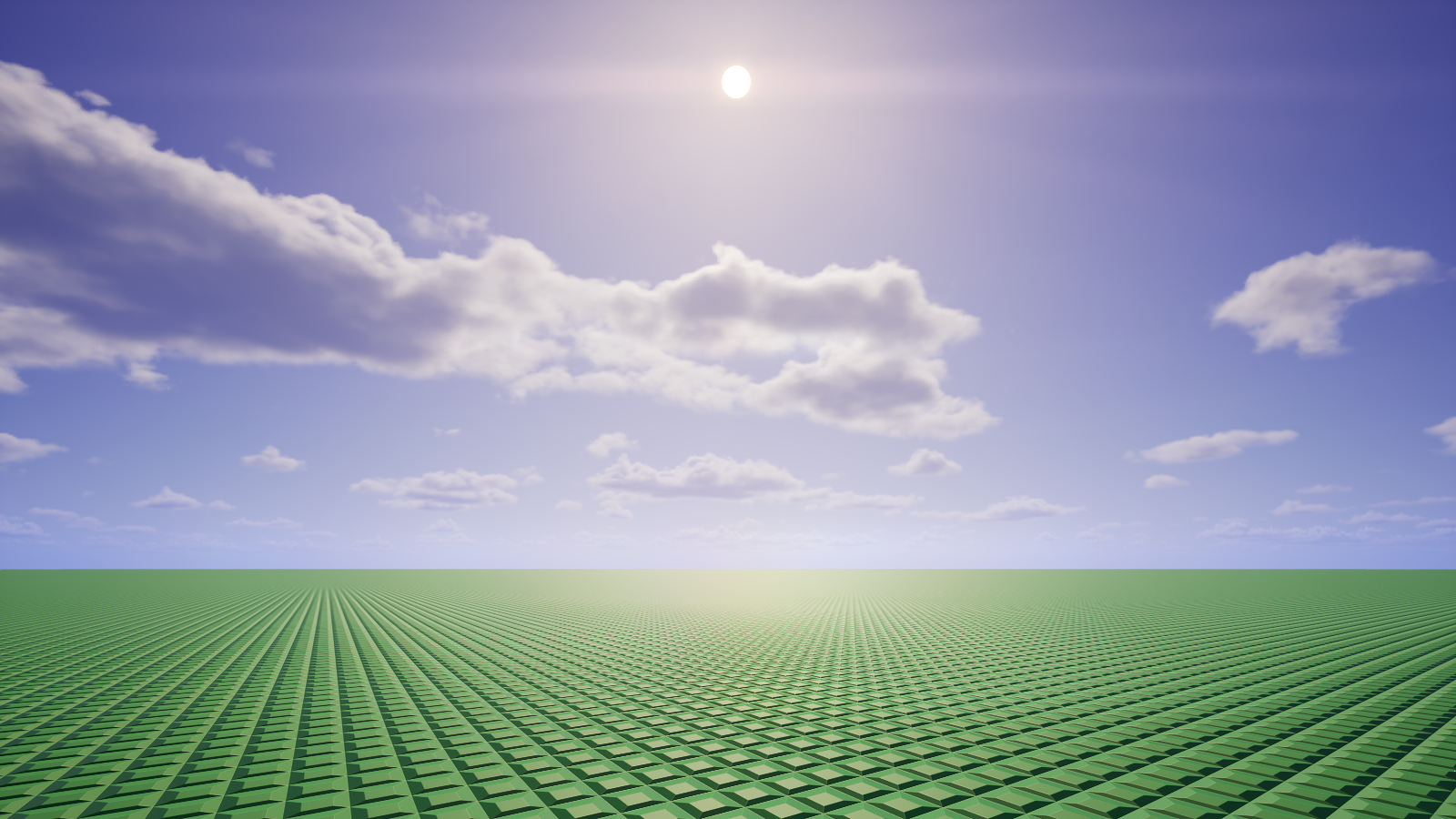
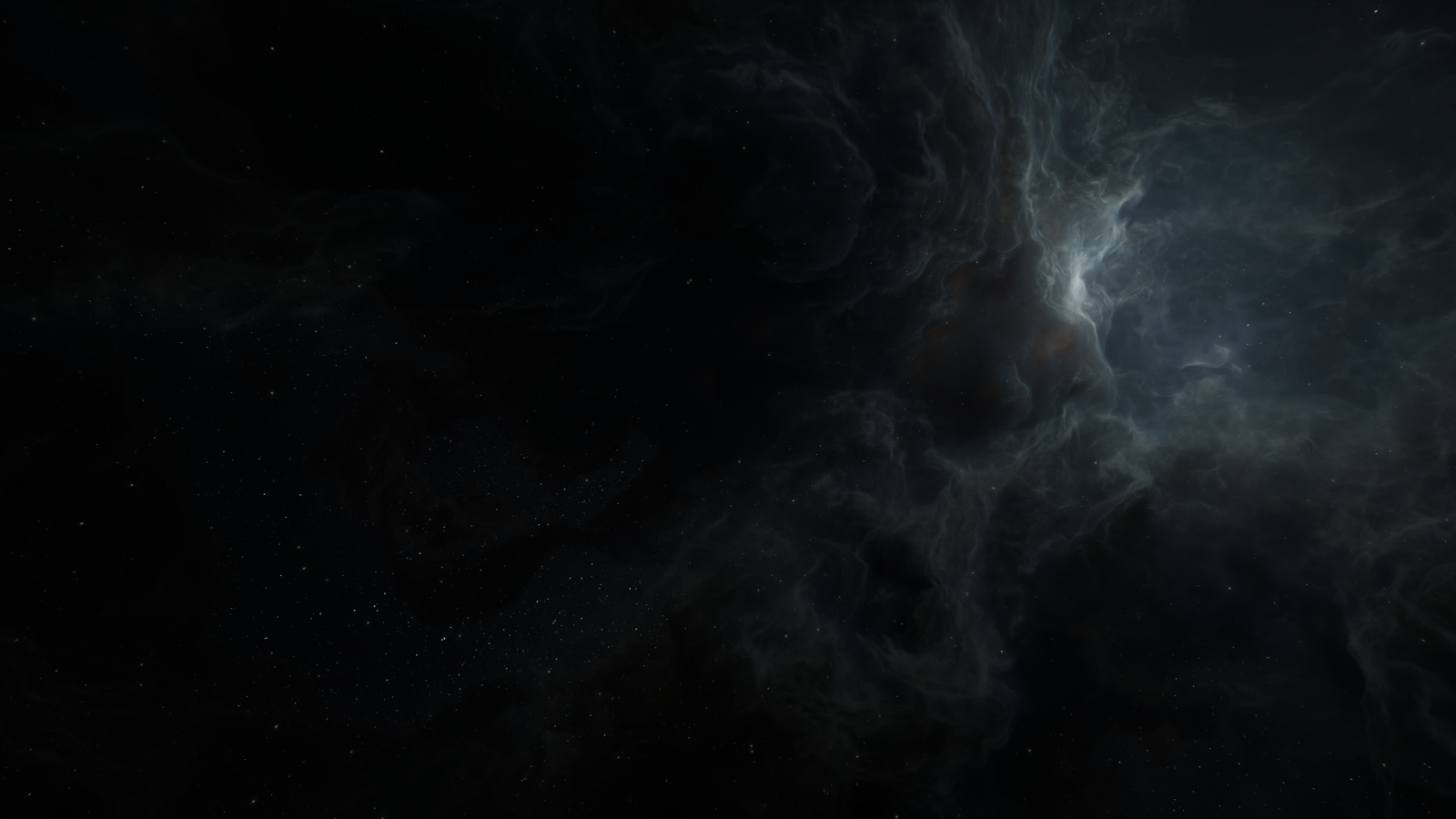
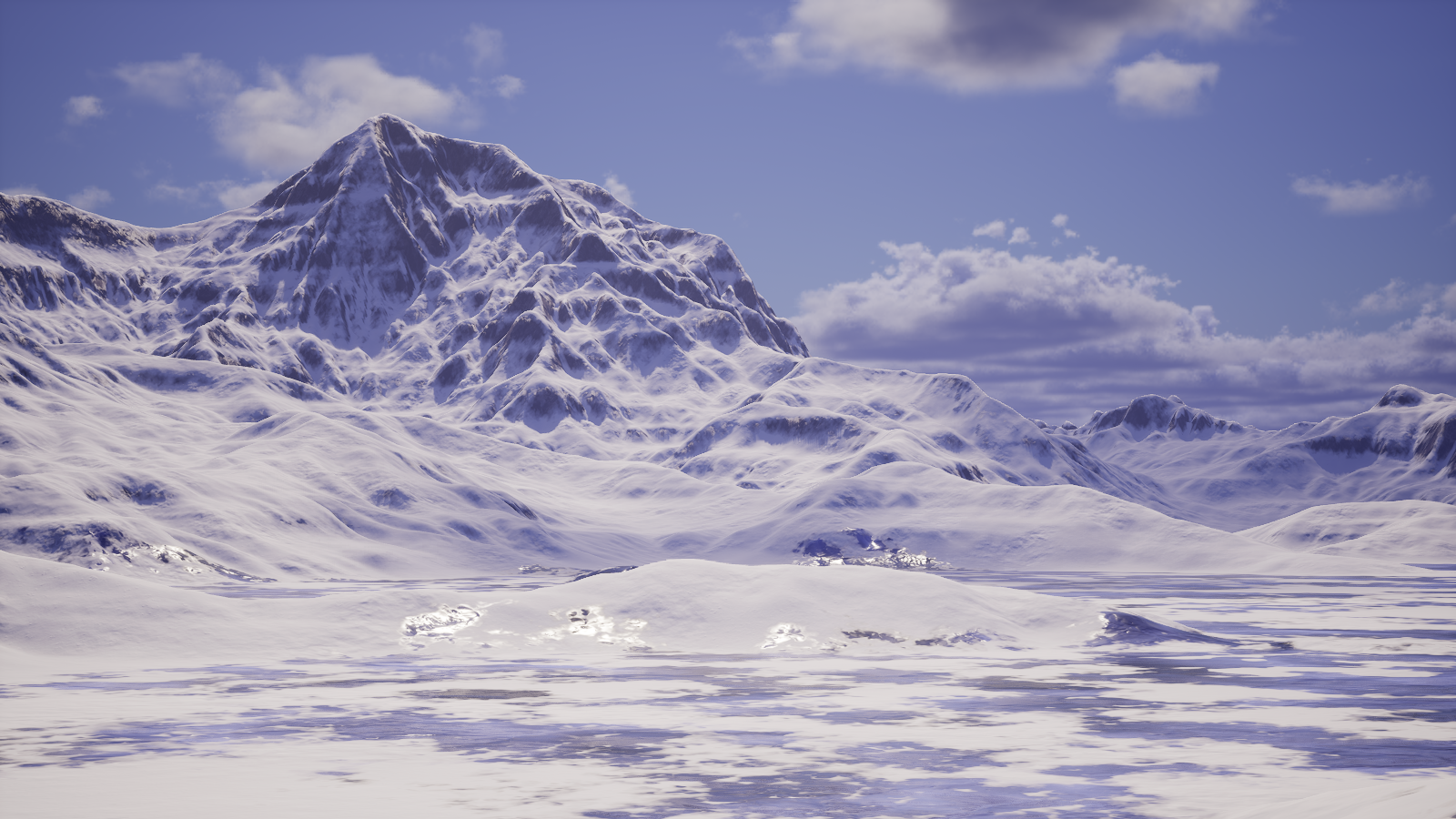
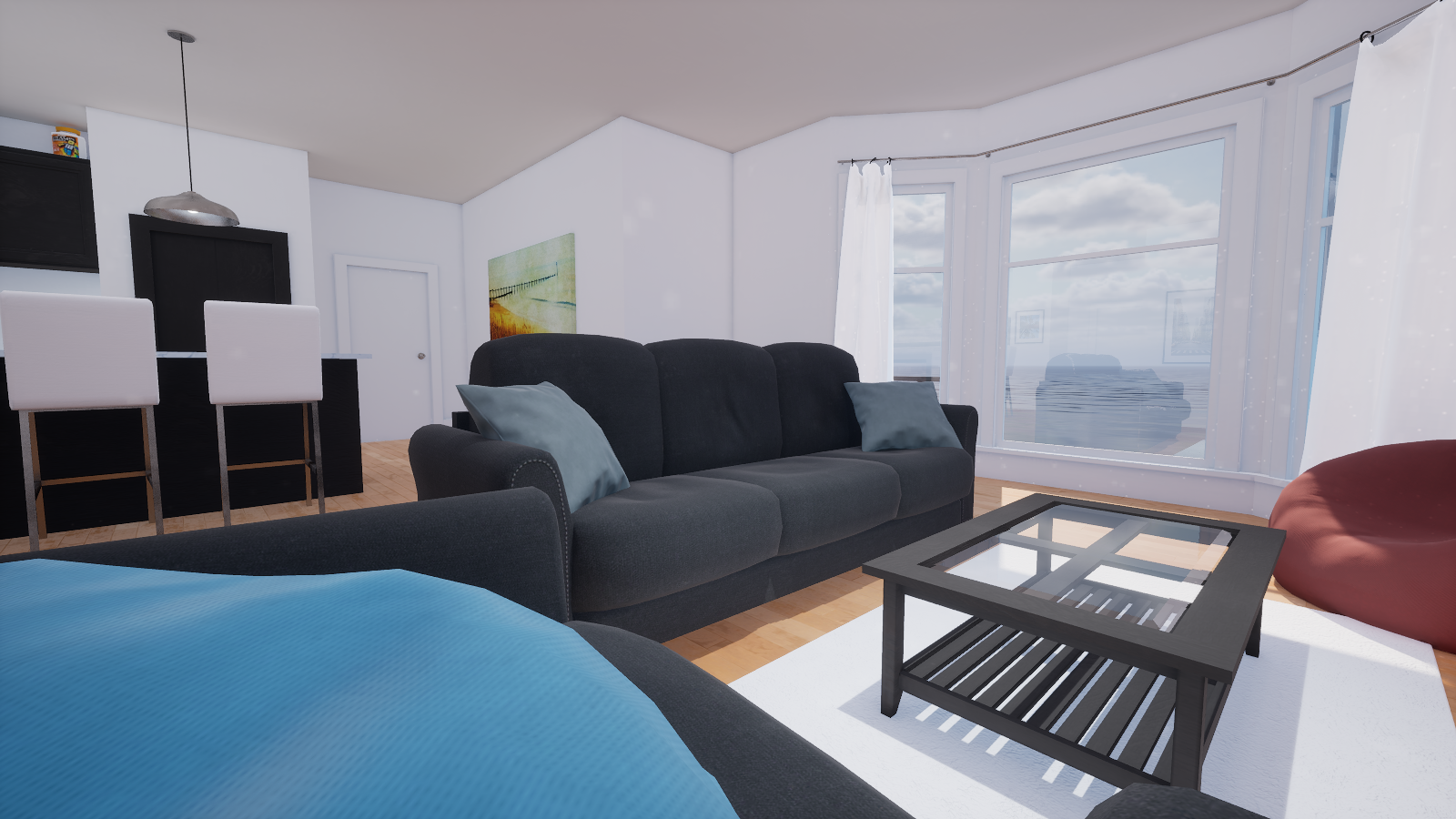
Environment menu★
Press I to open up the Environment menu.
Press Esc to open up the Pause menu.
Click the Edit Game button to open up the Edit Game panel.
Click the Edit Environment button on the top right corner, next to the close button, to open up the Environment menu.
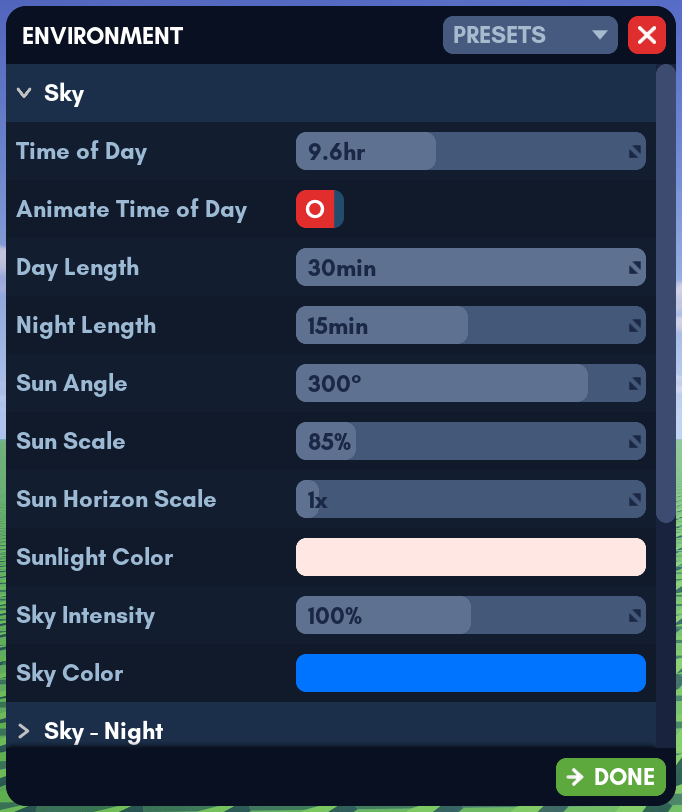
From there, you and anyone else with permissions can now edit the environment!
Environment presets★
Note
Some environment presets will not work if they are saved in a different environment.
Name your presets correspondingly to the environments they were from. For example, if you want to save the Grassy preset in the Plate environment, you should name your preset like this: Plate-Grassy.
Click the Presets button.
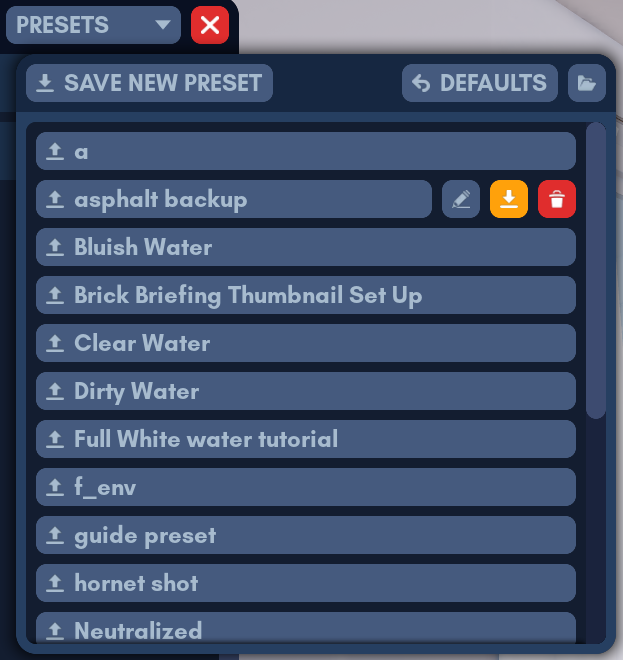
To save a new preset, click on the Save New Preset button.
To load a preset, click on the name of the Preset.
To manage preset files, hover over their names. Three buttons will appear:
- Rename
To rename a preset, click this button. Type the new name for your preset and press Enter to finish renaming the preset. Press Esc to cancel renaming the preset. - Overwrite
To overwrite a preset with your current configuration, click this button. To confirm overwriting the preset, click the Confirm Overwrite button. Otherwise, click the close button to cancel overwriting the preset. - Delete
To delete a preset, click this button. To confirm overwriting the preset, click the Confirm Deletion button. Otherwise, click the close button to cancel deleting the preset.
To return everything to default settings, click the Defaults button.
To open the file directory of these presets with your system's file browser, click the folder button.