Hammer★
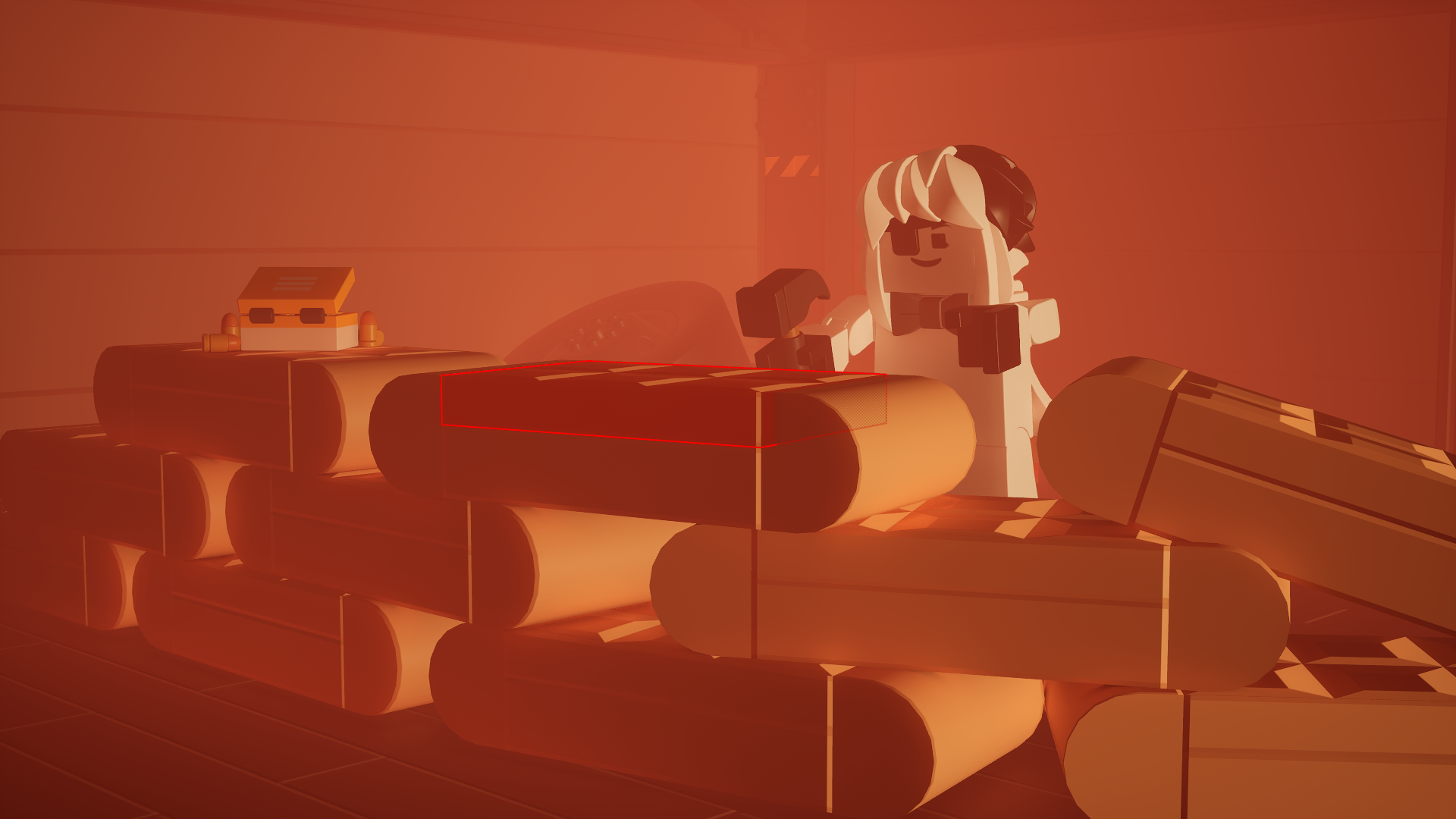
The Hammer can precisely delete objects one by one or be used as a tool for getting their ownership data.
Equipping the Hammer★
There are two ways to equip the Hammer.
Through a keybinding★
The Hammer's default equip keybind is X. You can change this in the Options menu.
Through the Tool Wheel★
Hold G to access the Tool Wheel. This temporarily frees your mouse.
Drag your cursor to the top-left corner of the tool wheel.
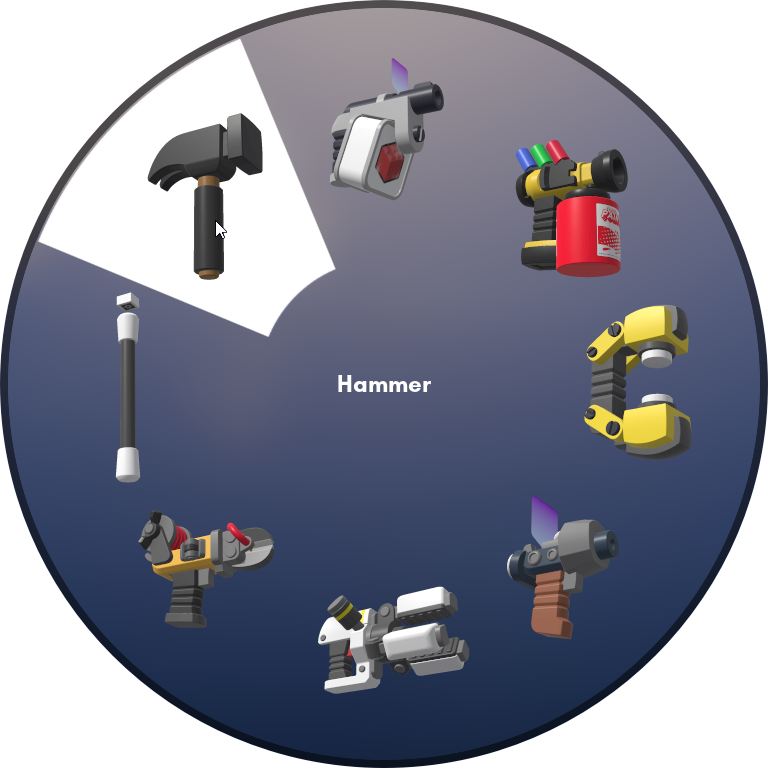
Hammer on the top-left corner of the Tool Wheel
Release G to equip the Hammer.
Deleting objects★
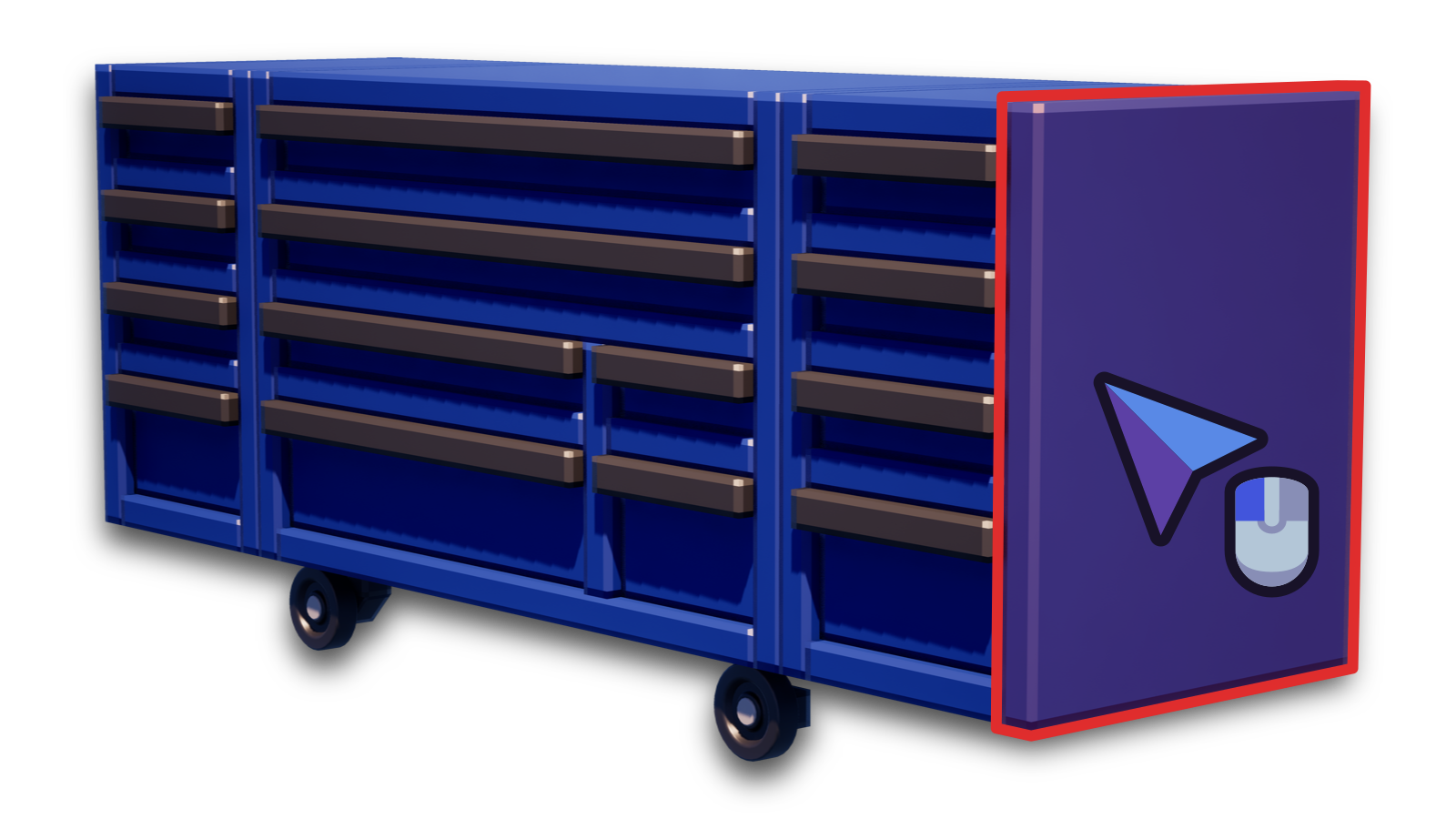
Click the Left Mouse Button to delete an object.
Deleting objects consecutively★
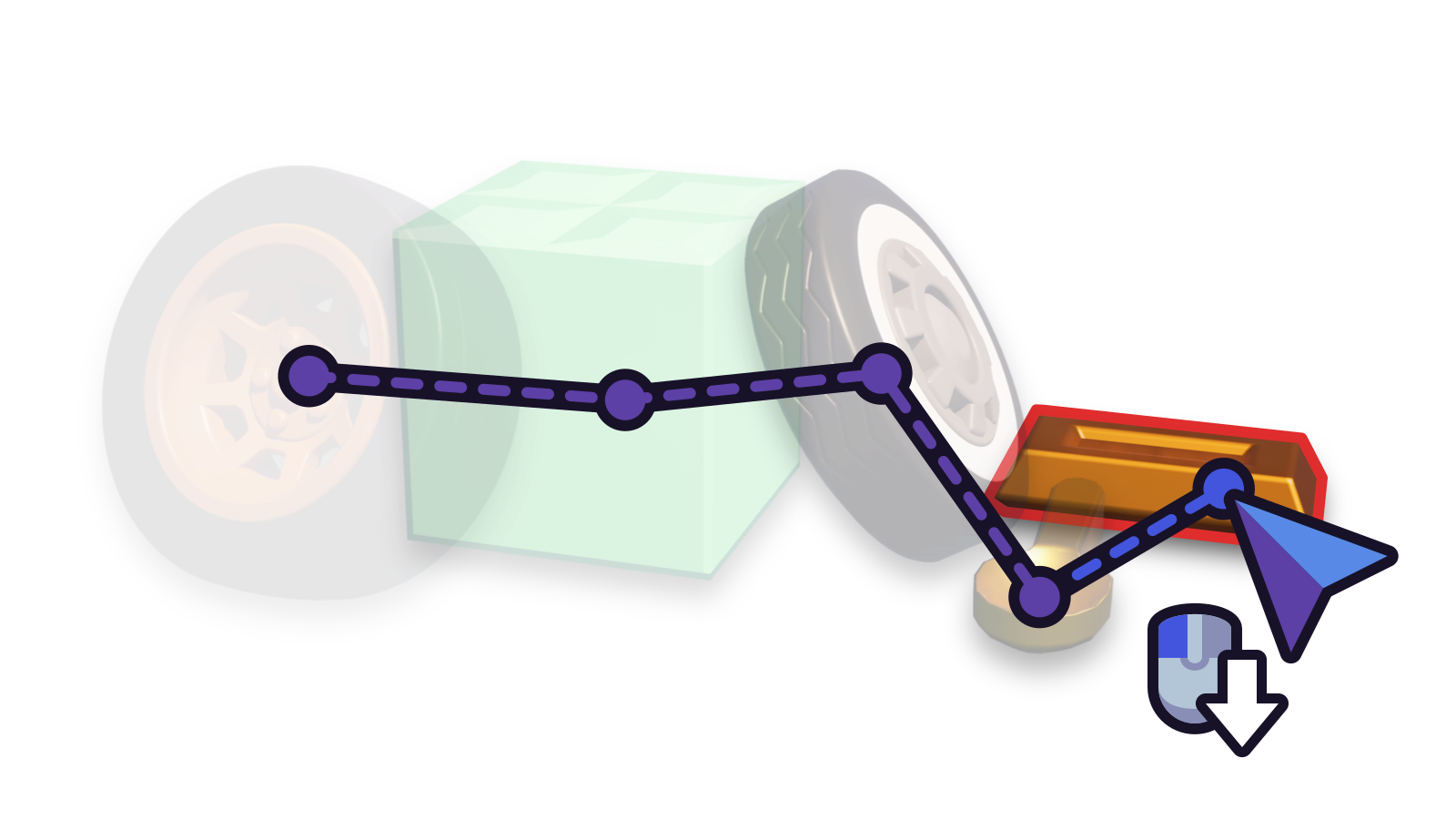
Hold the Left Mouse Button to consecutively delete multiple objects, like a macro assigned to your keyboard. There's a short delay between deleting objects.
Fetching ownership★
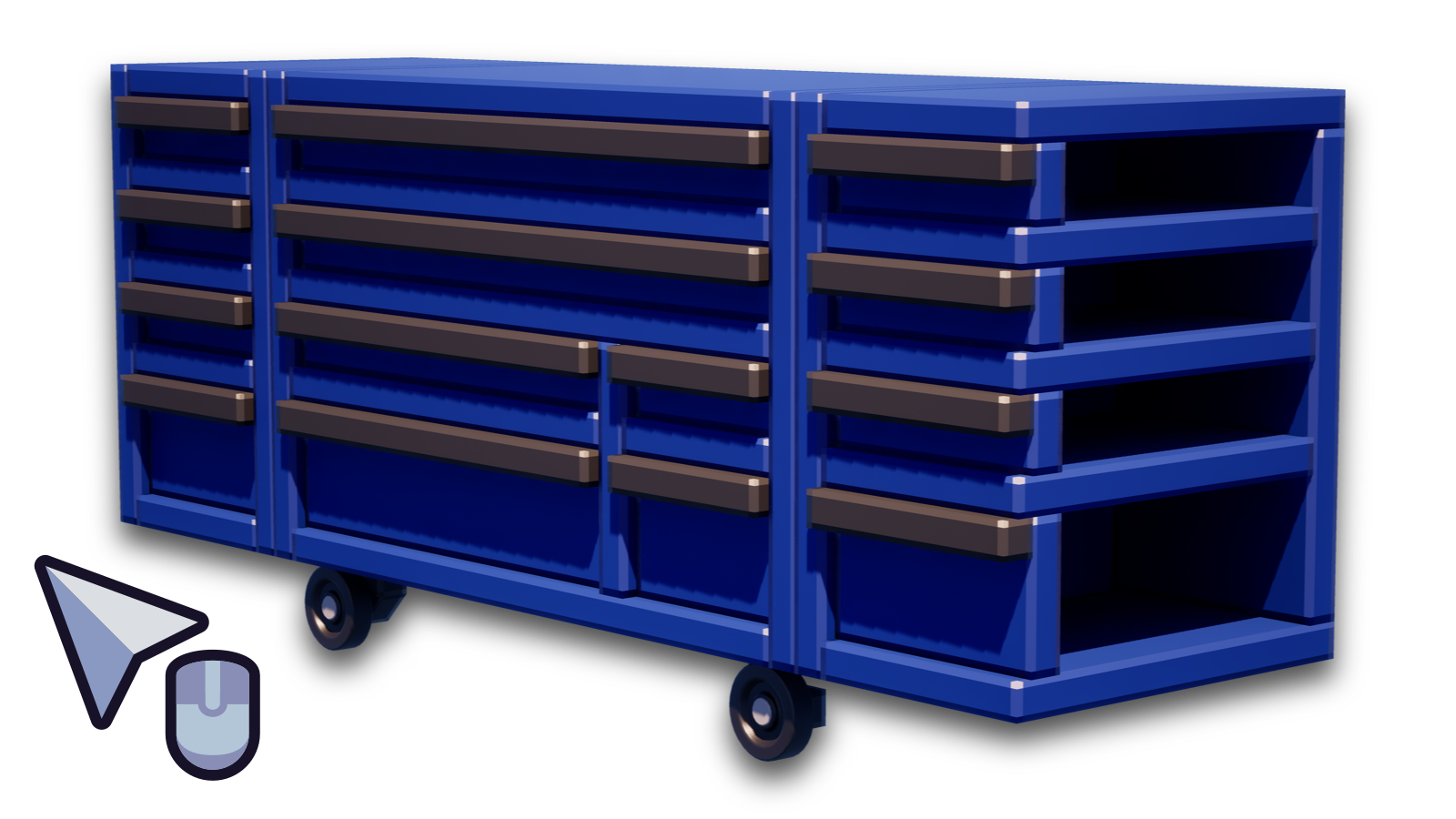
Click the Middle Mouse Button on an object to get its ownership information.
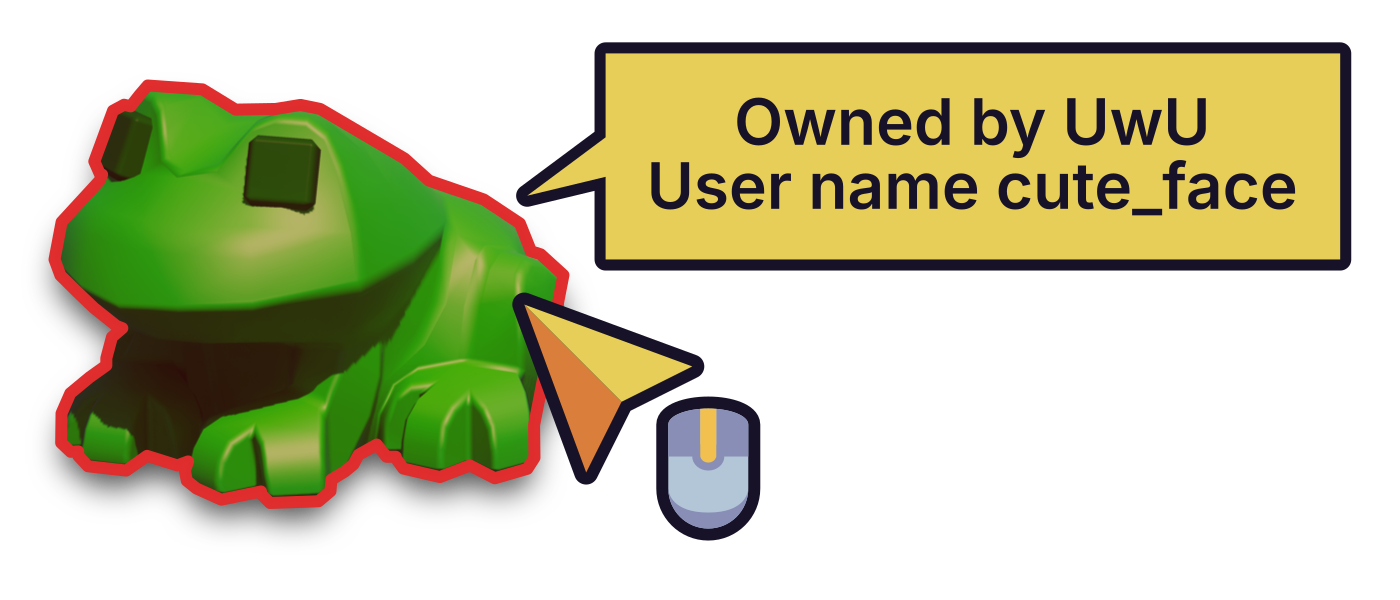
This will display a message in the center:
- The display name tied to the player who owns the brick. Can be the same across two users (with different numerical identifiers that aren't a part of the name).
- The unique username tied to the player who owns the brick. Can't be the same across two users.