Builder★
The Builder is a tool that can place and delete objects. This is the main tool that will be brought up if the active item in your quickbar is a brick, entity or a brick template.
Control Modes★
There are three control modes that cater to each player's style in different ways. The Mouse Mode is the default control mode.
You can change the control mode by pressing the keys shown for each control mode in the list below.
-
This mode is the default Builder control mode. Prioritizes mouse for building operations.
-
Prioritizes movement keys for building operations. This will let you easily track your object.
-
Precision Mode Num 0
Prioritizes keyboard for building operations. This will provide you with precision while building.
Press the keys shown again to exit back to Mouse Mode.
Placement Modes★
You can switch between placement modes using J.
Note: The game will fall back to Array Mode if you have an unresizable object equipped in the quickbar while Resize Mode is active.
-
This mode allows you to drag resize bricks on placement.
-
This mode allows you to place arrays of an object.
Place with Physics★
The Builder allows you to place prefabs as an entity. You can toggle this by pressing U
Grid Snapping★
Brickadia allows you to place bricks freely, but unlike a modeling program or a game that allows you to build everywhere with precision, every brick must snap to its corresponding grid.
The grid snap size will be factored in all actions involving the Builder.
Normal Modes★
Press C to cycle through these modes. The order is as follows:
1x -> 1/2 -> 1/5 -> 1/10 -> 1x -> ...
1x★
-
-

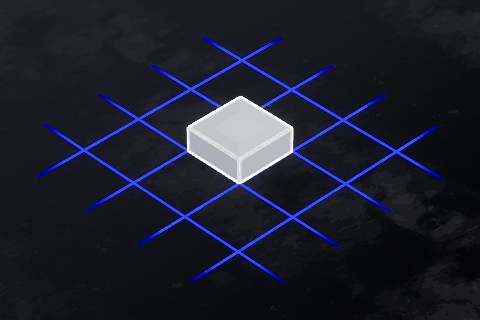
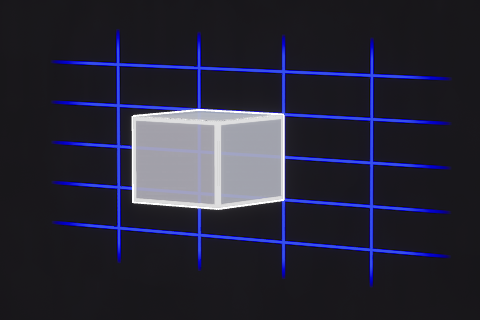
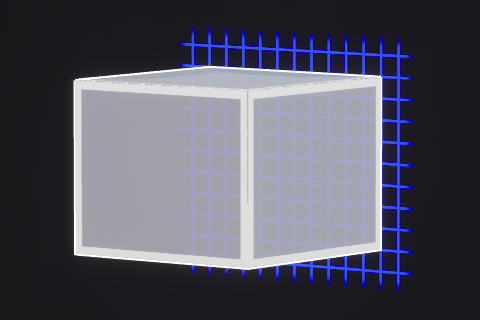
This snapping mode lets you snap to the grid by a 1x1f plate brick's height and width. This is the default mode.
All microbricks will snap on the corners of this grid.
1/2x★
-
-

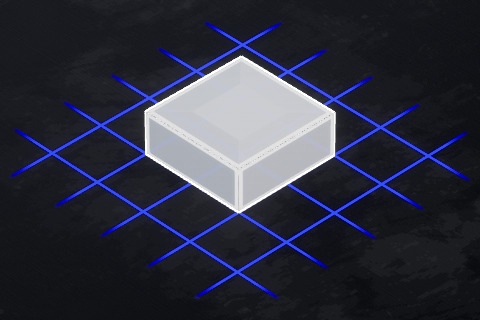
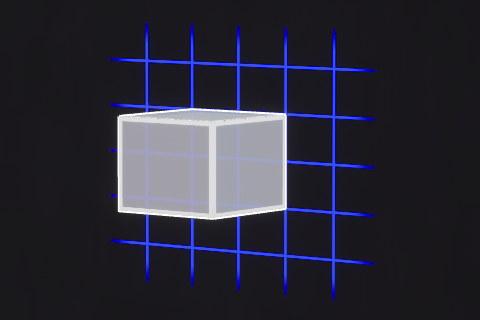
This snapping mode lets you snap to the grid by:
- a 1x1f plate brick's height vertically
- half of a stud's length horizontally
All microbricks will snap on the corners of this grid.
1/5x★
-
-
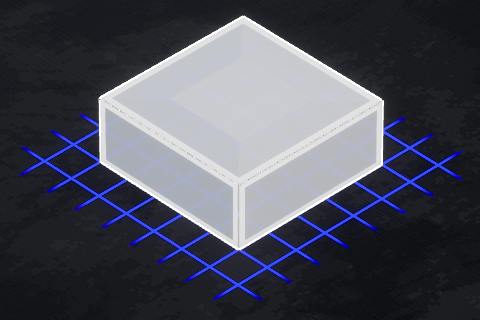
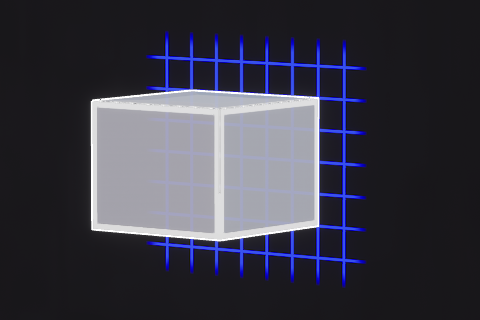
This snapping mode lets you snap to the grid by a fifth of a stud in every direction. This is the smallest bricks can get.
1/10x★
-
-
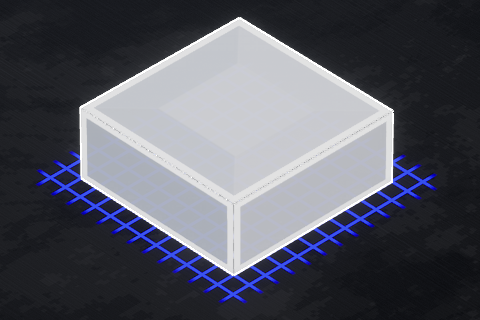
This snapping mode lets you snap to the grid by a tenth of a stud in every direction. There are no bricks that fall under this grid size, but there's still a lot you can do with this snapping mode.
Super Mode★
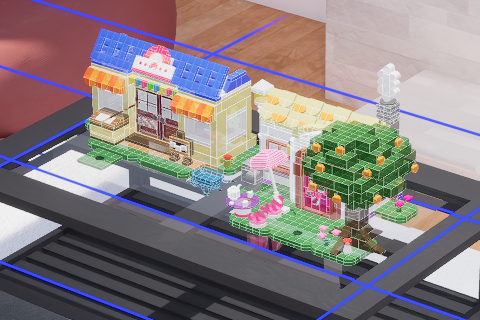
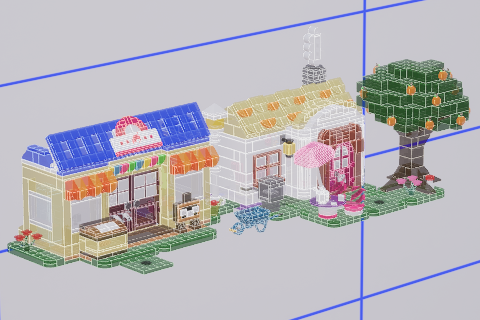
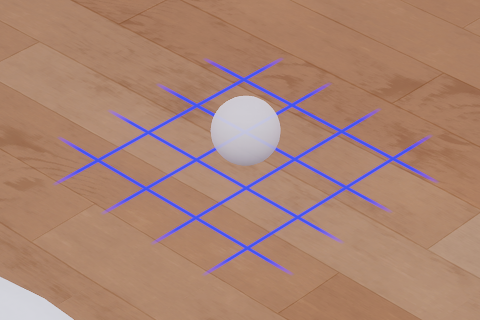
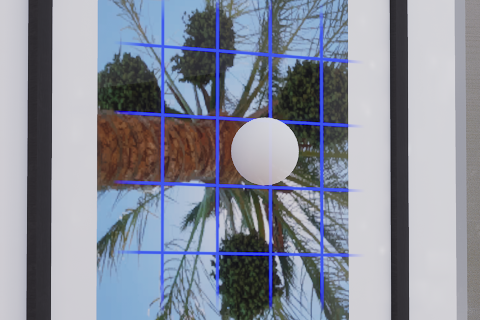
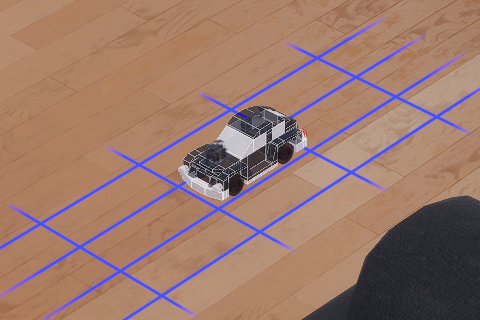
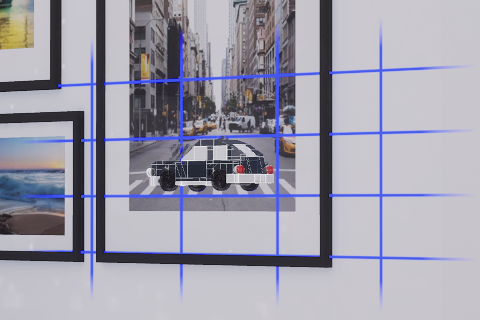
Hold C to activate Super grid snapping mode on the placer. This allows you to move the object you're placing by its own dimensions, overriding the normal grid snapping modes.

To switch back to the grid snapping mode you have previously used, tap C when you are still in Super grid snapping mode.
House example:
-
Horizontal
-
Vertical
Ball example:
-
Horizontal
-
Vertical
Car prefab example:
-
Horizontal
-
Vertical
Changing current color before placing★
Note
This is for changing the color of the object before placing, not after placing. You can access this same menu on the Painter.
Hold E for atleast half a second to open the advanced color and material selector. This will also temporarily free your cursor if you have Free Cursor off.
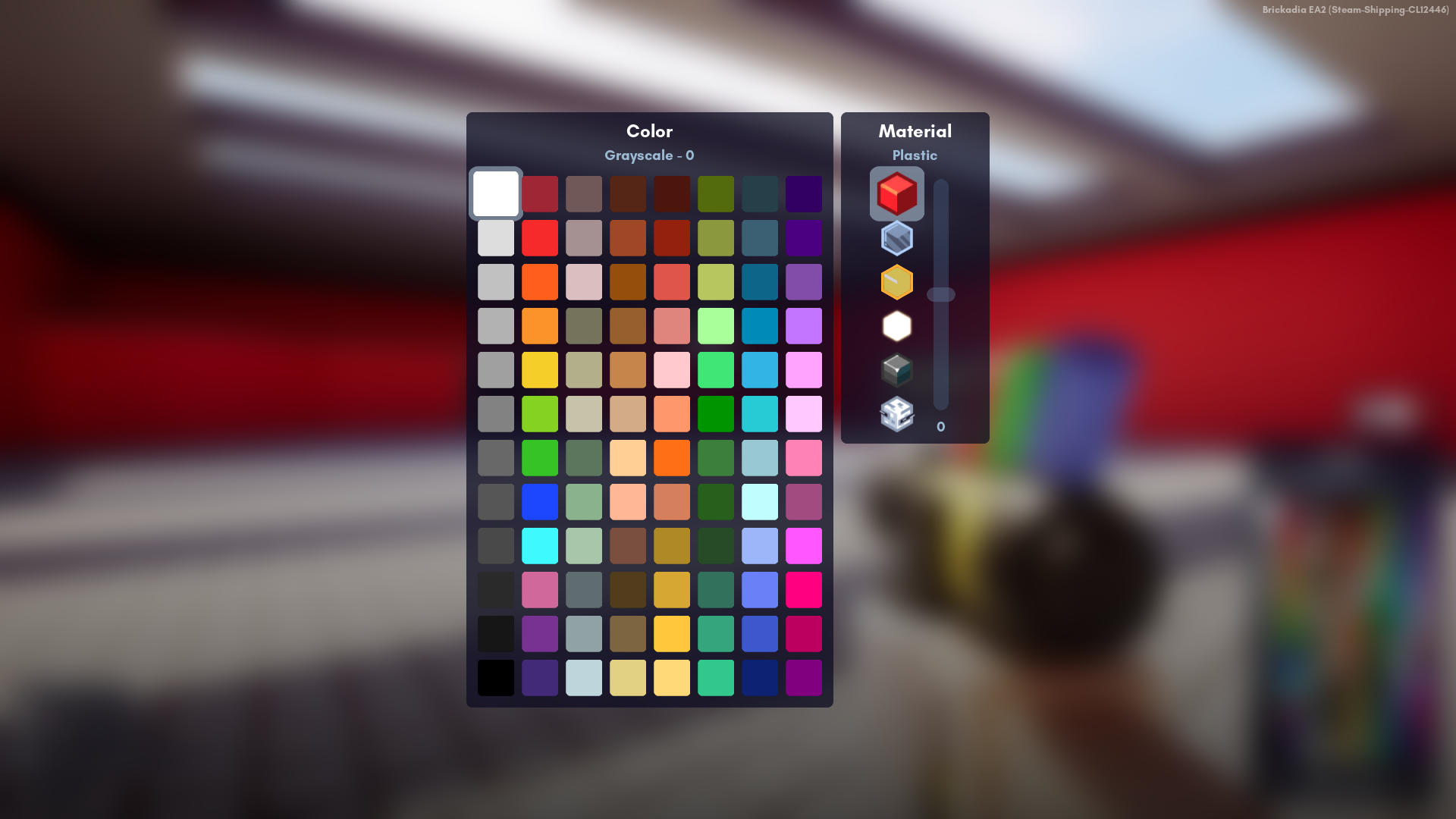
On the left, you will have the whole palette, enlarged. Click the Left Mouse Button on one of these colors to select them as the current color.
On the right is the material selector and the material intensity slider. You can choose one of the following materials:
 Plastic
No intensity support Glass
Glass
Intensity affects opacity Transparent Plastic
Intensity affects opacity Glow
Glow
Intensity affects emission level Metallic
Intensity affects roughness Hologram
Intensity affects opacity
To adjust the current material intensity, hold the Left Mouse Button on the slider knob and move your mouse up or down to select the material intensity you want for the current selected material. Release the Left Mouse Button when you are done.
When you are done selecting a color, a material or material intensity, simply release E.
Bricks and entities you place will take on that color, material and the intensity. Prefabs will not take on those attributes, as they can have multiple bricks of different colors and materials.